
Share a File or Folder from Windows Explorer
Share your files or folders with another user or team from Windows Explorer.
You can always add or remove roles from a fixed role as necessary, however this creates a Custom role.
The Profile should be connected to Altair One to share a file.
-
On the Home tab, click Open
MyFiles.
Your mounted Altair Drive files are displayed in a Windows Explorer.
-
Right-click the file or a folder and select Altair
One.
Figure 1. Context Menu Option 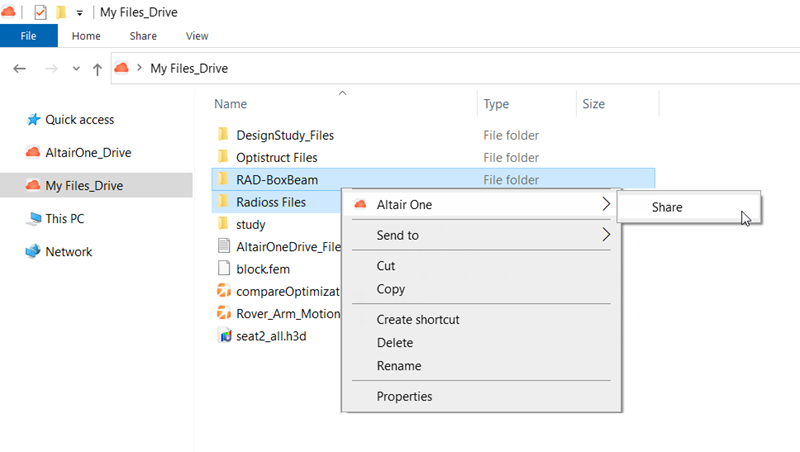
-
Select Share.
The Share dialog box is displayed.
Figure 2. Share File or Folder 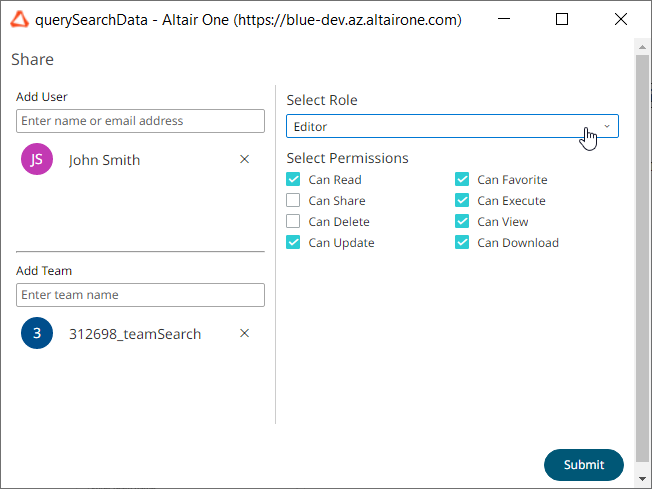
-
To share a file or folder with a user:
-
For Add User, begin entering the user name of a
user with whom you would like to share.
A list of matching user names are displayed.
Figure 3. Matching Users 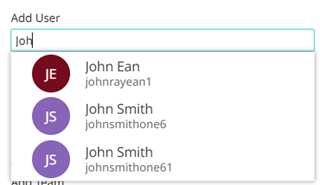
-
For Add User, begin entering the user name of a
user with whom you would like to share.
-
To share a file or folder with a team:
-
For Add Team, begin entering the name of the
team with whom you would like to share.
A list of matches are displayed.
Figure 4. Matching Teams 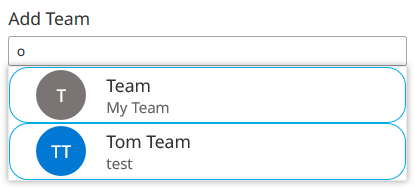
-
For Add Team, begin entering the name of the
team with whom you would like to share.
- For Select Role, assign permissions to the file or folder by choosing a role.
-
Click Submit.
The selected file or folder is shared and a notification is displayed.