Working with Construction History
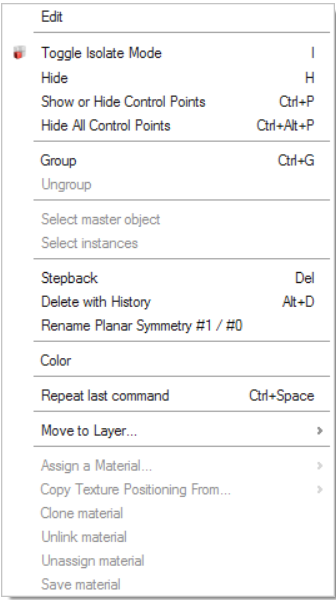
You can left-click or right-click an object in the construction history.
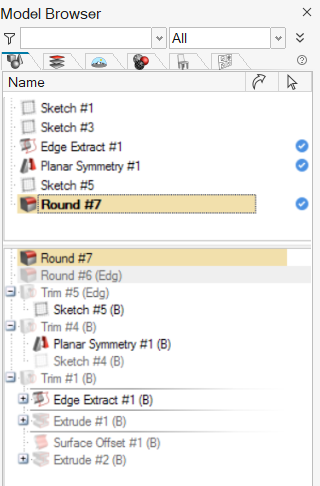
View an Object's Construction History
Left-clicking an object expands the levels of information about it in the tree.
-
Click + to expand the tree, or -
to collapse it.
Note: The tree may or may not be expanded. In the collapsed state, only the top-level objects are shown with a + next to their names.
Edit an Object's Construction History
Right-clicking an object opens a context menu with options to show and hide layers, edit parts, delete history, and return an object to a previous state. This can be useful if you want to create a new object from a particular state of an existing object.
Some options are locked and grayed out, depending on the type of object.
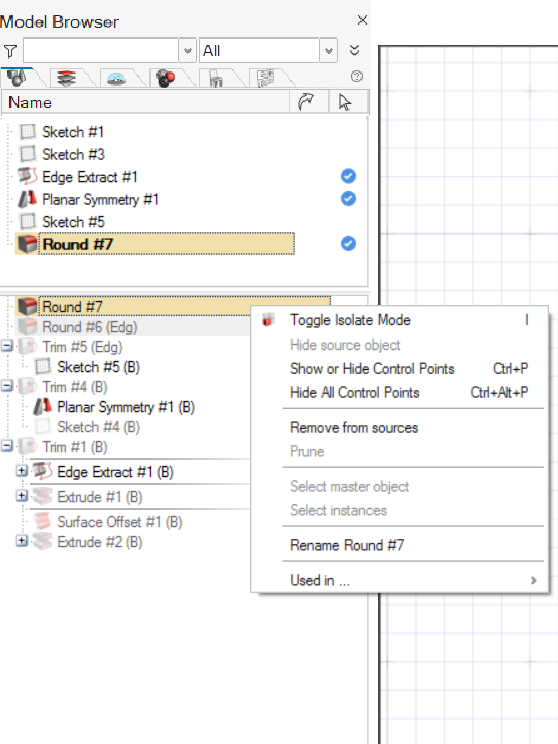
You can either right-click a master object or one of its instances:
- Right-clicking the master object unlocks the Select
instances option.
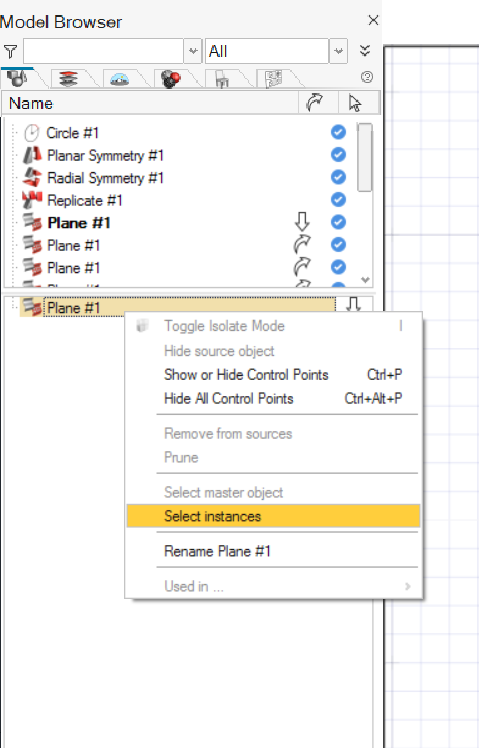
- Right-clicking one of the instances unlocks the Select master
object option.