Merge
Merge faces or PolyNURBS objects.
Merge Faces
Merge two or more adjacent faces to create a single face.
This is more efficient than using the Combine tool, which would require collapsing the construction history.
- On the ribbon, click the PolyNURBS tab.
-
In the Merge group, click the Merge
Faces icon.
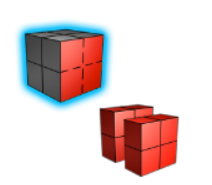
- Select the PolyNURBS object.
- Click a face to merge. Available faces to merge are highlighted in blue.
- Click another face to merge.
-
Right-click and mouse through the check mark to exit, or double-right-click.
Tip: If a face was previously split, any vertices that were added during the split operation will not be deleted automatically when the faces are merged. To remove unused vertices, press D to enter faces editing mode, and in the Edit PolyNURBS tool panel click the Clean Up button.
Merge PolyNURBS
Merge two or more PolyNURBS objects into one.
- On the ribbon, click the PolyNURBS tab.
-
In the Merge group, click the Merge
PolyNURBS icon.
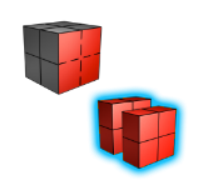
- Select the PolyNURBS object to add to.
-
Select the PolyNURBS objects to combine.
In the Model Browser, the last object you selected will now contain the merged PolyNURBS object.
- Right-click and mouse through the check mark to exit, or double-right-click.