Intersect
Retain only the intersecting portions of one or more objects. This is a "smart" intersect tool that automatically deletes excess faces, edges, and vertices.
You can create manifold solids from non-manifold objects (including trimeshes).
This tool is very useful for trimming PolyNURBS, as you can easily select lots of small pieces. The resulting object is no longer a PolyNURBS and cannot be edited like a PolyNURBS object.
-
Click the Intersect icon.
-
Select the source objects:
-
Select one or more objects. The selection is outlined in green.
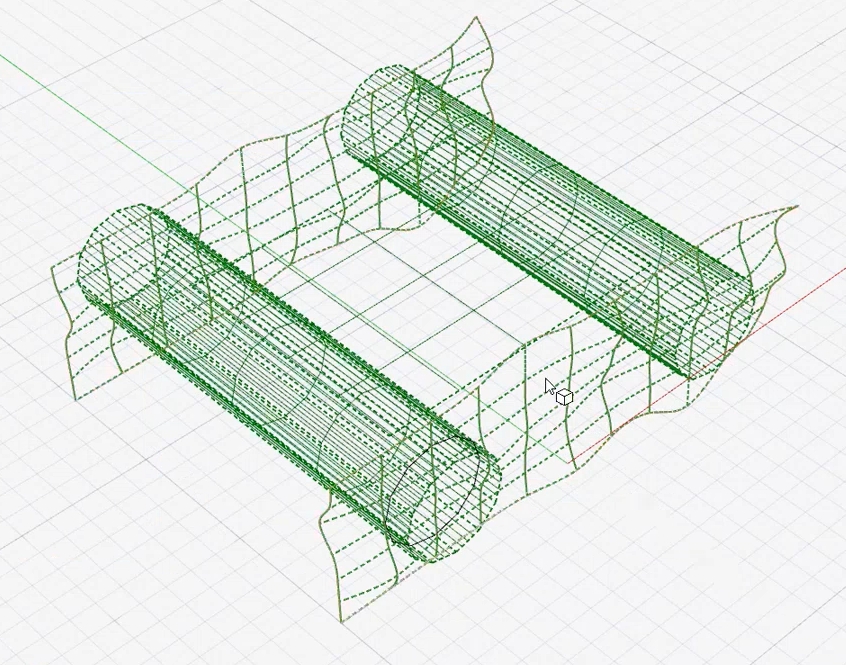
Note: The objects must be intersecting and define a closed volume. Trimeshes are supported.Tip: In general, you'll select multiple surfaces to create one or more surfaces or solids, but here are some special use cases:- You could select just one object to obtain its solid part or an internal subset.
- You could select a solid and deselect the Combined option to perform a Boolean intersection.
-
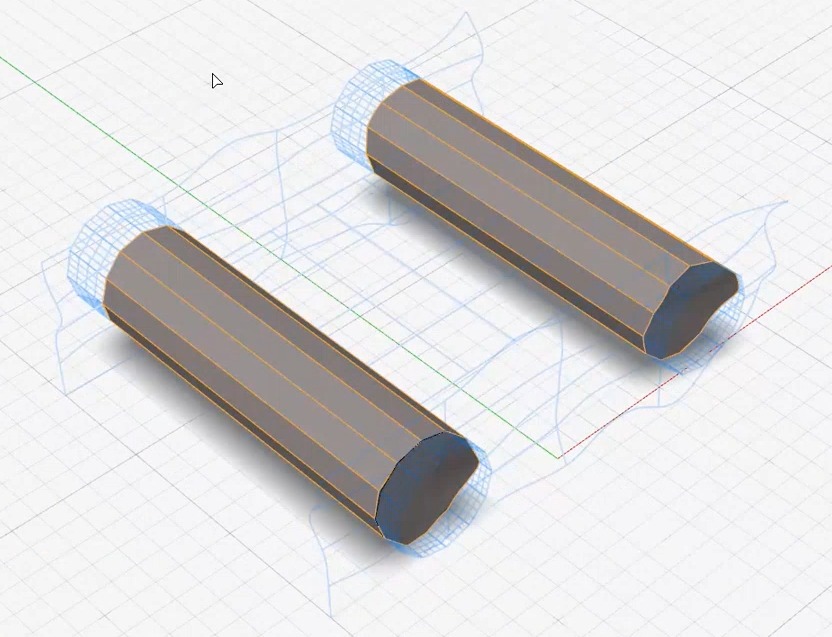
Right-click to confirm. By default, one or more solids are created and
displayed in gray.
-
Custom pieces are displayed in blue. To add a custom piece, click
it.
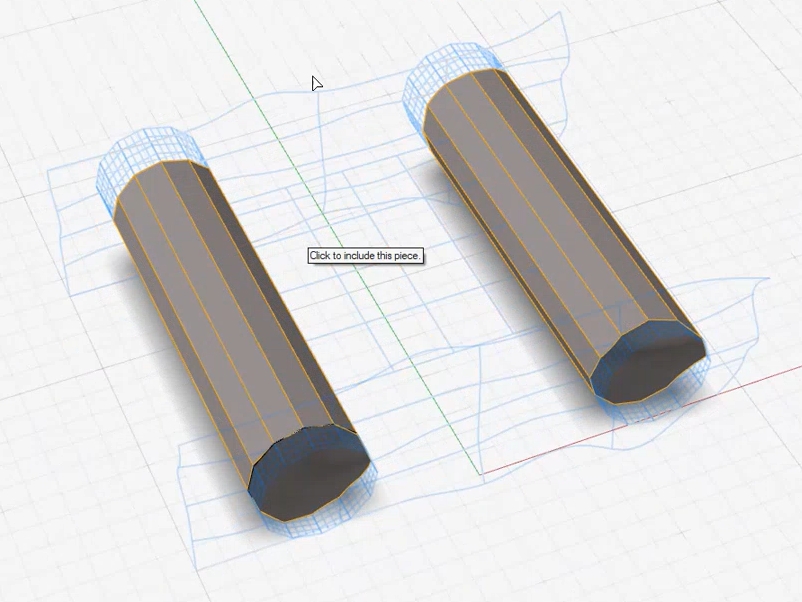
Once selected, the custom piece turns gray too. To remove a custom piece, click it again.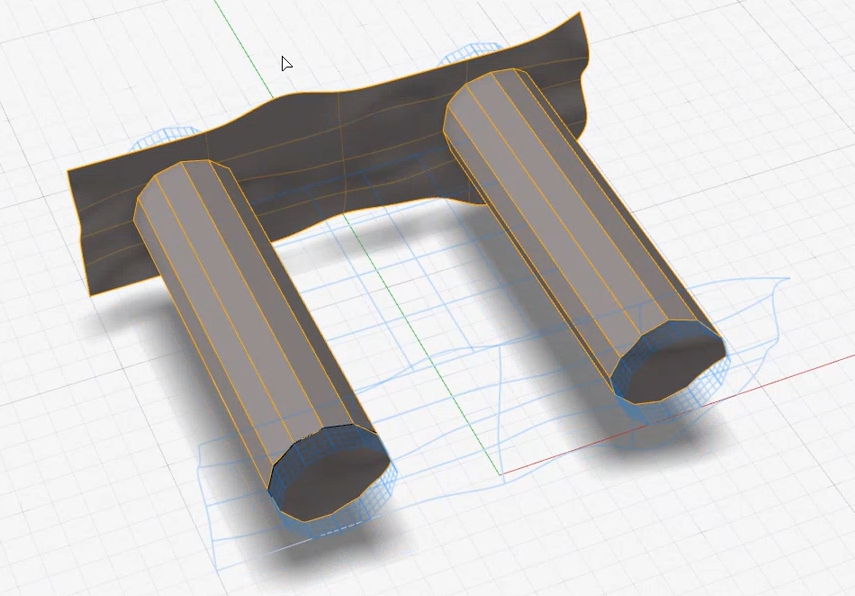
-
Adjust the selection:
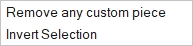
- To invert the selection, right-click and then select Invert Selection. This is a efficient way to obtain different shapes and results.
- To remove all custom pieces, right-click and then select Remove custom pieces.
-
Select one or more objects. The selection is outlined in green.
-
Choose from the following options:
Option Description Note Automatically create solid objects Automatically create one or more solids from the selected source objects. If there are nested solids, the largest one will be created. The tool recognizes a piece inside a solid and removes it automatically. In this example, the left and right ends of the orange plane inside the cylinders won't be included
.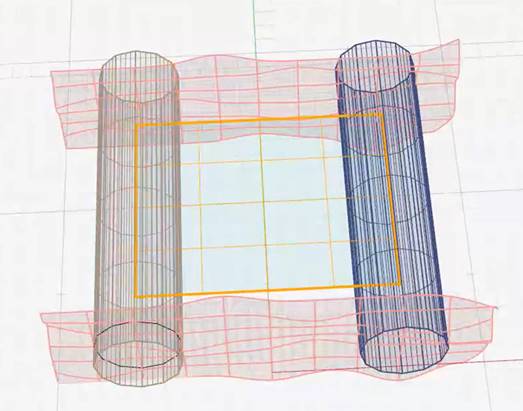
Instead, the plane ends along the intersections with the cylinders.
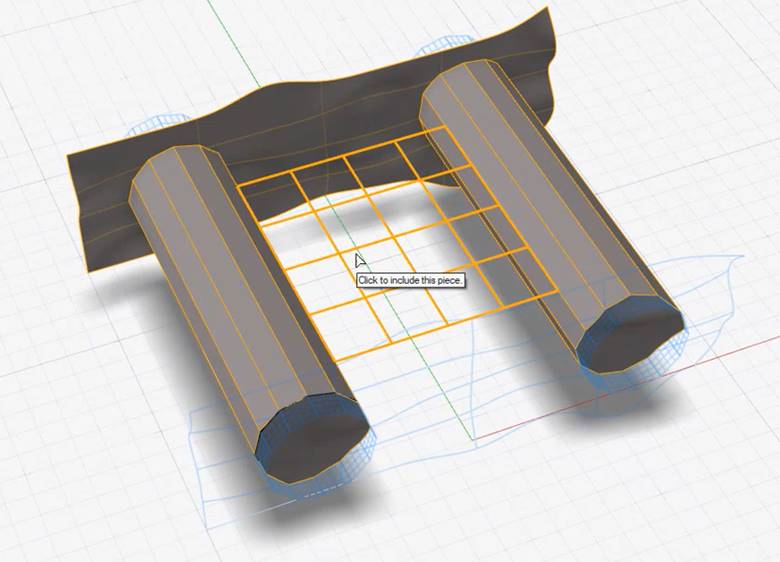
To include the end pieces inside the cylinder, deselect Automatically create solid objects; however, the result won't be a solid.
Combine Select this option to combine trimesh objects and and non-trimesh objects into one watertight output object. Deselect this option if you'd like to create one output for trimesh parts and a separate output for non-trimesh parts.
- Optional:
If you save the result as a Parasolid, this dialog is displayed:
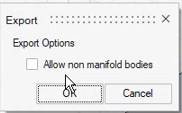
To create unique output objects when the result includes a nonmanifold object, select Allow non manifold bodies. An object is nonmanifold when its edges are shared by more than two surfaces.