
Open a File from Your PDM system
Open a model from your PDM system, or import a saved model from the PDM system and merge it with the current model.
First, you'll need to:
- Integrate Inspire Extrude with your PDM system.
- Add a repository.
- Log in to your PDM system.
-
Choose from the following options:
Option Description Open a model Select . The current file is cleared from memory.
Import and merge a saved model with the current model Select . 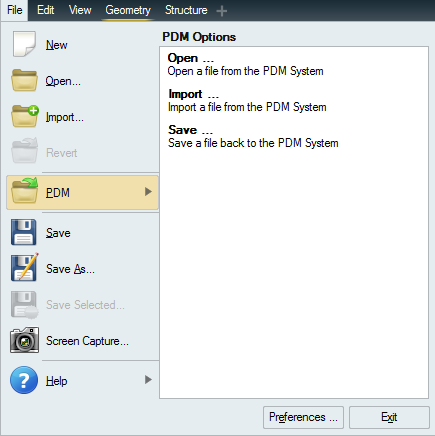
-
Select a repository.
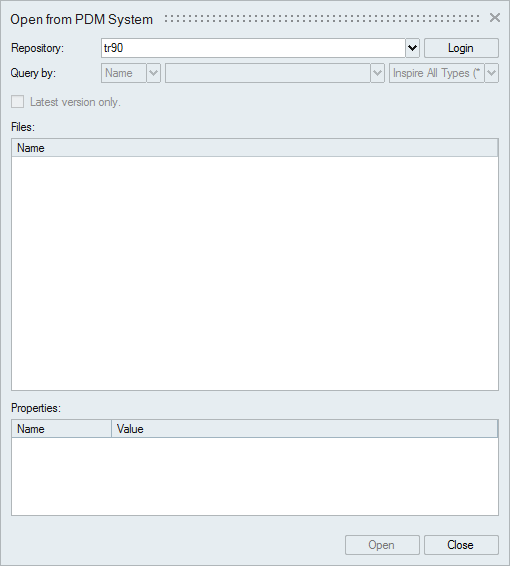
- Click Login and enter your credentials to log in to your PDM system. If you're unsure what your credentials are, check with your network administrator.
-
Perform a query to locate the file you want to open or import.
- Teamcenter: From the Type dropdown, select
Name or ID and press
Enter. You can also filter the results by file
type. Select Latest version only to display only the
latest version of a file in the list of results.

- Windchill: Enter a Part or document, file Name or ID, and press Enter. You can also filter the results by file type.
- Teamcenter: From the Type dropdown, select
Name or ID and press
Enter. You can also filter the results by file
type. Select Latest version only to display only the
latest version of a file in the list of results.
- The results of the search query are displayed under Files. Click the + on an assembly node to expand it. Properties are defined in your PDM system and are for display only.
- Double-click a file to open it, or select it and click Open (or Import). Select a node to open an entire assembly, or a single file to open a part.
Tip:
- Select Check for updated parts on the Open from PDM System window to automatically refresh the query results. Out-of-date parts are shown in red in the list of files. You can adjust how often to check for updates using the Timer setting under .
- You can select a part, name, or ID you have previously searched for from the drop-down list.
- In Teamcenter, revisions of a file are shown as children under the parent node. In Windchill, the parent node is a container. The actual file and all of its revisions are listed under the container node.