Depuis la version 2026, Flux 3D et Flux PEEC ne sont plus disponibles.
Veuillez utiliser SimLab pour créer un nouveau projet 3D ou pour importer un projet Flux 3D existant.
Veuillez utiliser SimLab pour créer un nouveau projet PEEC (pas possible d'importer un projet Flux PEEC existant).
/!\ La documentation est en cours de mise à jour – des références au 3D peuvent subsister.
GUI Mode
In order to install Altair Flux Version 2026, follow these instructions:
- Close all the applications in use
-
Download the Altair
Flux
2026 installer: hwFlux2026_linux64.bin
from the Altair One site: https://altairone.com/
And save it locally - Execute the file hwFlux2026_linux64.bin
-
- Select a language
- Click on the OK button
-
In the Altair
Flux
2026 – Linux 64-bit window
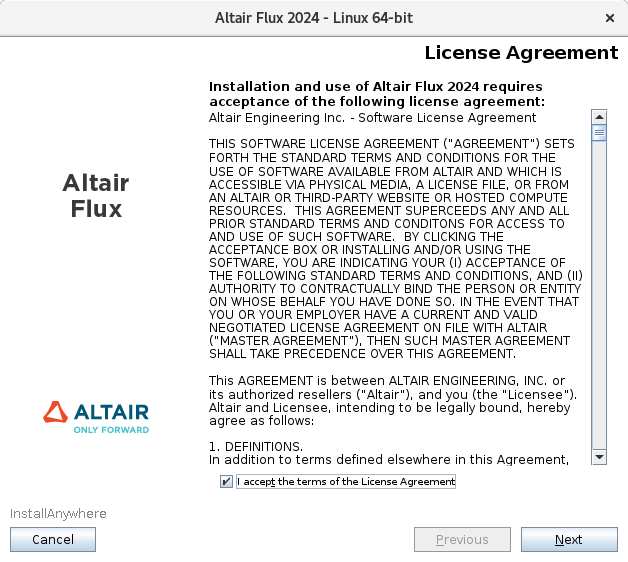
(License Agreement panel):
- Read through the license agreement and if you accept the terms of the License Agreement, then check the I accept the terms of the License Agreement box
- Click on the Next button to start with the Altair Flux 2026 installation
-
In the next Altair
Flux
2026 – Linux 64-bit window
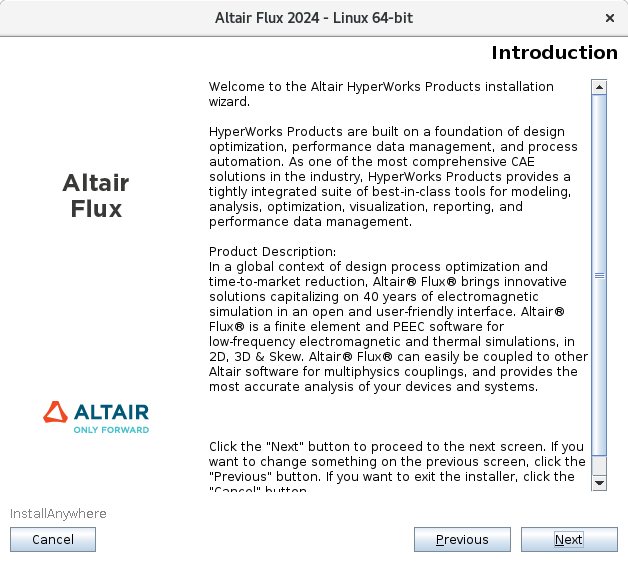
(Introduction panel):
- Read the introduction and click on the Next button to continue with the Altair Flux 2026 installation
-
In the next Altair
Flux
2026 – Linux 64-bit window
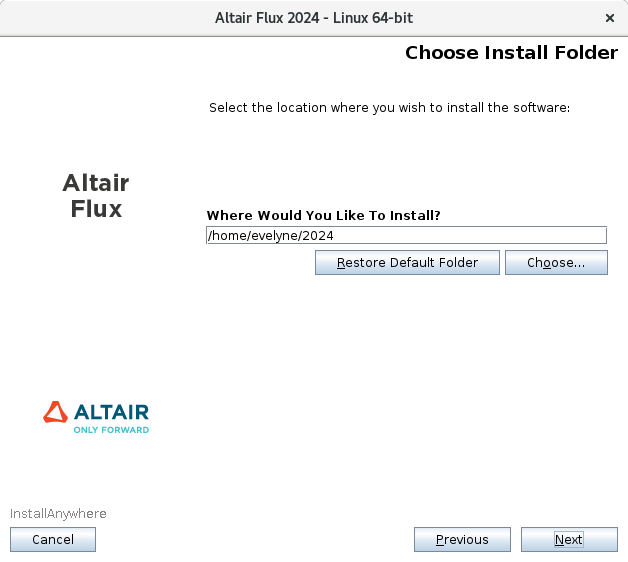
(Choose Install Folder panel):
- Choose an installation directory:
- By default:
- with an unprivileged account: the installation directory is /home/<username>/2026
- with the root account: the installation directory is /root/2026
- You can specify another installation directory, however, make sure that the full directory path does not include any special characters, then click on the Choose button
- By default:
- Click on the Next button to continue with the Altair Flux 2026 installation
- Choose an installation directory:
-
In the next Altair
Flux
2026 – Linux 64-bit window
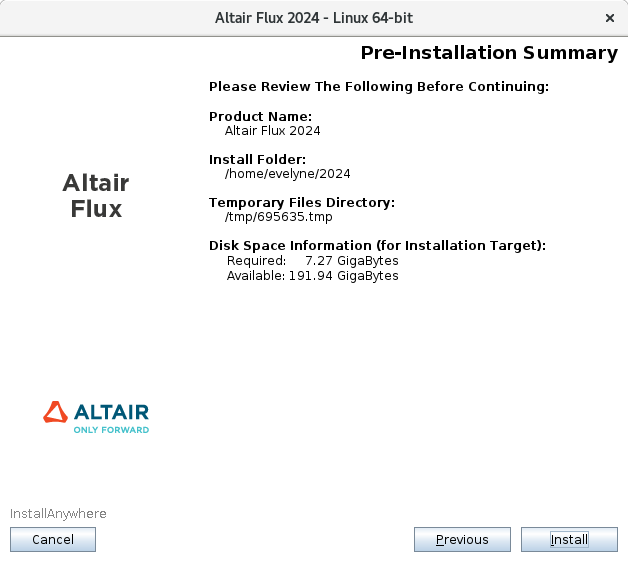
(Pre-Installation Summary panel):
- Review the installation details and click on the Install button to start the Altair Flux 2026 installation
-
In the last Altair
Flux
2026 – Linux 64-bit window
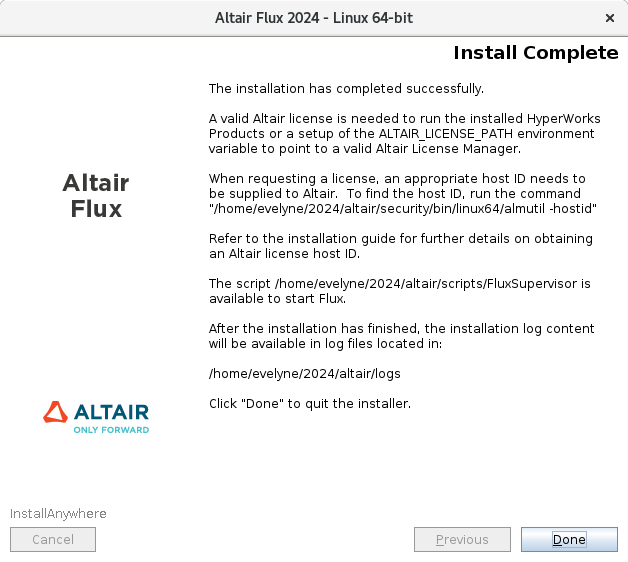
(Install Complete panel):
- Click on the Done button to complete the Altair Flux 2026 installation and exit the installer