
Flux mesh import workflow
Introduction
This section presents the steps to follow in Flux to import the mesh through the Nastran file.
Workflow
In the following table, the steps to follow in Flux for a nominal scenario are
presented:
-
- Open Flux, out of the Modeler context
- Import the mesh:
- Select the Nastran (or OptiStruct) file to import
- Define the coordinate system and units if necessary
- Change the Face split angle if necessary: this angle corresponds to the minimal angle of facets* separation (two facets defining an angle superior or equal to this value will be separated to two faces. For an inferior angle, the facets are merged)
- Center or not the geometry
- Verify or not the geometry
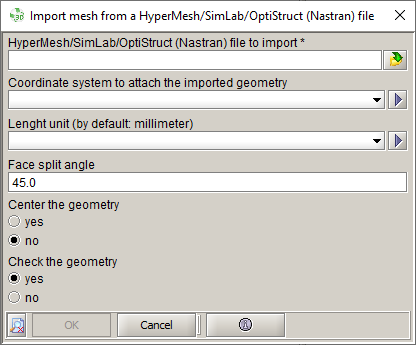
That allows doing a "fast & quick" check of the geometry defaults: superimposed points, intersections between lines. To make a more complete check, launch the command:
After the import, we recover in Flux:- The mesh elements
- A "mesh object" containing the imported mesh
- The lines, faces from the facets merge and the volumes from SimLab/HyperMesh components
- The volume regions from the components
* A facet corresponds to an elementary face defined by a mesh surface element
- It is possible to create the infinite box in Flux after mesh import (if air
box has not been created in SimLab or HyperMesh):
- Create infinite box:
-
Complete infinite box to generate the air volume and the associated mesh:
Choose the option:
Add geometry and mesh after mesh import: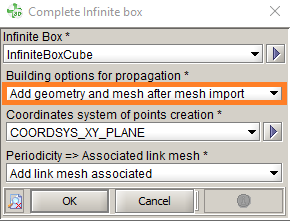
- Create infinite box: