
View Logs of a Job
View logs of a job with the action id, date and time. Visualize logs while the job is running and download them for further analysis.
-
On the Jobs page, click the job
Name link.
Figure 1. Job Summary 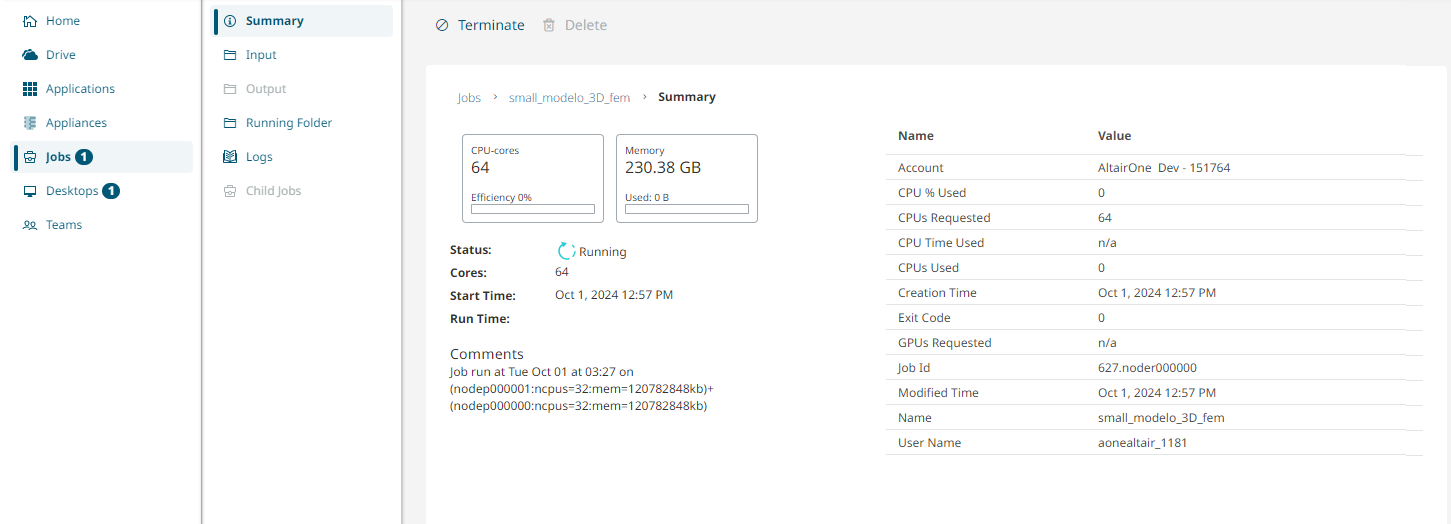
-
On the job's Summary tab, view the job metadata such as
job name, status, CPU-cores efficiency, and memory usage.
- Click Terminate to end the running the job.
- Click Delete to delete the completed job.
Note: Click Back to jobs list to return to the jobs list. The secondary navigation displays the application-specific options again. -
Select Logs to view the record of actions performed for
a job.
Figure 2. Job Logs 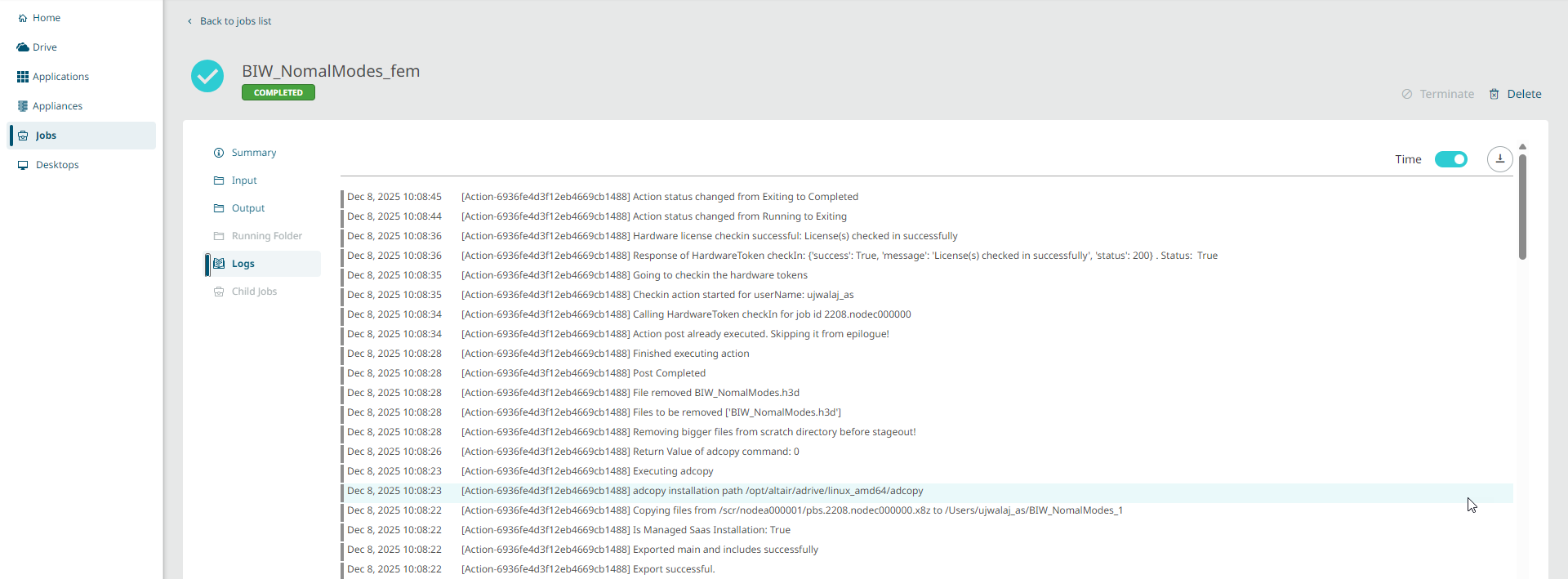
- Use the Time toggle to enable and disable the display of date and time for each action.
- Click
 to download the log file to your local
system.
to download the log file to your local
system. - Click
 to refresh the logs of a running job.Note: The refresh button is available for the
running job only.
to refresh the logs of a running job.Note: The refresh button is available for the
running job only.