
Render an Animation
You can render the entire scene or selected objects (with materials) as one image file, render the desired animation frames (with materials) as .png files, or render the entire animation (without materials) as a .mp4 file.
Render One Image
You can render the entire scene or selected objects in the scene (with materials) to produce one image file.
-
Do one of the following:
To Do this Render the current view - Press Ctrl+R.
- On the Rendering tab, click
the Render Image icon.
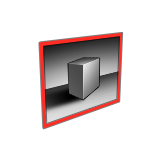
Render selected objects - Select the objects you'd like to render.
- On the Rendering tab, click
the Render Image icon.
The Darkroom window is displayed:- To the bottom left of the current rendering, the status is displayed, including information about the rendering engine, number of samples, remaining time, and elapsed time.
- To save the rendering as an image file, click Save As. You can save the rendering in the following formats: .jpg, .png, .hdr, .exr, .tiff, .tga, and .bmp.
Render the Animation
Use the Render tool to render an ainimation, with materials, as an .mp4 file. This method produces a high-quality rendering, but can take a long time to process.
-
On the Animation tab, select the
Render tool.

The Render Animation window opens. - Choose the folder where you'd like to save the animation.
- By default, the animation is saved as both an .mp4 and .png files, but you can disable the creation of the .png files by deselecting Saves frames as PNG.
- If you want to render more quicky, select Skip frames that are already rendered.
- Click OK to start the rendering.
The mp4 file is saved into the same folder of the .iStudio/.iRender scene file. The .png files are saved in a subfolder named <scene filename>.frames. Each file takes the same name as your model and is appended with the frame number (for example, Model_fr_1.png).
Render the Animation in Real Time
Use the Render in Real Time tool to quickly render an animation, without materials, as an .mp4 file. This produces a lower-quality animation than regular rendering, but much more quickly.
-
On the Animation tab, select the Render in
Real Time tool.

The Render Animation window opens. -
Choose the folder where you'd like to save the animation.
You can see the progress of the rendering as the Current Time marker moves on the animation timeline.
- By default, the animation is saved only as an .mp4 and, but you can enable the creation of the .png files as well by selecting Saves frames as PNG.
- If you want to render more quicky, select Skip frames that are already rendered.
- Choose a setting for the Motion Blur Quality.
- Click OK.