Inputs
Standard inputs ––––--
Line-Line voltage, h1 rms
Power supply frequency
The value of the power supply frequency of the machine: “Power supply frequency” (Power supply frequency) must be provided.
The power supply frequency is the electrical frequency applied at the terminals of the machine.
Operating mode
The computation of the test « Performance Mapping / Sine Wave / Motor / T(Slip) » is performed by considering the machine operating mode. The selected operating mode can be “Motor”, “Generator”, “Brake”, “Motor & Generator”, “Motor & Brake” or “Full”.
According to the operating mode the resulting range of slip is automatically defined as illustrated in the following table.
| Operating range | Resulting range of slip |
|---|---|
| Motor | [0, 1] |
| Generator | [-1, 0] |
| Brake | [1, 2] |
| Motor & Generator | [-1, 1] |
| Full | [-1, 2] |
User working point - Slip
The value of the targeted slip for the user working point “User working point - Slip” (Slip at the targeted working point) must be provided. This value must be in the range of slip corresponding to the selected operating mode.
Advanced inputs ––––--
Slip distribution mode
- Slip distribution mode = Logarithmic
When “Logarithmic” is selected, the distribution of the computed points is automatically done. The number of computations to be done in the slip range must be set in the next field: “No. comp. in slip range”.
- Slip distribution mode = Linear
When “Linear” is selected, the distribution of the computed points is automatically done. The number of computations to be done in the slip range must be set in the next field: “No. comp. in slip range”.
- Slip distribution mode = Table
When “Table” is selected, the list of slips to be considered must be defined by using the next field: “Slip table” and by clicking on the button “Set values”.
Two ways are possible to fill the table: either filling the table line by line or by importing an excel file where all the slips to be considered are defined.
 |
|
|---|---|
| 1 | Select the “Table” option. |
| 2 | Click the button “Set values” in the field “Slip table” to open a dialog box to define the list of slips to be considered. Refer to the next illustration which shows how to fill the Slip table. |
| 1.1 | Dialog box opened after clicked on the button “Set values” in the field “Slip table”. |
| 1.2 | Browse the folder to select an Excel file which is defined the list of slips. |
| 1.3 | Button to refresh the table data when the considered Excel file has been modified. |
| 1.4 | Fields to be filled with data to describe the slips to be considered. |
| 1.5 | Excel file template to define the list of slips. Excel template used to import a list of slips is stored in the folder Resource/Template in the installation folder ofFluxMotor. |
No. of comp. in slip range
When the slip distribution mode is “Logarithmic” or “Linear”, the “No. comp. in slip range” (Number of computations for the whole domain corresponding to the slip range) must be provided.
The default value is equal to 29 when the selected operating mode is “Motor & Generator” or “Motor & Brake”
The default value is equal to 44 when the selected operating mode is “Full”.
Op. - Slip table
When the choice of point distribution mode is “Table”, the list of slips to be considered “Slip table” (Slip table) must be provided. Refer to the above section 3) Slip distribution mode = Table
Skew model – No. of layers
Rotor initial position
The initial position of the rotor considered for computation can be set by the user in the field « Rotor initial position » (Rotor initial position). The default value is equal to 0.
The range of possible values is [-360, 360].
The rotor initial position has an impact only on the induction curve in the air gap.
Mesh order
To get the results, Finite Element Modelling computations are performed.
The geometry of the machine is meshed.
Two levels of meshing can be considered: First order and second order.
This parameter influences the accuracy of results and the computation time.
By default, second order mesh is used.
Airgap mesh coefficient
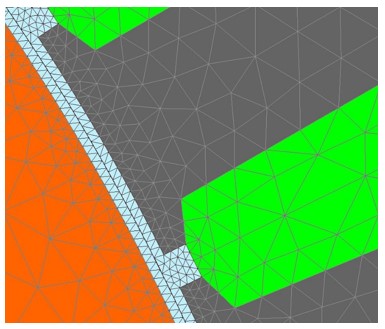
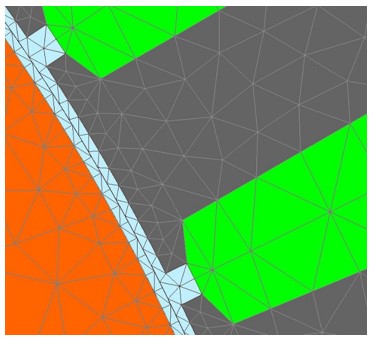
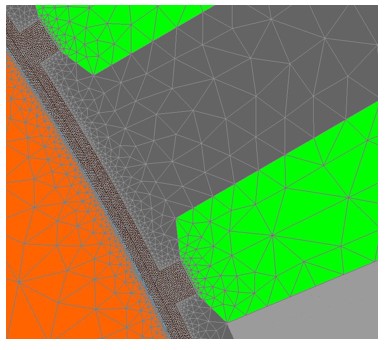
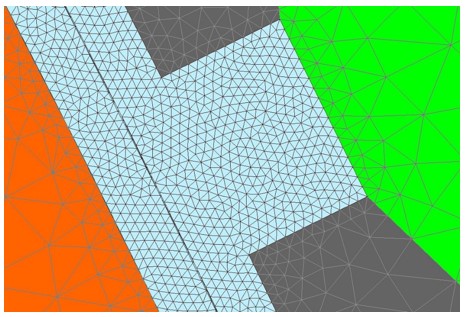
The advanced user input “Airgap mesh coefficient” is a coefficient which adjusts the size of mesh elements inside the airgap. When the value of “Airgap mesh coefficient” decreases, the mesh elements get smaller, leading to a higher mesh density inside the airgap, increasing the computation accuracy.
The imposed Mesh Point (size of mesh elements touching points of the geometry), inside the Altair Flux software, is described as:
MeshPoint = (airgap) x (airgap mesh coefficient)
Airgap mesh coefficient is set to 1.5 by default.
The variation range of values for this parameter is [0.05; 2].
The impact of the airgap mesh coefficient on resultant meshing is illustrated bellow: