Field Data Manager represents the lowest level of coupling, without using a coupling
interface itself. You can manually export field data such as velocity, vorticity, or
temperature can be from a solver into one of the supported formats and then import the data
into EDEM. The Field Data Manager allows you to import and
manage field data for use in a Custom Model (commonly in a Particle Body Force). This
feature supports both steady-state and transient field data, giving you more flexibility
when modeling complex interactions.
Field data is of the following two types:
Vector
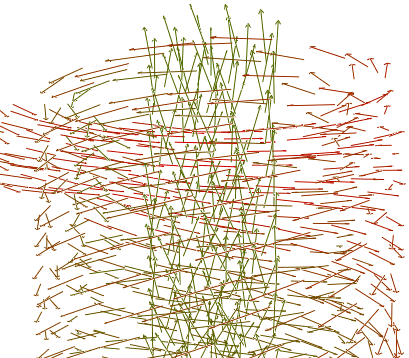
A Vector field is a construction in vector calculus used to
represent a field (such as the velocity profile of a fluid or a magnetic
force field) as points in Euclidian space. Each point has an associated
magnitude and direction. EDEM displays Vector
field data using arrow representation. The color of the arrow indicates the
magnitude of the vector.
Scalar
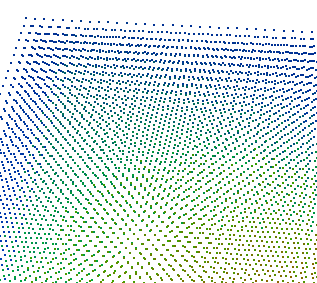
A Scalar field associates a scalar value to points in space.
This can be used to measure temperature distribution throughout space or air
pressure, for example. EDEM displays Scalar
field data using point representation. The color of the points indicates the
scalar value.
Note: To use scalar field data in a simulation, custom plug-in
models are required. These models interpret the scalar data and apply it to
the relevant physics.
To import field data:
Run the CFD simulation (steady or transient) in any solver which can export the
field data in EDEM supported formats
(.txt,.cgns)
Export the field data from CFD solver.
Open EDEM and save the deck in your working folder.
Saving the deck makes Field Data Manager active.
In the Creator Tree, select Physics > Field Data Manager.
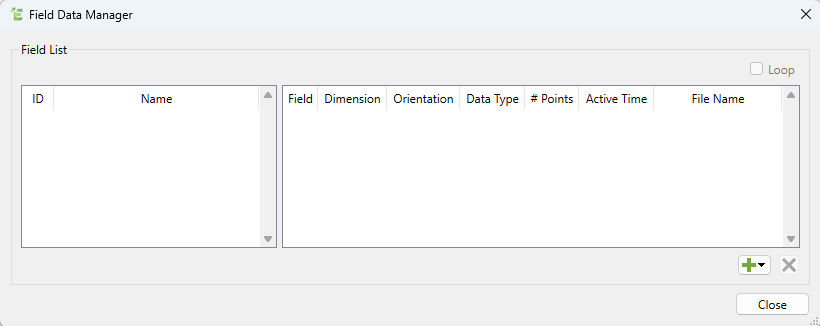
Note: Field Data Manager displays the following two
tables:
The Left-hand table displays the number of Field
Lists that can be enabled simultaneously. Each Field
List has a unique ID and
Name. The name can be edited by the
user.
The Right-hand table displays all the available fields. Only
one field from this list can be active at a time.
The Active Time column determines if
a field is applied during the simulation using ranges such
as 1-2 or 1.345-1.365.
Other columns display the field’s original name, dimensions,
orientation (editable), data type, number of points, and the
source file containing the field data. The Active
Time setting determines which field is used
at a given simulation time.
The start value is exclusive (field activates
after this time).
The end value is inclusive (field remains active
until this time).
By default, a field is set to 0-max (active from time 0
indefinitely).
Additional fields are set to empty (""), meaning they are
inactive unless edited.
Multiple active periods can be specified. For example, -1,
2-3, 3-4.
Active Time values can also be copied from a spreadsheet and
pasted into the table.
Additionally, you can enable the Loop option
for a Field List. If looping is selected, once the last active time is
reached, EDEM restarts from the first entry.
If any field uses Max as its active time, looping
has no effect.
Import the vector field data into EDEM.
Note: There are four different ways to load new field data
into the dialog. You can select multiple files (CGNS or text) for a single import
operation.
Each entry in a Field List must be unique. The Name +
FileName combination cannot duplicate an existing field. If
a duplicate is imported, the new field will replace the old
one.
Fields that do not match the required dimensions or data types are
automatically skipped.
You cannot manually remove an entire Field List. A list is deleted
automatically when it becomes empty. However, you can select
multiple fields (or all fields) within a list and remove them at
once.
Add contact models and run the model.
Note: If the field
contains vector data (velocity or vorticity), you can select an appropriate
model in the Particle Body Force interaction to
calculate forces such as drag and lift (for example, the Schiller–Neumann
drag model). If it is scalar data, you must imported the API plug-in
model.
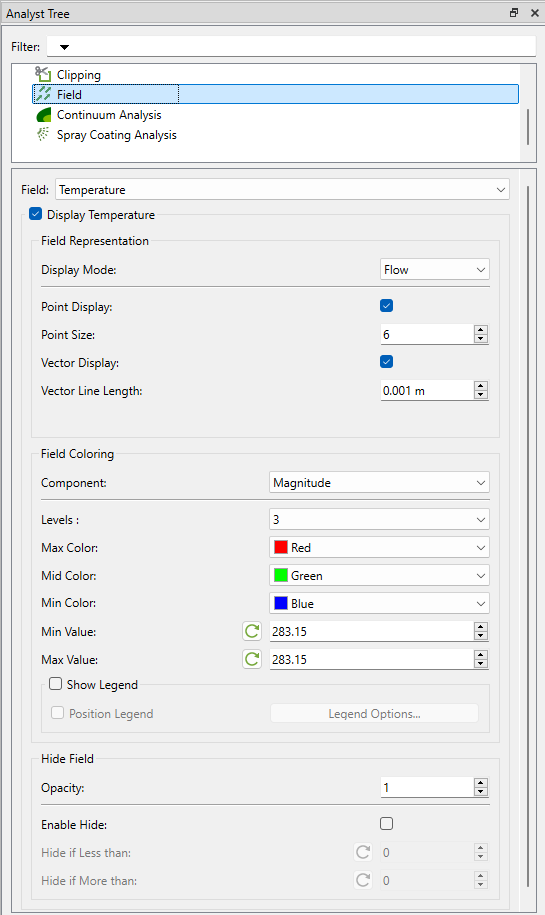
You can visualize the imported fields in Creator.
In the Analyst tree, you can view the imported fields used in the
simulation. Variable coloring and different representations are available
for better visualization.
Custom plug-ins can query field data and configure the interpolation algorithm
using EDEM’s API. For more information about EDEM's API, see the EDEM
Programming Guide.

 Note: Field Data Manager displays the following two tables: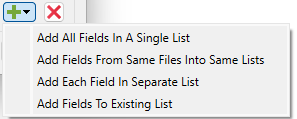

 In the Analyst tree, you can view the imported fields used in the simulation. Variable coloring and different representations are available for better visualization.