
EDEM Creator
EDEM Creator is the pre-processor for creating an EDEM simulation model, including setting up equipment and defining the generation of bulk materials.
- Set up simulations quickly and logically using EDEM's intuitive and user-friendly interface
- Import equipment Geometry from various CAD files (IGES, STL, STEP, and more)
- Assign motion to equipment (linear, rotational, sinusoidal, force, torque driven motions, and so on)
- Model particle shapes using Multi-Sphere, Polyhedral, and Sphero-Cylindrical particle shapes
- Automatically create complex shapes using the Sphere Fitting tool
- Easily create flexible materials and fibers using the Meta-Particle feature
- Select an appropriate, highly validated Physics model from a wider range of options
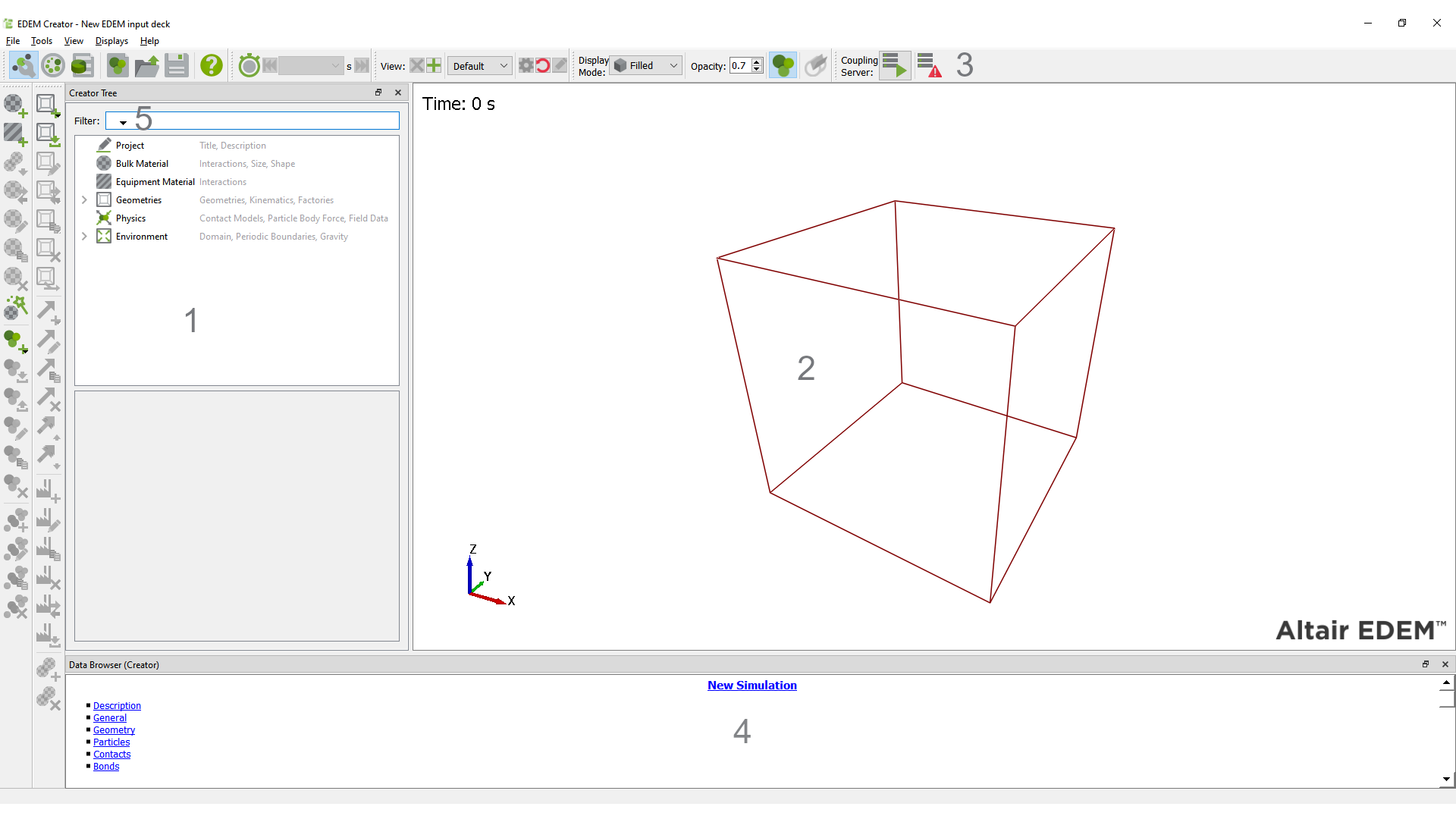
EDEM Creator allows you to set up and initialize your model. It is where you import particles and Geometries and define the other model parameters.
- The Creator Tree
- The Viewer
- The Toolbar and Menu Bar
- The Data Browser
- The Tree Filter
The Creator Tree
The Creator Tree is displayed on the left side of the EDEM window. It contains information about the Project, Bulk Material, Equipment Material, Geometries, Physics, and Environment.
The Viewer
The Viewer displays 3D representations of your particles, Geometry, and fields (if applicable). You can control the rotation, position, and zoom factor of the Viewer using a mouse. There are a number of animation controls displayed below the Viewer.
The Toolbar and Menu Bar
| Icon | Name | Description |
|---|---|---|
 |
Creator | Opens EDEM Creator |
 |
Simulator | Opens EDEM Simulator |
 |
Analyst | Opens EDEM Analyst |
 |
New | Creates a new model |
 |
Open | Opens an existing model |
 |
Save | Saves an existing model |
 |
Help | Displays the online Help |
 |
Change Time Step Back | Moves to the first Time Step in the simulation |
 |
Change Time Step Forward | Moves to the last Time Step in the simulation |
 |
Start Coupling Server | Starts the Coupling Server |
 |
Coupling Server Disabled | Disables the Coupling Server |
 |
Server Awaiting Connection | Indicates that the Coupling Server has started but is not connected |
 |
Server Connected | Indicates that the Coupling Server is connected |
 |
Stop Server | Stops the Coupling Server |
 |
Filled Display Mode | Displays Geometry as filled |
 |
Mesh Display Mode | Displays Geometry as a mesh |
 |
Points Display Mode | Displays Geometry as points |
 |
Display Particles | Displays or hides all particles |
 |
Display Cylindrical Periodic Boundary Conditions | Displays cylindrical periodic boundary conditions |
 |
Add Bulk Material | Adds Bulk Material to the simulation |
 |
Add Equipment Material | Adds Equipment material to the simulation |
 |
Save Material Block | Saves a block of material for a material bed |
 |
Transfer Material from Database Materials | Transfers materials to and from the Material Database |
 |
Rename Material | Renames the selected material |
 |
Copy Material | Copies the selected material |
 |
Delete Material | Deletes the selected material |
 |
Open GEMM Wizard | Opens the GEMM Wizard |
 |
Add Particle | Adds a particle to the Bulk Material |
 |
Import Particle | Imports a particle |
 |
Export Particle | Exports a particle |
 |
Rename Particle | Renames a particle |
 |
Copy Particle | Copies a particle |
 |
Delete Particle | Deletes a particle |
 |
Add Sphere | Adds a sphere to the particle |
 |
Copy Sphere | Copies a particle Sphere |
 |
Delete Sphere | Deletes a particle Sphere |
 |
Add a Geometry | Adds a Geometry |
 |
Add a Box | Adds a box from the Geometry dropdown list |
 |
Add a Cylinder | Adds a cylinder from the Geometry dropdown list |
 |
Add a Polygon | Adds a polygon from the Geometry dropdown list |
 |
Import a Geometry | Imports a Geometry from a 3D CAD file |
 |
Rename a Geometry | Renames Geometry sections |
 |
Copy a Geometry | Copies Geometry sections |
 |
Delete a Geometry | Deletes Geometry sections |
 |
Merge a Geometry | Merges Geometry sections |
 |
Replace a Geometry | Replaces a Geometry section with an alternative Geometry |
 |
Add a Motion | Click to add a motion from the dropdown list |
 |
Add Linear Translation | Adds linear translation to a Geometry |
 |
Add Linear Rotation | Adds linear rotation to a Geometry |
 |
Add Sinusoidal Translation | Adds sinusoidal translation to a Geometry |
 |
Add Sinusoidal Rotation | Adds sinusoidal rotation to a Geometry |
 |
Add Conveyor Translation | Adds conveyor translation to a Geometry |
 |
Add Conveyor Rotation | Adds conveyor rotation to a Geometry |
 |
Rename a Motion | Renames a motion |
 |
Copy a Motion | Copies a motion and applies to the current Geometry or an alternative Geometry |
 |
Delete a Motion | Deletes a motion |
 |
Move Motion Up | Reorders the motion |
 |
Move Motion Down | Reorders the motion |
 |
Add Force | Adds force to the Geometry |
 |
Add Torque | Adds torque to the Geometry |
 |
Add Factory | Adds a material factory to the simulation |
 |
Import Factory | Imports a factory |
 |
Rename Factory | Renames a factory |
 |
Copy Factory | Copies a factory |
 |
Delete Factory | Deletes a defined factory |
 |
Change Factory | Changes from static to dynamic factory |
 |
Add Material Block | Adds a material block to a Geometry |
 |
Delete Material Block | Deletes a defined material block |
 |
Show Scale Grid | Shows/hides grid while displaying particle shapes |
 |
Show Origin | Shows origin and particles as a mesh when displaying particle shapes |
 |
Highlight Surface/Meta-Particle | Highlights the selected surface of particle shape/selected Meta-Particle |
 |
Add Meta-Particle | Adds a Meta-Particle |
 |
Rename Meta-Particle | Renames a Meta-Particle |
 |
Copy Meta-Particle | Copies a Meta-Particle |
 |
Delete Meta-Particle | Deletes a Meta-Particle |
| File Menu | |
|---|---|
| Open | Opens an existing model |
| New | Creates a new model |
| Save | Saves the current model |
| Save As | Saves the current model with a specific name, or to a specific location |
| Geometry Transforms | Exports Geometry transforms |
| Import Config | Imports a config (*.dfg) file |
| Export Config | Exports a config (*.dfg) file |
| Creator | Starts EDEM Creator |
| Simulator | Starts EDEM Simulator |
| Analyst | Starts EDEM Analyst |
| Recent Files | Displays a list of recently opened files |
| Quit | Exits EDEM |
| View Menu | |
|---|---|
| Show Particles | Select to turn the particle display in the Creator on or off. |
| Parent-Child Lines | Select to show how Geometries are connected using the Parent-Child hierarchy. Lines will be drawn between connected Geometries. |
| Geometry Origin Axes | Select to see the axes per Geometry element. |
| Themes | Select Legacy (default) or Dark Theme for the EDEM interface |
| Toggle Display Command Line Output | Can be used for debugging. In certain scenarios, this can be used to display specific error warnings. |
| Displays Menu | |
|---|---|
| Show 1 Display | Shows the EDEM window in a single display. |
| Show 2 Displays | Shows the EDEM window in two viewer displays to review different view-points of the model within each window |
| Show 3 Displays | Shows the EDEM window in three viewer displays to review different view-points of the model within each window |
| Show 4 Displays | Shows the EDEM window in four viewer displays to review different view-points of the model within each window |
| Split Display Horizontally | Splits the displays horizontally so that simulations may be simultaneously reviewed qualitatively and quantitatively on the same display |
| Split Display Vertically | Splits the displays vertically so that simulations may be reviewed both qualitatively and quantitatively on the same display |
| Help Menu | |
|---|---|
| Help | Displays information about the EDEM interface |
| About EDEM | Displays the current version of EDEM. The EDEM Version and Revision number are useful for EDEM Technical Support when discussing support cases. |
| About Altair Simulation Products | Displays the Copyright notices, Altair website, License Agreements, and Customer Support information. |
The Data Browser
The Data Browser is an .html page that displays detailed information
about your model. The information displayed is different in the Creator, Simulator,
and Analyst. Right-click the Data Browser and select Save to
save the information in an .html file.
| Section | Description |
|---|---|
| Description | Available in the Project section of the Creator Tree |
| General | Gravity Displays details of the gravity acting in your model as specified in the Creator Tree |
| Materials Lists all the materials used in the model and their properties, as specified in the Materials Editor |
|
| Energy Displays the total energy in the model at the current time, which is the sum total of the kinetic energy, potential energy, and the energy in any contacts taking place |
|
| Geometry | Domain Lists the dimensions of the domain as specified in the Creator Tree |
| Sections Lists each section(model) and its properties |
|
| Geometry Totals Aggregates the details of the number of elements that make up each section of the Geometry |
|
| Particles | Particles Lists each particle type used in the model and their properties. This contains either sphere data for Multi-Sphere, and Sphero-Cylinder data or mesh data for polyhedral particles. |
| Factories Lists the details of each factory used in the model and their properties as specified in the Creator Tree. The total number of particles created by each factory is also listed. |
|
| Particle Totals Lists the total number of particles in the model at the current time and for each particle type |
|
| Contacts | Interactions Lists the interaction types taking place in the model as specified in the Materials Editor |
| Contact Totals Lists the total number of contacts in progress at the current time. The contacts are broken down into contact types. For example, the number of particle A - particle B contacts or number of particle B - surface A contacts. The total number of collisions that have taken place during the Time Step are also listed. |
| Filter Options | |
|---|---|
| Case Sensitive | Select to make string-based comparisons case-sensitive. By default, this option is unselected. |
| Fixed String | Select to perform string-based matching. |
| Wildcard | Select to perform string-based matching with wildcard characters. '?' matches a single character. '*' matches one or more characters. |