
The supervisor - new items
The main entry points
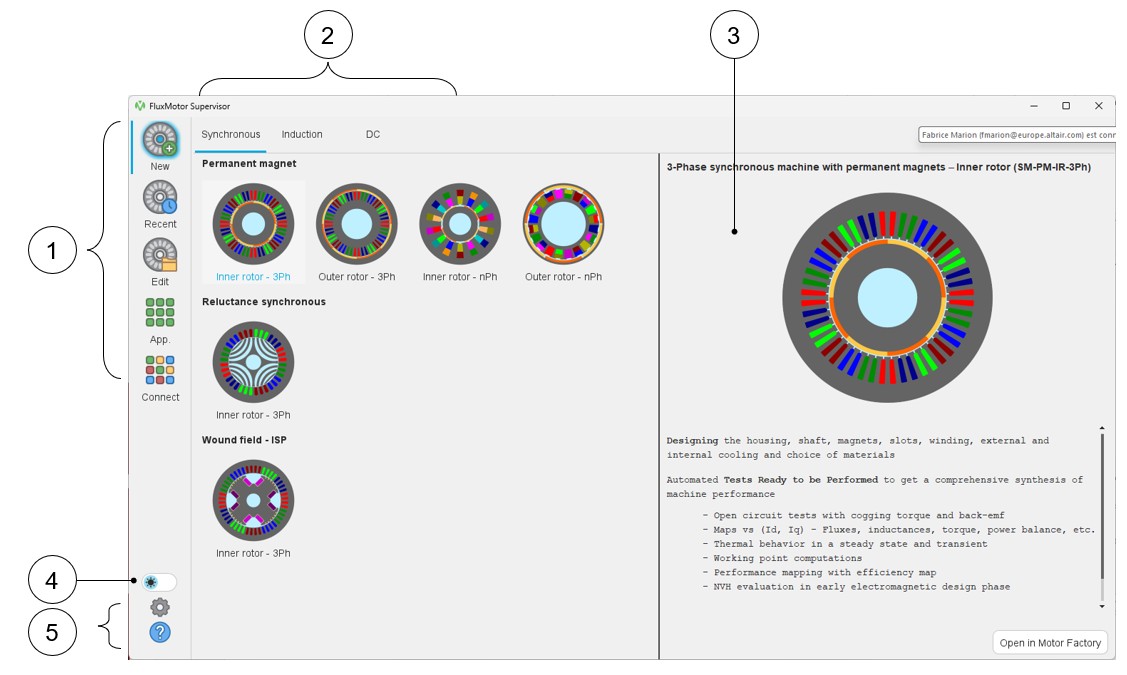
In the previous version a new supervisor has been developed to enable easier and faster viewing and access to projects and rotating electrical machines.
- “New”: to create a new motor from a default topology. The machines can be selected from the three classical machines families.
- “Recent”: to edit a recent project. Up to 100 projects can be stored on this list.
- “Edit”: To select and edit a project from the catalogs, standard and user catalogs, like what can be done when using Motor Catalog.
- “App”: to access the FluxMotor satellite applications like Motor Catalog, Part Library, Materials, Units, Script Factory, etc.
- “Connect”: is a new label allowing access to a dedicated section that gives access to external software that is needed and complementary for FluxMotor: Flow Simulator™, Flux®, HyperStudy™, PSIM™, SimLab®, Twin Activate®, Siemens Simcenter Amesim.
 |
|
|---|---|
| 1 | Main entry points of the supervisor – New motor in Motor Factory, edit a Recent motor, Edit a motor from catalogs, Open FluxMotor satellite Applications, and Open Altair® solutions. |
| 2 | Classification and selection of Rotating Electrical Machines – Three families – Synchronous, Induction and DC machines |
| 3 | The topology of the selecting machine is displayed with a brief introduction. |
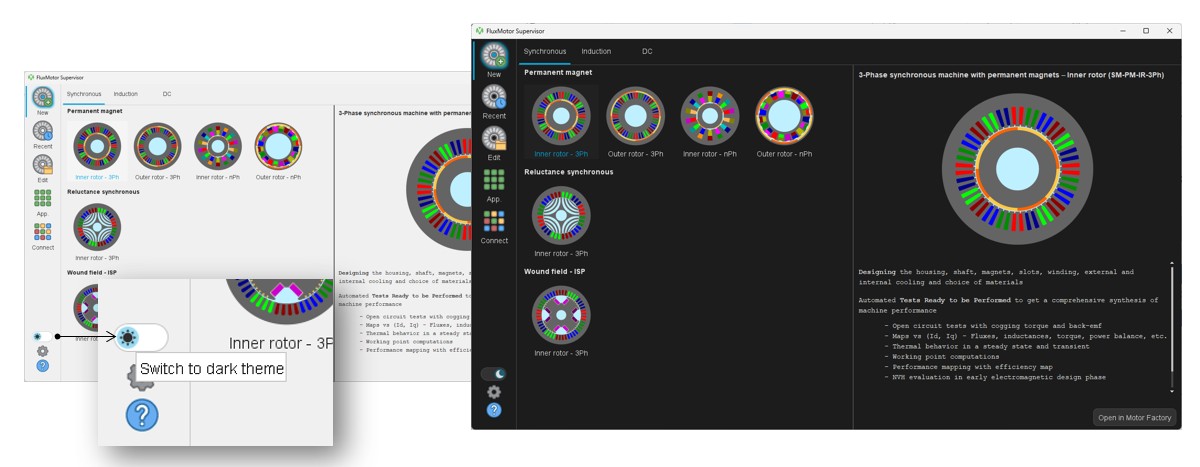
| 4 | Button to switch between Light and Dark modes |
| 5 | Access to user’s preferences and to help information |
Dark or Light themes
The switching between modes leads the supervisor to restart automatically with the selected theme.
If applications such as Motor Factory or others were already open during the switchover, their theme will not be changed.
These applications must be closed and reopened for the theme to be applied to them.
Additional improvements
- Lighter displaying of recent motor list
Figure 2. FluxMotor – Supervisor – Edit Recent Motors (1) to edit a recent project. Up to 100 projects can be stored on this list. 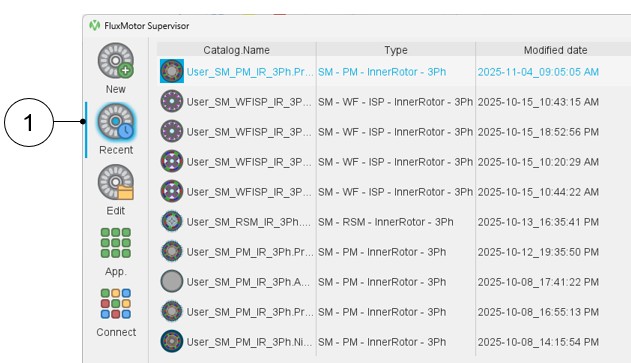
- New selection tree for the motor catalog
A new selection tree has been implemented for visualizing the machines and selecting them in a more user-friendly way.
Hence, once the type of catalog is selected, either Reference or User, the user can display all the available catalogs in the whole area for more visibility as illustrated below.Table 2. FluxMotor – Supervisor – Edit a motor from catalogs 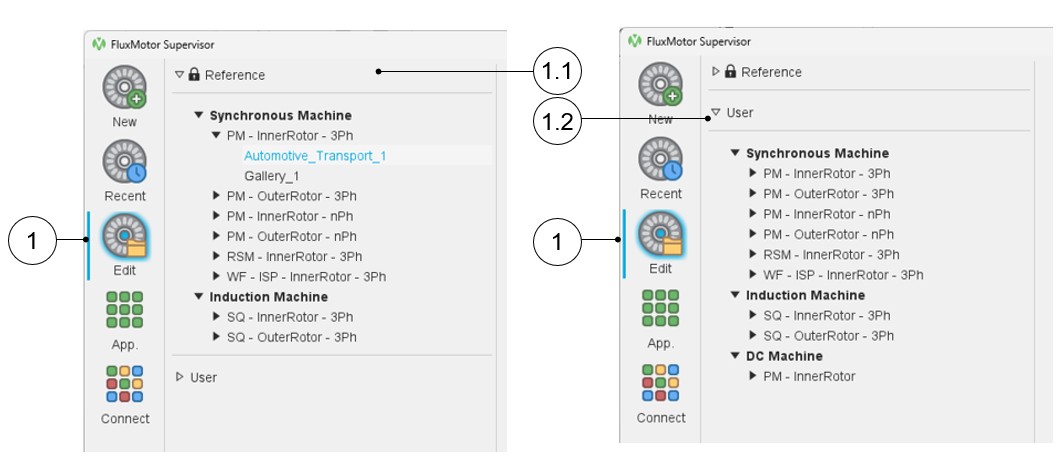
1 “Edit”: To select and edit a project from the catalogs, standard and user catalogs like what can be done when using Motor Catalog 1.1 The reference catalogs have been selected and are deployed, and others (User) are folded. 1.2 The user catalogs have been selected and are deployed, and others (Reference) are folded. - Connect to external softwareOnce you select the button “Connect” – Among the list of external software that are needed and complementary for FluxMotor, a new one is now available: “Siemens Simcenter Amesim” which is a mechatronic systems simulation platform that allows design engineers to virtually assess and optimize the systems’ performance.Note: For SMPM machines, a new export allows us to build and export maps from FluxMotor to Amesim for performing system behavior analysis.
Figure 3. FluxMotor – Supervisor – Connect – Access to Siemens Simcenter Amesim 1 – “Connect”: is a new label allowing access to external software that is needed and complementary for FluxMotor. 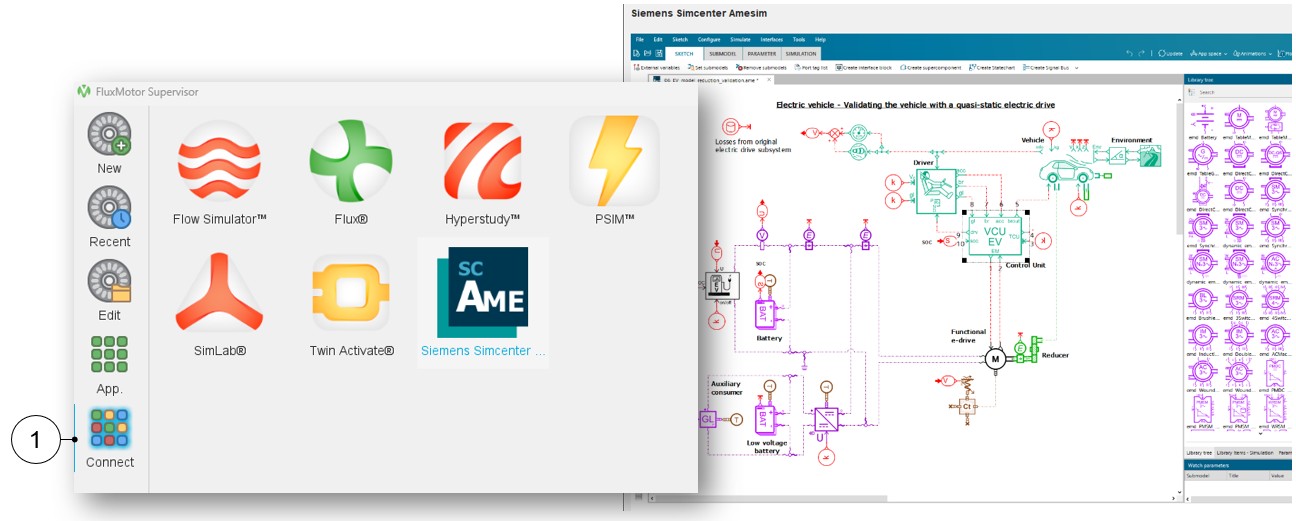
- New presentation for the user preferences
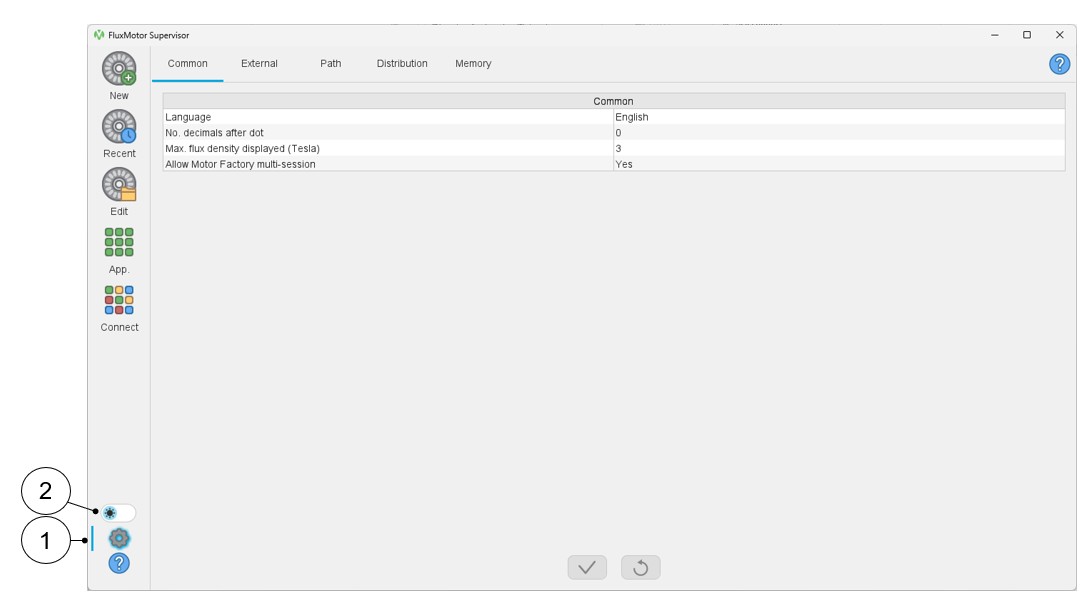
The display and content of user preferences have been revised. The data are displayed in a table for better visibility.
In the common user preferences, the choice of the preferred look and feel (dark or light theme) has been removed. This choice is made directly by the supervisor.
 |
|
|---|---|
| 1 | Access to user’s preferences |
| 2 | Selection of the Dark or Light theme |
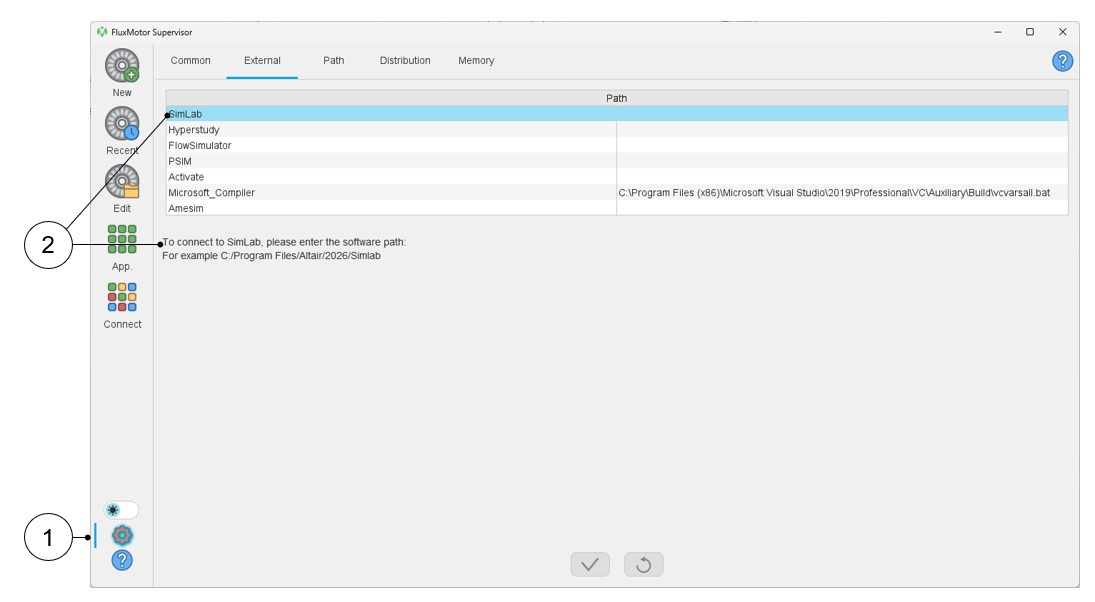
A new selection tab has been added: The User preference External.
 |
|
|---|---|
| 1 | Access to user’s preferences |
| 2 | Definition of the path for the software considered. An example is provided to help the user to define the path. |
In the path user preferences, the different path types have been classified into several sections for better visibility.
Default creation path: For storing files generated by applications like Motor Catalog, Part Library or Materials.
Default Export path: For storing files that are exported from the different applications.
Default source path: For defining the default folder where files can be loaded either for building the part or for adding attachments (Part Library or Motor Catalog).
Default HyperStudy path: For defining the default folder where the connectors generated for HyperStudy are stored and where the catalog provided during the HyperStudy process will be stored.
Default Other path: Motor Factory working directory and Amesim export folder.
In the Distribution user preferences, one can define the Flux distribution mode and the corresponding parameters.
Last, in the Memory user preferences, one can define the memory allocation for the different applications used.