
Inputs
Standard inputs ––––--
Current definition mode
There are 2 common ways to define the electrical current.
Electrical current can be defined by the current density in electric conductors.
In this case, the current definition mode should be « Density ».
Electrical current can be defined directly by indicating the value of the line current (the RMS value is required).
In this case, the current definition mode should be « Current ».
Max. field current
Max. field current density
Max. line current, h1 rms
Max. current dens. h1, rms
Max. Line-Line voltage, h1 rms
Command mode
One command is available: Maximum Torque Per Voltage (MTPV) command mode.
Maximum speed
The computation and analysis of the torque-speed curves are performed over a given speed range.
- Case 1: The maximum speed is lower than the base speed Nbase (corner
point speed of the torque-speed curve) Nmax < Nbase.
In that case, for any command mode (MTPA or MTPV), the behavior of the machine will be studied over the speed range [0, Nmax].
That allows the user to precisely choose the range of speed to be considered for computing and displaying the torque-speed curve and especially maps like efficiency map.
- Case 2: The maximum speed is greater than the base speed (corner point
speed) Nmax > Nbase.
The relevance of the maximum speed given by the user is analyzed to evaluate if it is reachable by the machine.
If the user maximum speed is unreachable by the machine, the correction of this value is automatically performed.
The resulting new maximum speed is linked to a limit torque. This limit torque is obtained by applying a reduction coefficient to the base point torque.
Rotor position dependency
User working point(s) analysis
- User working point(s) analysis = None (=default mode)
This corresponds to the basic configuration of the test, with no additional working point analysis.
- User working point(s) analysis = Single point
This allows computing the machine performance on a working point specified by the user with the targeted speed and torque. In that case the next two fields must be filled with the targeted speed and mechanical torque.
Table 1. User working point analysis = Single point 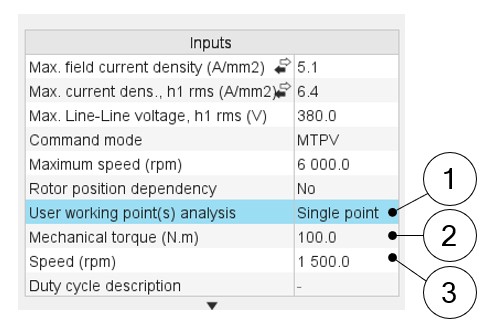
1 Select the “Single point” option to perform a computation on one working point. 2-3 Define the targeted working point mechanical torque and speed. - User working point(s) analysis = Duty cycle
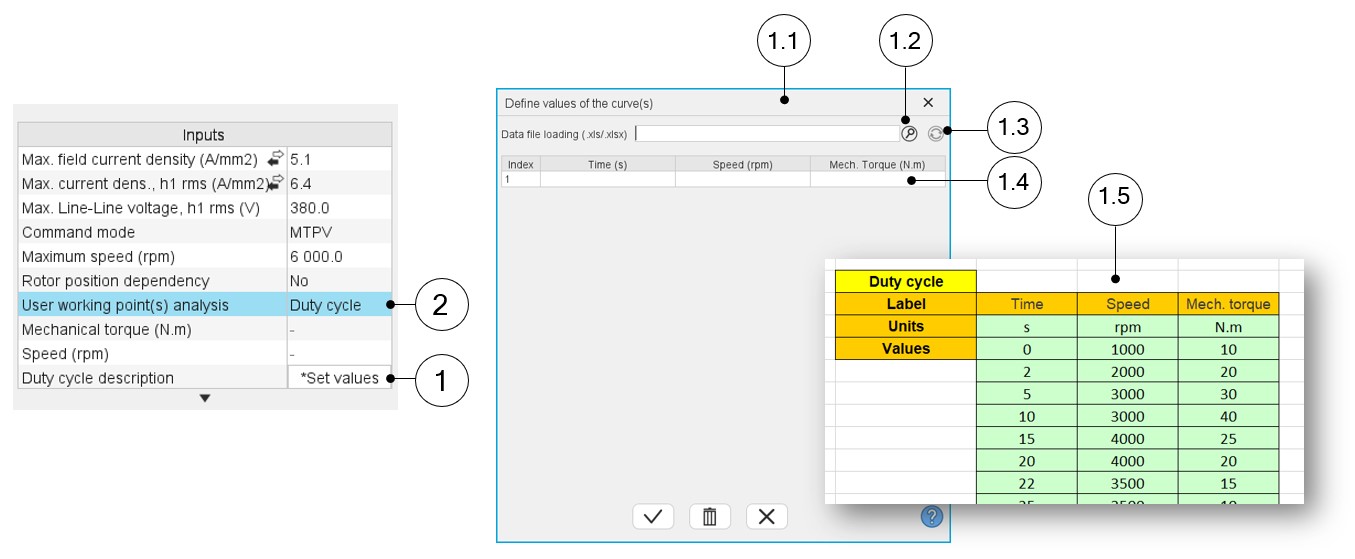
This allows computing the machine performance all over a considered duty cycle.
This duty cycle must be defined by using the next field: "Duty cycle description" and by clicking on the button "Set values".
Two ways are possible to fill in the table: either filling in the table line by line or by importing an excel file which all the working points of the duty cycle are defined.Note: A working point is defined by a time, a speed, and a mechanical torque.
 |
|
|---|---|
| 1 | Select the “Duty cycle” option. |
| 2 | Click in the button “Set values” of the field “Duty cycle” to
open a dialog box to define the duty cycle. Refer to the next illustration which shows how to fill the Duty cycle table. |
| 1.1 | Dialog box opened after having clicked on the button “Set values” in the field “Cycle description” |
| 1.2 | Browse the folder to select an Excel file which describes the duty cycle. |
| 1.3 | Button to refresh the table data when the considered Excel file has been modified. |
| 1.4 | Fields to be filled with data to describe the duty cycle to be considered. |
| 1.5 | Excel file template to define the duty cycle |
Advanced inputs ––––--
No. computed elec. periods
The user input “No. computed elec. periods” (Number of computed electrical periods only required with rotor position dependency set to “Yes”) influences the computation time of the results.
No. comp / elec. period
The user input “No. comp / elec. period” (Number of computations per electrical period required only with “Accurate” computation mode or “Fast” computation mode with rotor position dependency activated) influences the accuracy of results (computation of the peak-peak ripple torque, iron losses, AC losses…) and the computation time.
The default value is equal to 40. The minimum recommended value is 20. The default value provides a good balance between accuracy of results and computation time.
No. comp. for Jd,Jq
To get maps in the Jd-Jq plan, a grid is defined. The number of computation points along the d-axis and q-axis can be defined with the user input « No. comp. for current Jd, Jq » (Number of computations per quadrant for D-axis and Q-axis phase currents).
The default value is equal to 6. This default value provides a good compromise between the accuracy of results and computation time. The minimum allowed value is 5.
No. comp. for If
First, it is needed to compute the D-axis and Q-axis flux linkage in the Jd - Jq planes at various levels of If.
To get D-axis and Q-axis flux linkage maps along If dimension, the field current is discretized from zero to its maximum value. The number of computation points along the If-axis can be defined with the user input « No. comp. for If » (Number of computations for If-axis field currents).
The default value is equal to 6. This default value provides a good compromise between the accuracy of results and computation time. The minimum allowed value is 5.
No. comp. for speed
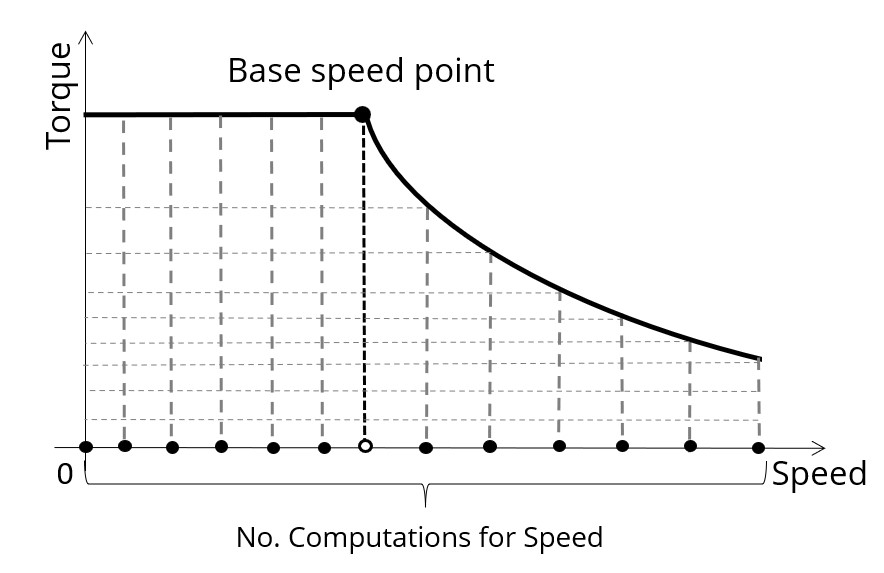
The “No. comp. for speed” (Number of computations for speed) corresponds to the number of points to be considered in the speed range from 0 to the maximum speed.
Half of these points are distributed from 0 to the base speed. The remaining points are distributed from the base speed to the maximum speed.
No. comp. for torque
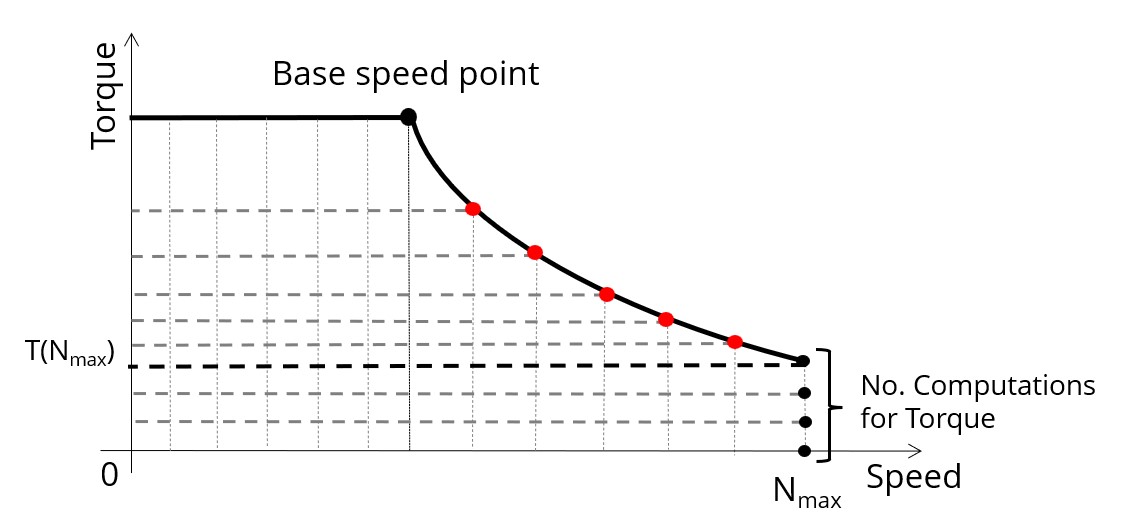
For the speed range [Nbase; Nmax.], the number of computations for torque is imposed by the number of computations for speed in the speed range [Nbase; Nmax.] (Red points in the image shown below).
The advanced user input parameter “No. comp. for torque” allows to finalize the grid within the torque range [0, T (Nmax.)] at the maximum speed (Black points in the image shown below).
The default value is equal to 7. The minimum allowed value is 3. The maximum recommended value is 20.
Skew model – No. of layers
Rotor initial position
By default, the “Rotor initial position” is set to “Auto”.
When the “Rotor initial position mode” is set to “Auto”, the initial position of the rotor is automatically defined by an internal process.
The resulting relative angular position corresponds to the alignment between the axis of the stator phase 1 (reference phase) and the direct axis of the rotor.
When the “Rotor initial position” is set to “User input” (i.e. toggle button on the right), the initial position of the rotor considered for computation must be set by the user in the field « Rotor initial position ». The default value is equal to 0. The range of possible values is [-360, 360].
Notice: The computations are performed by considering the relative angular position between the rotor and stator.
This relative angular position corresponds to the angular distance between the direct axis of the rotor north pole and the axis of the stator phase 1 (reference phase).
The value of the rotor D-axis location, which is automatically defined for each saliency part.
Below is illustrated the Rotor and stator phase relative position
The relative angular position between the axis of the stator phase 1 (reference phase) and the rotor D-axis position must be controlled to perform the tests. See the picture below which will allow defining the working point of the machine.
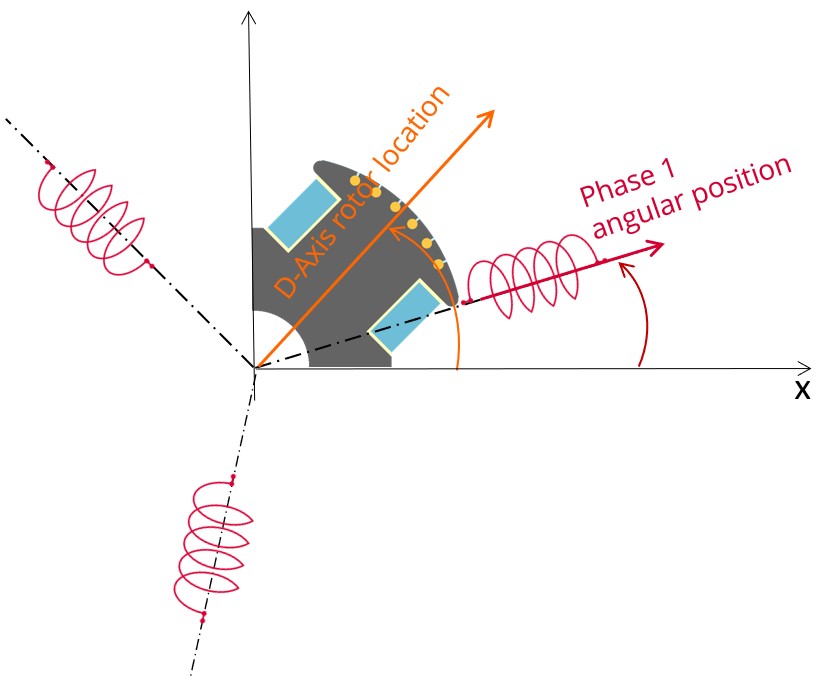
The winding axis of the reference phase is defined from the phase shift of the first electrical harmonic of the magneto motive force (M.M.F.).
Mesh order
To get the results, Finite Element Modelling computations are performed.
The geometry of the machine is meshed.
Two levels of meshing can be considered: First order and second order.
This parameter influences the accuracy of results and the computation time.
By default, second order mesh is used.
Airgap mesh coefficient
The advanced user input “Airgap mesh coefficient” is a coefficient which adjusts the size of mesh elements inside the airgap. When the value of “Airgap mesh coefficient” decreases, the mesh elements get smaller, leading to a higher mesh density inside the airgap, increasing the computation accuracy.
The imposed Mesh Point (size of mesh elements touching points of the geometry), inside the Altair Flux software, is described as:
MeshPoint = (airgap) x (airgap mesh coefficient)
Airgap mesh coefficient is set to 1.5 by default.
The variation range of values for this parameter is [0.05; 2].
The impact of the airgap mesh coefficient on resultant meshing is illustrated bellow: