
Slip table
Slip distribution mode = Table
-
When “Table” is selected, the list of slips to be considered must be defined by using the next field: “Slip table” and by clicking on the button “Set values”.
Two ways are possible to fill the table: either filling the table line by line or by importing an excel file where all the slips to be considered are defined.Note: The slips must be listed in ascending order.Table 1. Slip distribution mode = Table 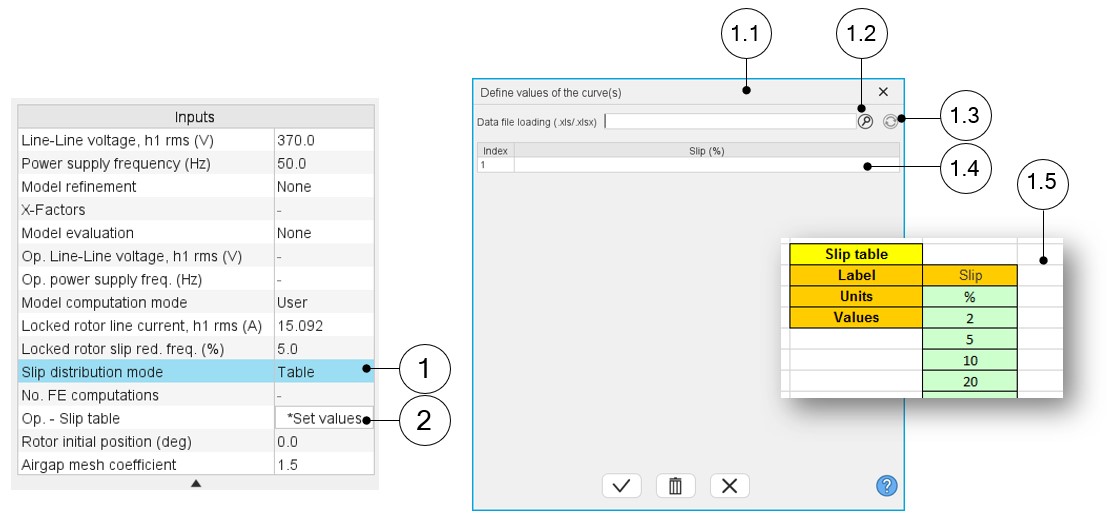
1 Select the “Table” option. 2 Click the button “Set values” in the field “Slip table” to open a dialog box to define the list of slips to be considered. Refer to the next illustration which shows how to fill the Slip table. 1.1 Dialog box opened after clicked on the button “Set values” in the field “Slip table”. 1.2 Browse the folder to select an Excel file which is defined the list of slips. 1.3 Button to refresh the table data when the considered Excel file has been modified. 1.4 Fields to be filled with data to describe the slips to be considered. 1.5 Excel file template to define the list of slips.
Excel template used to import a list of slips is stored in the folder Resource/Template in the installation folder of FluxMotor.
Note: The slips must be listed in ascending order.