


|
Scheduling Tasks
On the Scheduler tab of the System Settings page, Panopticon Real Time allows scheduling of tasks.
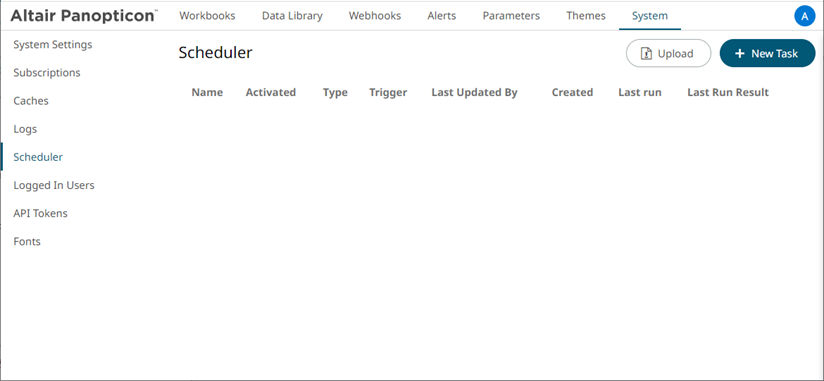
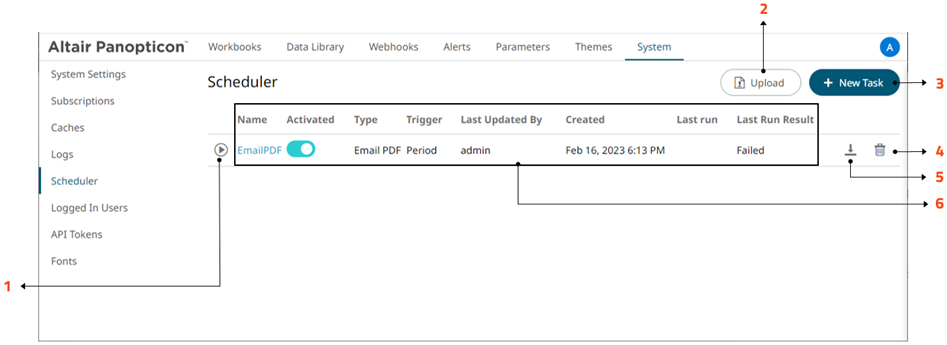
A new scheduled task is added in the list with the properties.
|
Scheduler Property |
Description |
|
1 |
Run Task Manually run scheduler task. |
|
2 |
Upload Task Upload scheduler task. |
|
3 |
New Task Create a new scheduler task. |
|
4 |
Delete Task Delete a scheduler task. |
|
5 |
Download Task Download a scheduler task. |
|
6 |
Task Properties The task properties include: · Name of the task · Activated status · Type of the scheduled task · Trigger type: Period or CRON · Last user who made an update · Date/Time when the task was created · Date/Time when the task was last ran · Last run result: Success or Failed For failed results, you can hover on the tooltip to view the error. NOTE: The result is not displayed for Extract Data scheduler type. |
To create a new task, click
 .
The New Task pane displays that allows you to define the following
tasks:
.
The New Task pane displays that allows you to define the following
tasks:
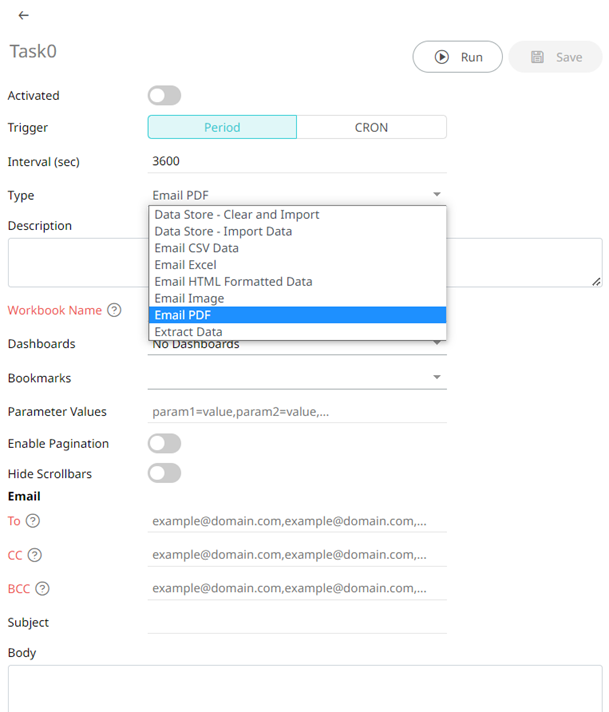
q Clearing and Importing Data Table to Data Store
q Importing Data Table to Data Store
q Sending of a CSV Data via Email
q Sending of an MS Excel file via Email
q Sending of an HTML Formatted Data via Email
q Sending of an Image file via Email
q Sending of a PDF file via Email
|
NOTE |
· To allow scheduling of email send outs, Panopticon Real Time must be configured with valid email server information in the Panopticon.properties file located in the AppData folder (e.g., c:\vizserverdata). See Panopticon Real Time Configurations for Email Send Outs and Alerts for instructions. · If any data load fails, such as when the data source is offline, the PDF/Image generation fails as well and an email will not be sent. |