User Management Concepts
Typically, organizations connect Graph Studio to their Single Sign-On (SSO) provider and then add groups associated with users from the server to Graph Studio so that roles can be assigned to these groups. If your SSO provider is Keycloak, you must set the necessary properties in the Keycloak User Management bundle to connect to it. Similarly, if you use a System for Cross-domain Identity Management (SCIM)-supported SSO provider, you must set the properties required to connect to it in the SCIM User Management bundle. If neither of these are enabled, group information can come from a token in a response body that is returned as a result of the protocol negotiation. However, in this case, groups cannot be added from external SSO providers as no connection exists to them and the only information available is supplied at login. In addition, groups from the server should be matched with existing groups in the application to enable access to the system (i.e., a developer group coming through the token should match a developer group with the necessary roles in the application).
Once accounts are added to Graph Studio, access control is managed in two ways:
- Roles are configured to grant access to functionality in Graph Studio. Role permissions grant access to menus and screens in the Graph Studio and Administration applications. Access to functionality cannot be assigned to groups or users, only to roles.
- Groups and users are used to control access to individual artifacts—data sources, models, graphmarts, etc.—and the data stored in Graph Studio.
Although Graph Studio is flexible and allows you to assign artifact access to roles, the recommendation is to control access to artifacts with users and groups and reserve roles for granting access to functions in the applications.
The following diagram illustrates the concepts of roles and groups in Graph Studio:
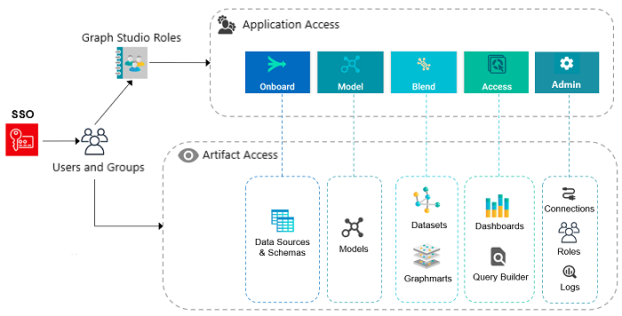
A user's role determines whether they can access the Onboard menu and create a new data source or see the Blend menu and create a new graphmart. However, their group assignment determines whether they can view, modify, or delete data source and graphmart artifacts that are created by other users.
For more information about leveraging an SSO provider and details about users, groups, and roles see the sections below.
Leveraging an SSO Provider
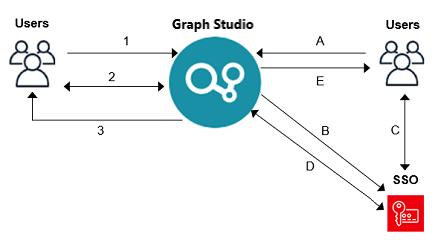
Graph Studio can be configured to login via internal authorization or SSO. The diagram below shows the procedures that are followed for both methods. The left side of the diagram (the numbered steps) shows the direct authorization method. The right side of the diagram (the lettered steps) shows the SSO method. The table below the diagram describes the processes for each method.
| Direct Authorization | Single Sign-On |
|---|---|
|
|
In both these cases, once credentials are validated, the process continues along one of two tracks:
- The back-end configured services are used to look up the user information (e.g., name, user groups) to sync the information to Graph Studio.
- The user information is synced from the information from the SSO provider.
For more information on connecting to an SSO provider, see Configuring Single Sign-On Authentication.
Users and Groups
Groups typically originate in an SSO provider and are synced to Graph Studio. However, you can also create custom groups that are internal to Graph Studio. Typically, users also originate from the SSO provider, but you can create user accounts in Graph Studio. Any users and groups that are created in Graph Studio are stored in its journal.
More information about creating internal Graph Studio users, refer to Creating an Internal Graph Studio User.
Roles
Graph Studio is configured with predefined roles. You can create new roles and disregard the predefined roles, remove the predefined roles, or add your groups to the predefined roles and modify the assigned permissions as needed.
For details about the default roles and instructions on creating new roles, see the following topics:
Permissions
Permissions must be assigned to a role so that it can access the Graph Studio applications and particular functions in those applications. All permissions are predefined in Graph Studio. Custom permissions cannot be created, and the predefined permissions cannot be deleted.
For details about all of the permissions, see the following topic:
For an overview of the data access management concepts, see Artifact Access Control Concepts.