Create a Quick Report
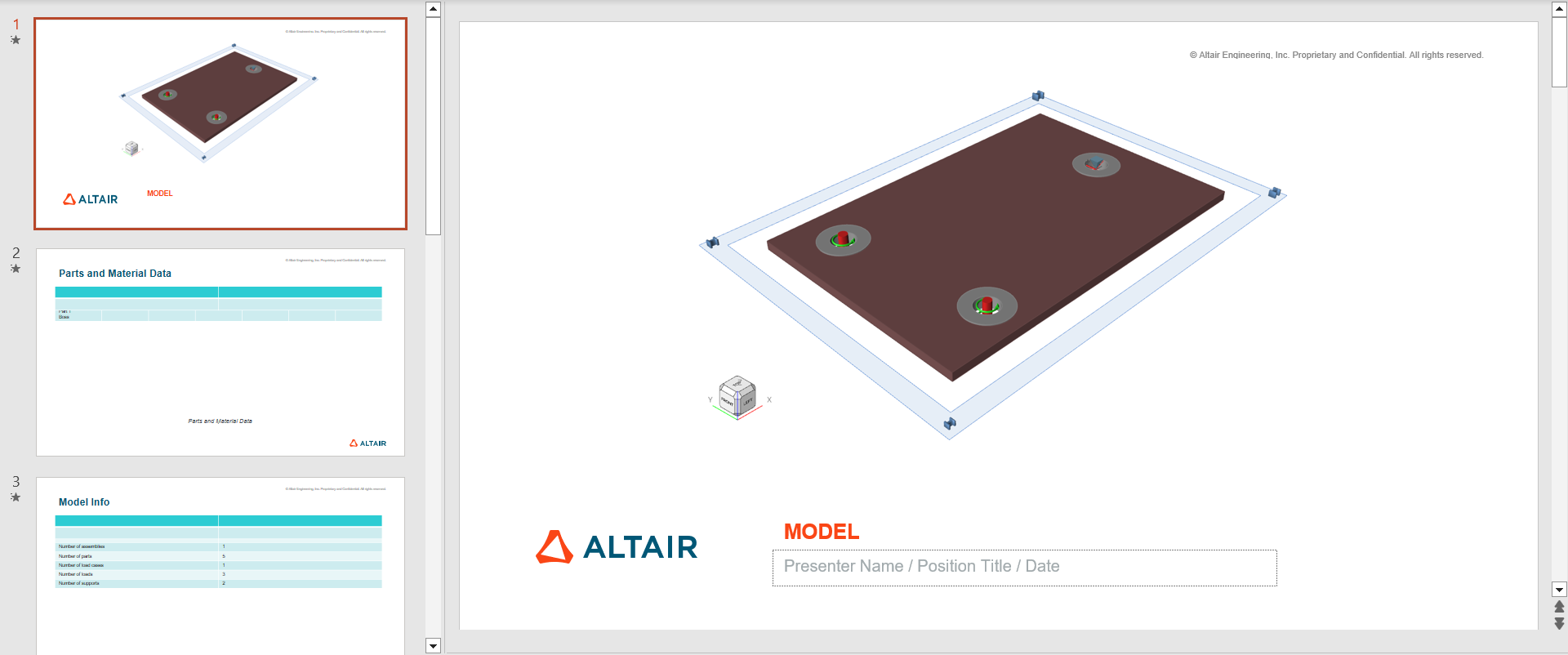
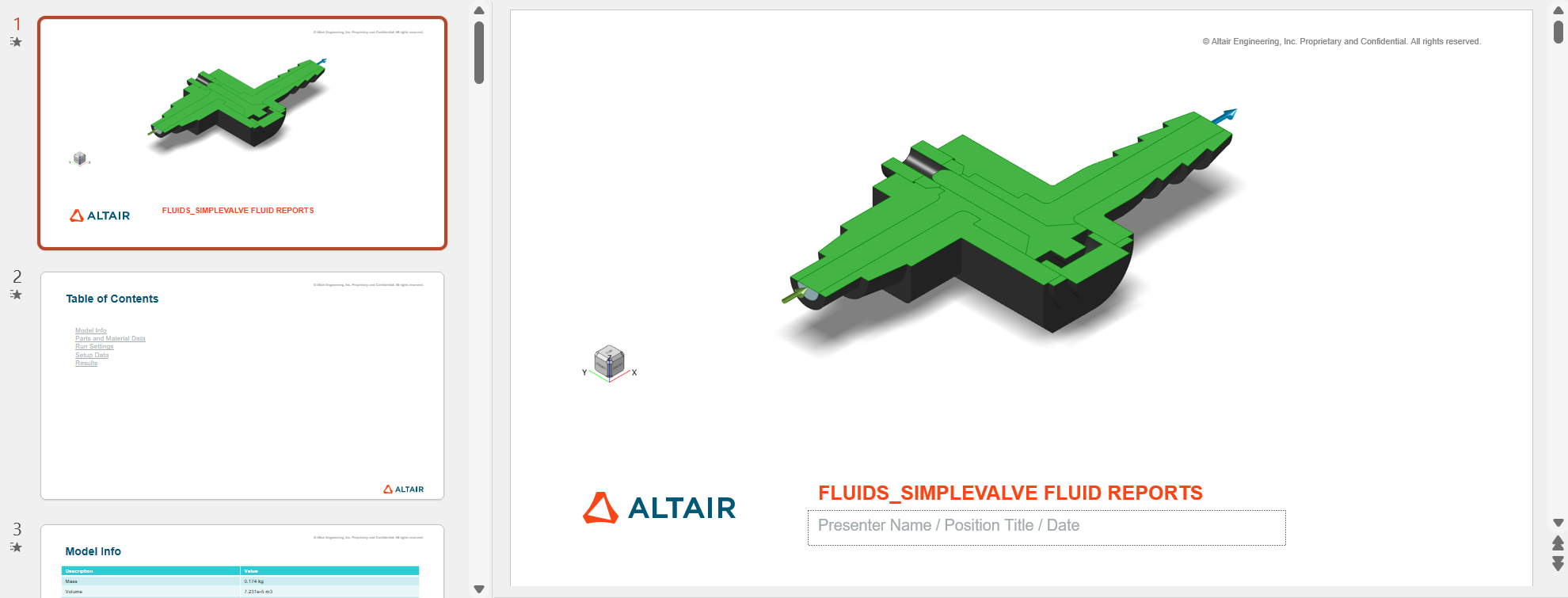
Generate an analysis report using the saved settings. You can export the report as a .ppt or .pdf file.
First, run a structural analysis.
First, run a fluids analysis.
First, run a motion analysis.
First run an analysis.
First, run an analysis.
First, run a foaming ananlysis
To customize the report settings, see Customize the Report Settings and Create a Report.
-
On the Structures ribbon, select Quick Report.

Tip: To find and open a tool, press Ctrl+F. For more information, see Find and Search for Tools. -
On the Fluids ribbon, select Quick Report.
Tip: To find and open a tool, press Ctrl+F. For more information, see Find and Search for Tools. -
On the Motion ribbon, select Quick Report.
Tip: To find and open a tool, press Ctrl+F. For more information, see Find and Search for Tools. -
On the Casting ribbon, select Quick Report.
Tip: To find and open a tool, press Ctrl+F. For more information, see Find and Search for Tools. -
On the Molding ribbon, select Quick Report.
Tip: To find and open a tool, press Ctrl+F. For more information, see Find and Search for Tools. -
On the Foaming ribbon, select Quick Report.
Tip: To find and open a tool, press Ctrl+F. For more information, see Find and Search for Tools. -
Browse to the location where you want to save the file. The default location is
C:\Documents\Altair\reports.
Note: To change the location:
- From the File menu, select the Preferences button.
- Under Category, select Report.
- Change the Save Settings. For more information, see Preferences: Report.
- Enter the file name.
-
Choose a file format:
- PPTX
- Click Save.