OS-T: 1310 Direct Transient Dynamic Analysis of a Bracket
In this tutorial, an existing finite element model of a bracket is used to
demonstrate how to perform direct transient dynamic analysis using OptiStruct. HyperGraph is used to
post-process the deformation characteristics of the bracket under the transient dynamic
loads.
Before you begin, copy the file(s) used in this tutorial to your
working directory.
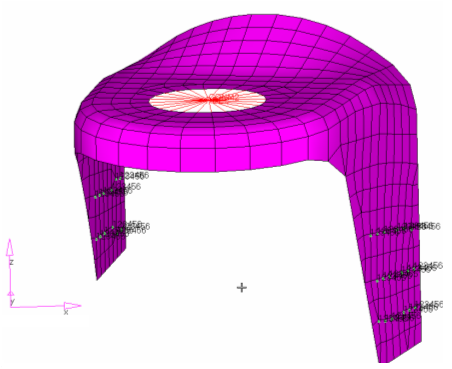
The bracket is constrained at the bottom of the two legs. Transient dynamic loads are
to be applied at the grid points of the top, flat surface of the bracket around the
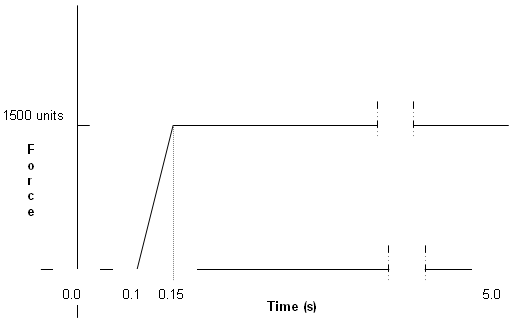
hole in the negative z direction. The time history of the loading is shown in Figure 2. The direct transient analysis is run for a total
time of 4 seconds with the time being divided into 800 increments (that is time step
is 0.005). Structural damping has been considered for the model. A concentrated mass
element is defined at the center of the spider and z displacements are monitored at
the concentrated mass at the center of this hole.Figure 2. Time History of Applied Loading
Launch HyperMesh and Set the OptiStruct User Profile
Launch HyperMesh.
The User Profile dialog opens.
Select OptiStruct and click
OK.
This loads the user profile. It includes the appropriate template, macro
menu, and import reader, paring down the functionality of HyperMesh to what is relevant for generating models for
OptiStruct.
Import the Model
Click File > Import > Solver Deck.
An Import tab is added to your tab menu.
For the File type, select OptiStruct.
Select the Files icon .
A Select OptiStruct file browser
opens.
Select the bracket_transient.hm file you saved
to your working directory.
Click Open.
Click Import, then click Close to
close the Import tab.
Set Up the Model
Create TABLED1 Curve
In the Model Browser, right-click and select Create > Curve.
For Name, enter tabled1.
In the Curve Editor window, enter the values shown in Figure 3.
Figure 3. Curve Showing Time History of Loading
Close the Curve Editor.
In Curves, select tabled1.
Click Color and
select a color from the color palette.
For Card Image, select TABLED1 from the drop-down menu.
Click Close.
The TABLED1 that defines the time history of the
loading has been created.
Create TSTEP Load Collector
In the Model Browser, right-click and select Create > Load Collector.
For Name, enter tstep.
Transient time step to define the time step intervals
at which solution is generated and output.
Click Color and
select a color from the color palette.
For Card Image, select TSTEP from the drop-down menu.
For TSTEP_NUM, enter 1 and press Enter.
For N, enter the number of time steps as 800.
For DT, enter the time increment of 0.005.
The total time applied to the load is: 800 x 0.005
= 4 seconds. This is the time step at which output is requested. NO has a
default value of 1.0.
Click Close.
Create a DAREA Load Collector
To define forces on the top surface of the bracket.
In the Model Browser, right-click and select Create > Load Collector.
For Name, enter darea.
Click Color and
select a color from the color palette.
For Card Image, select NONE.
Click BCs > Create > Constraints to open the Constraints panel.
Click nodes > by sets.
Two sets are displayed.
Select force and click select.
The nodes that belong to the set force get selected.
Uncheck all degrees of freedom (dof), except dof3 by clicking the box next to
each, indicating that dof3 is the only active degree of freedom.
For dof3, enter a value of -1500.
For load types=, select DAREA.
Click create.
This creates a force of 1500 units applied to the selected nodes in the
negative z direction.
Click return to go back to the main menu.
Create a TLOAD Load Step Input
In the Model Browser, right-click and select Create > Load Step Inputs.
For Name, enter tload1.
For Config type, select Dynamic Load – Time Dependent
from the drop-down list
For Type, select TLOAD1 from the drop-down menu.
For Exciteid , click Unspecified > Loadcol.
In the Select Loadcol dialog, select darea
from the list of load collectors.
Click OK to complete the selection.
Similarly select the tabled1 curves for the TID field
(to define the time history of the loading).
The type of excitation can be an applied load (force or moment), an enforced
displacement, velocity, or acceleration. The field [TYPE] in the TLOAD load step
input defines the type of load. The type is set to applied load by
default.
Create a Load Step
Load Step to perform Direct Transient Analysis.
In the Model Browser, right-click and
select Create > Load Step.
A default load step template is now displayed in the
Entity Editor below the
Model Browser.
For Name, enter transient.
For Analysis type, select Transient(direct) from the drop-down
menu.
From the Select Loadcol dialog, select
spcs.
For DLOAD, select tload1 from the Select Load
Step Inputs pop-out window.
Activate TSTEP(TIME) and select the load
collector tstep created previously.
A subcase is created that specifies the loads and
boundary conditions for direct transient dynamic
analysis.
Create Damping Parameters
Click Setup > Create > Control Cards to enter the Control Cards panel.
Click next to view more cards.
Click PARAM to define parameter cards.
Scroll down to activate G, click on
G_V1, and enter 0.2.
This parameter specifies the uniform structural damping coefficient for the
direct transient dynamic analysis.
Scroll down to activate W3, click on
W3_V1, enter 300.
This parameter is used in transient analysis to convert structural damping to
equivalent viscous damping.
Click return.
Create Output Requests
Click GLOBAL_OUTPUT_REQUESTS and select
DISPLACEMENT and leave the space beneath FORMAT
blank.
For FORM(1), select BOTH.
For OPTION(1), select SID.
A yellow button labeled SID appears.
Double-click on SID and select
center.
Select the option for center.
This set represents the node at the center of the spider attached to the mass
element that is node 395.
Click return > next.
Click OUTPUT.
Under number_of_outputs =, enter 2.
For KEYWORD, select H3D and
HGTRANS.
For FREQ, select ALL for both.
Click return twice to exit from the Control Cards
panel.
Save the Database
Set the directory in which to save the file.
Click File > Save as > Model.
For File name, enter bracket_transient_direct.hm.
Click Save.
Submit the Job
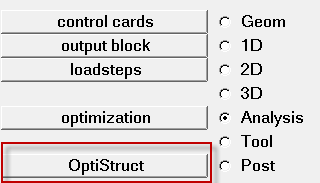
From the Analysis page, click the OptiStruct
panel.
Figure 4. Accessing the OptiStruct Panel
Click save as.
In the Save As dialog, specify location to write the
OptiStruct model file and enter
bracket_transient_direct for filename.
For OptiStruct input decks,
.fem is the recommended extension.
Click Save.
The input file field displays the filename and location specified in the
Save As dialog.
Set the export options toggle to all.
Set the run options toggle to analysis.
Set the memory options toggle to memory default.
Click OptiStruct to launch
the OptiStruct job.
If the job is successful, new results files
should be in the directory where the bracket_transient_direct.fem was written. The bracket_transient_direct.out file is a good place to look for error messages that could help
debug the input deck if any errors are present.
The default files written to the directory are:
bracket_transient_direct.html
HTML report of the analysis, providing a
summary of the problem formulation and the analysis results.
bracket_transient_direct.out
OptiStruct output file containing specific
information on the file setup, the setup of your optimization problem,
estimates for the amount of RAM and disk space required for the run,
information for each of the optimization iterations, and compute time
information. Review this file for warnings and errors.
bracket_transient_direct.h3d
HyperView binary results file.
bracket_transient_direct.res
HyperMesh binary results file.
bracket_transient_direct.stat
Summary, providing CPU information for each step during analysis
process.
bracket_transient_direct.mvw
HyperView session file.
This file is only created when transient analysis
is performed. This file automatically creates plots for the
displacement, velocity and acceleration results contained in the
file.
Post-process Displacement Results
From the
OptiStruct panel, click
HyperView to launch
HyperView.
Click File > Open > Session.
Select the HyperView session file
bracket_transient_direct.mvw from the
directory in which the input file was run.
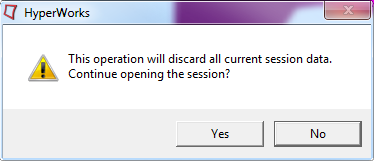
The following prompt appears:Figure 5.
Click Yes to close the message window.
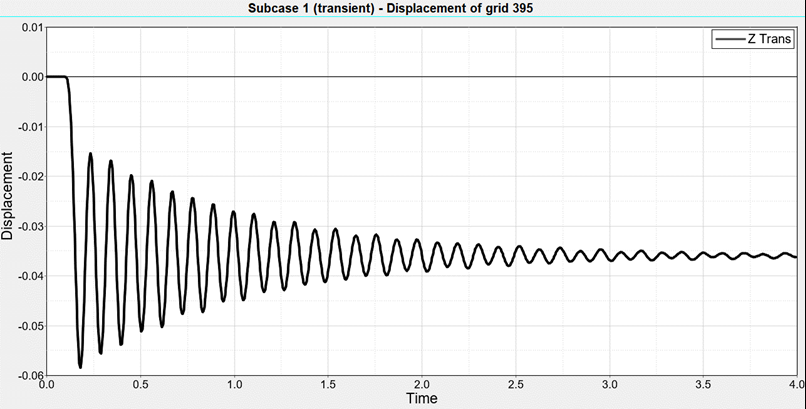
Since the loading is applied only in the z-direction, you are interested in
the z-displacement time history of node 395.
This file automatically creates plots for the displacement results
contained in the file.
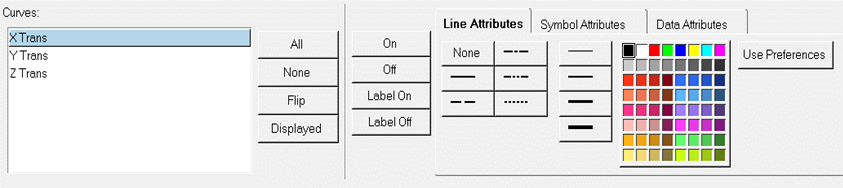
Click on the Curve Attributes toolbar icon and turn off the curves X Trans
and Y Trans. This can be done by selecting the individual
curves (X Trans and Y Trans) and then by clicking the line attributes
Off, as shown below:
Figure 6.
Click to fit the y-axis (that is Z displacement) of node 395
in the GUI.
You can change the color and/or line attributes of the curve if you want
to.
Figure 7. Z-displacement Time History of the Concentrated Mass at Center of
Spider for Direct Transient Dynamic Analysis
As can be observed from the above image, the displacements of node 395 are
in the negative z-direction as the loading is in the -z direction too. The
displacements eventually damp out due to the structural damping present in the
model.

 .
A Select OptiStruct file browser opens.
.
A Select OptiStruct file browser opens.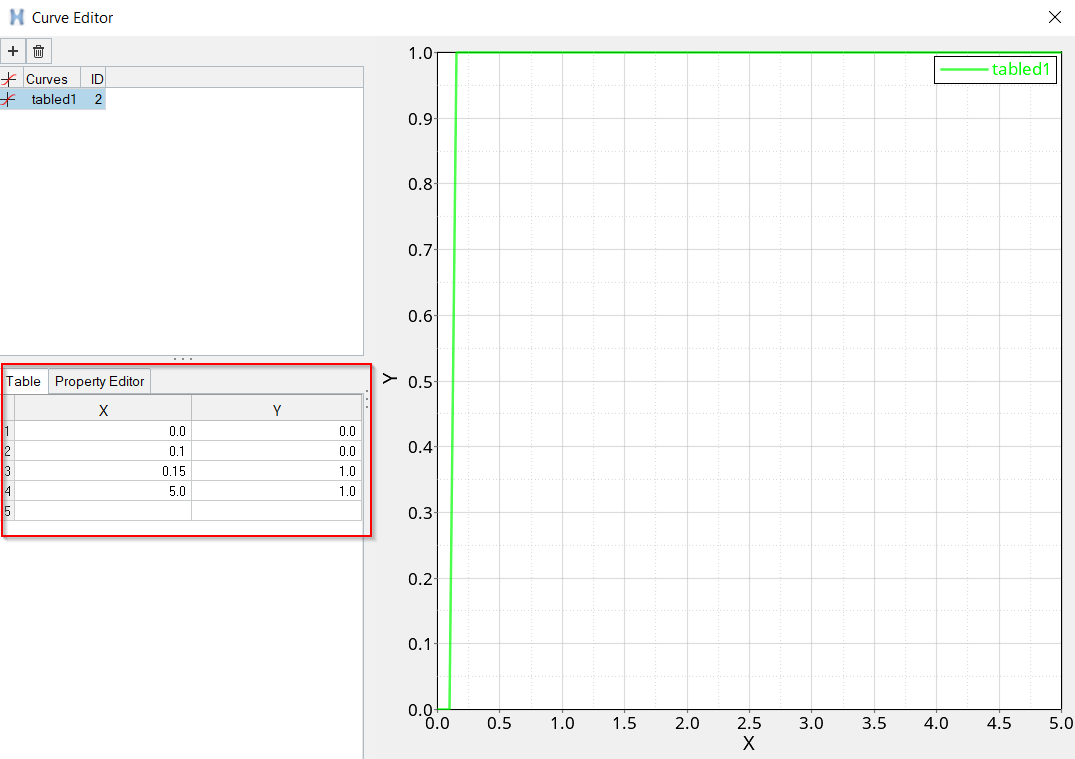
 and turn off the curves X Trans
and Y Trans. This can be done by selecting the individual
curves (X Trans and Y Trans) and then by clicking the line attributes
Off, as shown below:
and turn off the curves X Trans
and Y Trans. This can be done by selecting the individual
curves (X Trans and Y Trans) and then by clicking the line attributes
Off, as shown below:
 to fit the y-axis (that is Z displacement) of node 395
in the GUI.
to fit the y-axis (that is Z displacement) of node 395
in the GUI.