


|
Creating Data Extract from Amazon S3
The S3 connector allows for retrieval of the file from an S3 storage location. This connector allows JSON/XML/Text/Excel files to be read from the S3 storage. This connector will work with any S3 compliant storage providers.
Steps:
1. On the New Data Extract page, select S3 in the Connector drop-down list.
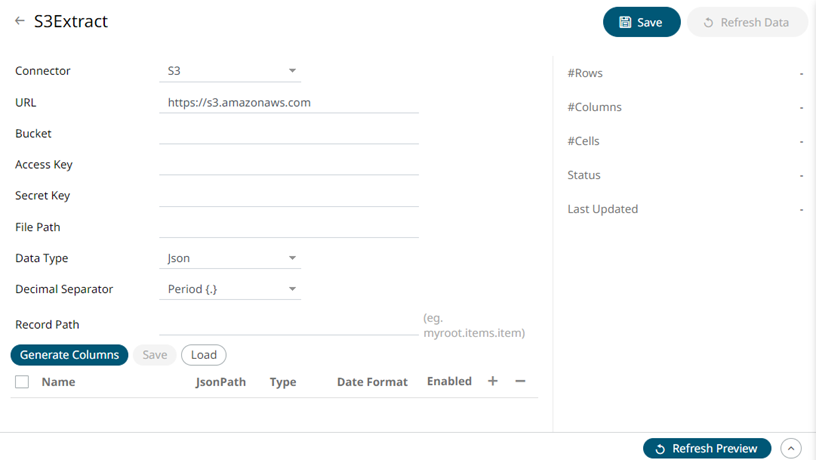
2. Enter the following information:
|
Property |
Description |
|
URL |
URL where the S3 bucket can be accessed. Default is https://s3.amazonaws.com. |
|
Bucket |
S3 bucket where the file resides. |
|
Access Key |
Access key to your S3 service account. |
|
Secret Key |
Secret key to your S3 service account. |
|
File Path |
Path of the on the S3 bucket. |
3. Select the Message Type.
4. Select either the period (.) or comma (,) as the Decimal Separator.
|
NOTE |
Prepend 'default:' for the elements falling under default namespace. |
5. Click to the fetch the schema based on the connection details. Consequently, the list of columns with the data type found from inspecting the first ‘n’ rows of the input data source is populated and the Save button is enabled.
6. You can also opt to load or save a copy of the column definition.
7. Click to add columns to the S3 connection that represent sections of the message. Then enter or select:
|
Property |
Description |
|
Name |
The column name of the source schema. |
|
JsonPath/Column Index/XPath |
The JsonPath/Column Index/XPath of the source schema. |
|
Type |
The data type of the column. Can be a Text, Numeric, or Time |
|
Date Format |
The format when the data type is Time. |
|
Enabled |
Determines whether the message field should be processed. |
|
NOTE |
To parse and format times with higher than millisecond precision, the format string needs to end with a period followed by sequence of upper case S. There can be no additional characters following them. For example: yyyy-MM-dd HH:mm:ss.SSSSSS |
To delete a column, check its or all the column entries, check the topmost , then click .
8. Click  to save and display the details
of the data extract.
to save and display the details
of the data extract.
9. Click  then
then  to display the data preview.