Import the required input file to the Post-processing session.
Using the Import feature, you can import the following file
types:
.h3d
.inp
.odb
.ts
.so
.las
.csv
All the imported model (i.e. mesh) files are converted to Abaqus solver deck
file format and then loaded into HyperView.
Note: For mapping,
use this Abaqus (*.inp) file.
From the GeoD ribbon, I/O, and Prep group, select
Import. Figure 1.
The GeoD-Import dialog is displayed: Figure 2.
ELFEN
Convert Elfen results and combine multiple result files. Elfen enables the users to
read simulation results file (.rdb) from Elfen into HyperView. Once
the results are imported into HyperView, all the post-processing activities such as
running animation, contouring results, and querying results can be performed on the
Elfen results.
Elfen offers the following additional capabilities:
Grouping of results from scalars into vector and tensor results.
Handling large results data split into multiple files.
Handling parallel files.
Convert Elfen Results
Launch Results Conversion Tool and select the
ELFEN tab from the window.
Upload .rdb elfen file in Elfen RDB
File field.Figure 3.
Select the Read button to populate all elfen result
files in the Unmapped group list.
The result files
are automatically grouped into Scalar,
Vector, and Tensor
groups depending on the input config file.Figure 4.
Note: User can group the result manually using the
Scalar, Vector, or
Tensor buttons.
Click the Accept button to confirm the mapped result
files.
Click the Review/Update config button to review or
update the config file in text editor.
Figure 5.
Field 1: [Type Field] Identifier for the type of results to
group into ( Values: TENSOR, VECTOR, and SCALAR).
Field 2: [Group Field] A Unique name for the tensor/vector Group
to indicate components belong to that group (not included for
SCALAR).
Field 3: [ELFEN name Field] The name of the Result type that is
stored in the ELFEN Results file.
Field 4: [H3D name Field] The name of the Corresponding Result
type to use for the .h3d file.
Field 5: [Component Field] The Component of the Tensor/Vector
for that specific result type entry (not included for
SCALAR).
Click the Import button to open the converted result
file in HV.
The tool also converts and saves the
eflen.rdb file as h3d
file in the same input folder.Figure 6.
Combine Parallel RDB Files
The current version of GeoD enables users to combine parallel RDB files.
The following environmental variable are required to be set manually in
elfen_join.bat file present in PSO installation
directory\directors\GeoD\GeoD-post\scripts location:
Environmental Variable
Description
ALTAIR_HOME
Points to the directory with the HyperWorks Installation
ALTAIR_ELFEN_CONVERTER_HOME
The path to the Installation directory of this tool.
ELFEN_HOME_DIR
The path to the installation of Elfen.
Note: Combine Parallel RDB Files option is available only for
Windows and users must have elfen installed.

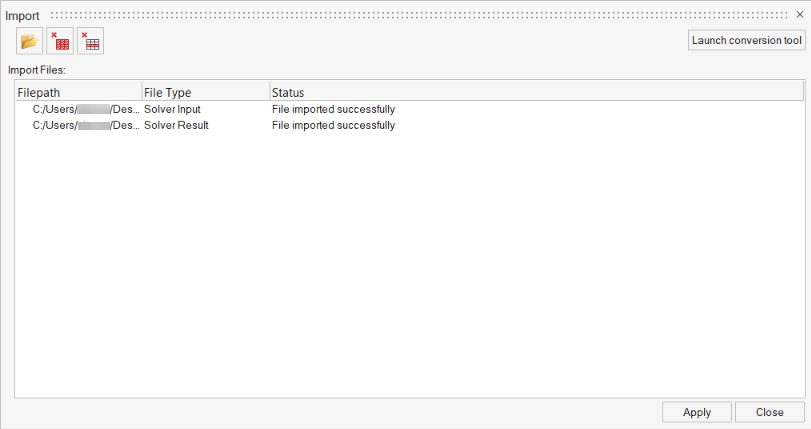
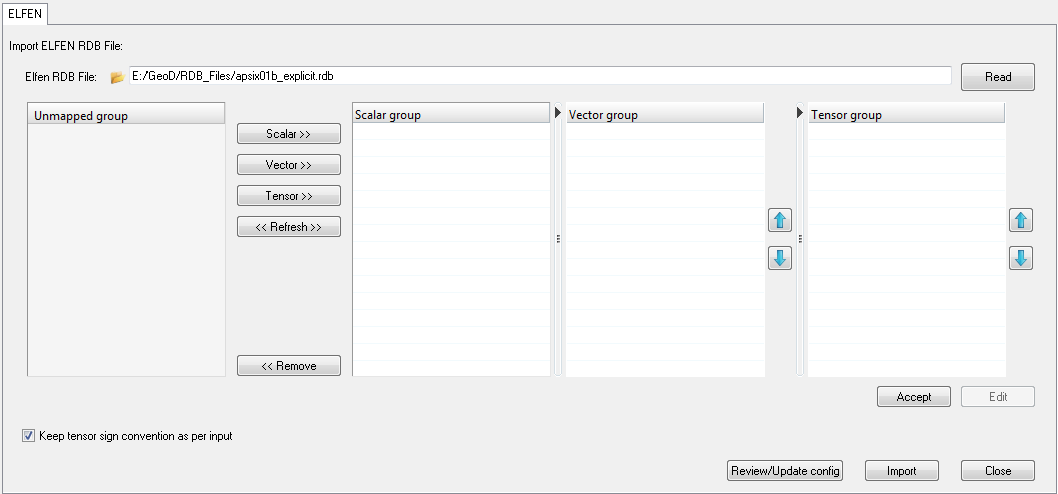 Figure 3.
 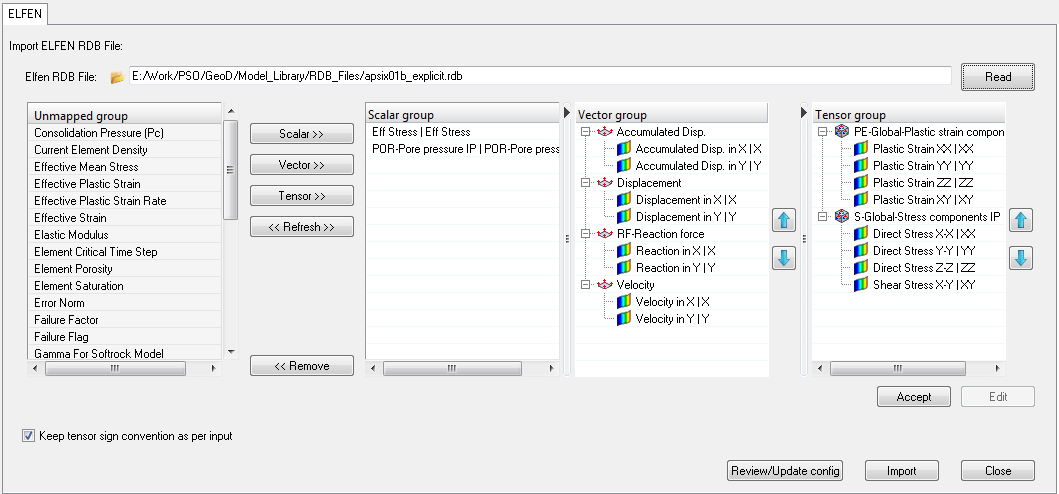 Figure 4. Note: User can group the result manually using the Scalar, Vector, or Tensor buttons.
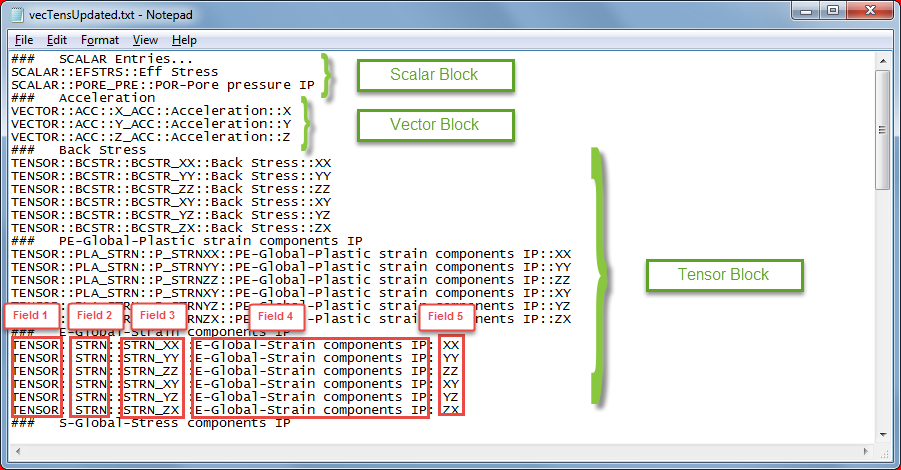 Figure 5.
 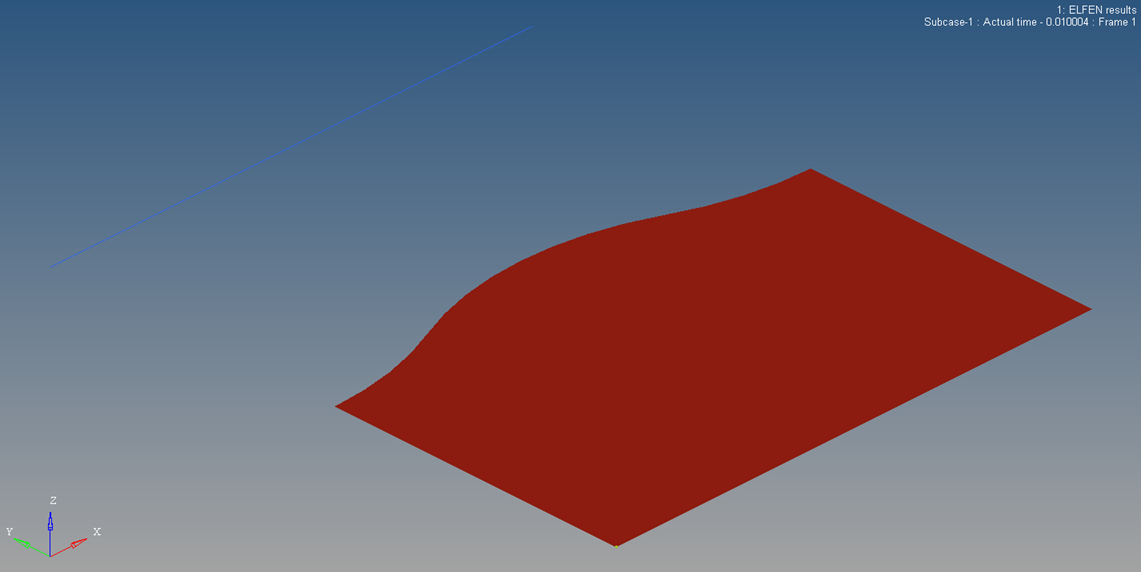 Figure 6.