


|
Creating Kx kdb+ Output Connector
Allows periodical dumping of records from a Kafka topic into a Kx kdb+ connector.
Steps:
1. On the Data Source tab, select Output > Kdb+ in the Connector drop-down list.
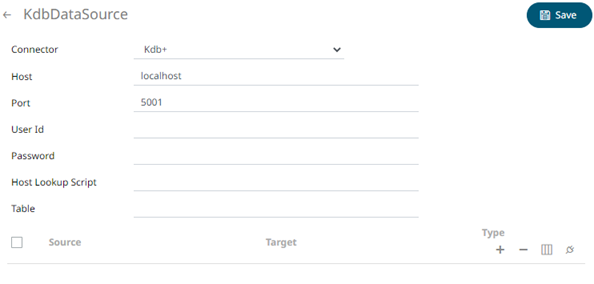
2. Define or select the following properties:
|
Property |
Description |
|
Host |
Kx kdb+ host address. |
|
Port |
Kx kdb+ host port. Default is 5001. |
|
User Id |
The user Id that will be used to connect to Kx kdb+. |
|
Password |
The password that will be used to connect to Kx kdb+. |
|
Host Lookup Script |
Key of the authentication script setting that will be searched in the connector.host.lookup.scripts property in the Streams.properties file. The authentication script setting will issue a shell script call passing a JSON structure containing host, port, username, and password (as below). { "host": "host", "port": 5001, "username": "username", "password": "password"} NOTES: · The port should be a number and has no double quotes. This is done to avoid unwanted casts. · Only host and port are mandatory. Calling the script in-process from the Tomcat server running Panopticon allows automatic pick-up of the Kerberos token of the system account that started the Tomcat process. NOTE: An exception will be thrown if the key used in the connector is not configured in the Streams.properties file. |
|
Table |
The source Table. |
|
NOTE |
These properties can be parameterized.
|
3. In the Sources section, click
 .
A new source entry is added in the list.
.
A new source entry is added in the list.
4. Enter or select the following properties:
|
Property |
Description |
|
Source |
The column name of the source schema. |
|
Target |
The column name of the target schema. |
|
Type |
The data type of the column. Can be a Text, Numeric, or Time |
5. Repeat steps 3 and 4 to add more sources.
6. You can also click any of the following buttons:
|
Button |
Description |
|
|
Check the topmost |
|
|
Check the |
|
|
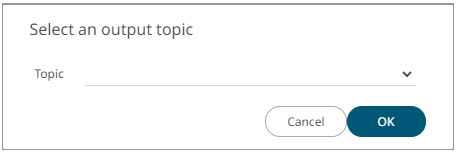
Allows you to select an output topic in the drop-down list.
Click
|
|
|
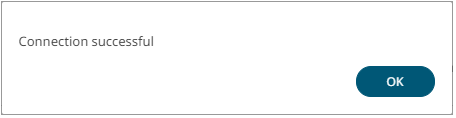
Tests if the connection to the output connector is successful. If successful, a confirmation message displays.
Click
Otherwise, an error prompt displays.
Click
|


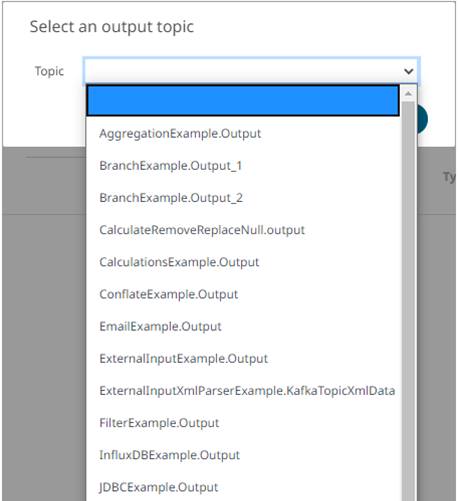
 . The schema of the selected output topic
is displayed.
. The schema of the selected output topic
is displayed.
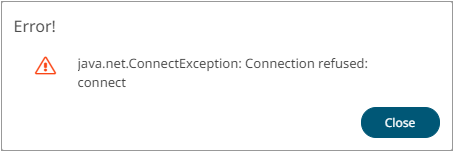
 and fix the connection error.
7. Click  .
The new data source is added in the Data Sources list.
.
The new data source is added in the Data Sources list.