License Check Out/Check In
If you are working with a Monarch Classic installation that is activated through an Altair License Server instance, you can check out your Monarch Classic license and work offline with it for a certain period of time.
Checking out a Monarch Classic license
-
Click File > Help > Check Out License for Offline Use.
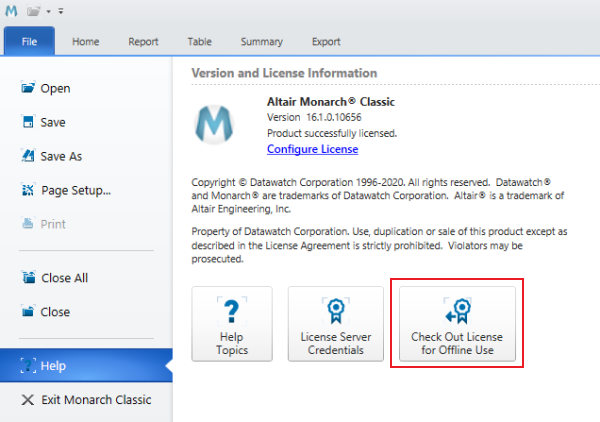
The following dialog displays:
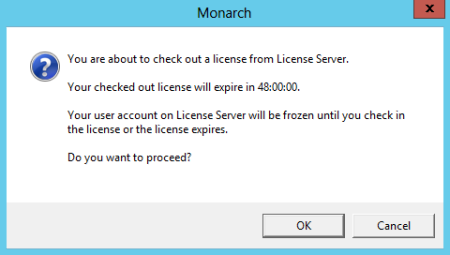
-
Click OK to continue checking out your license.
When the checkout operation is successful, the following message displays.
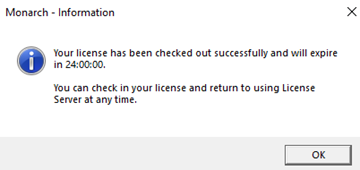
Your account on Monarch License Server will be frozen while your license is checked out (which means you will be unable to use the Monarch License Server to activate your Monarch Classic install). To unfreeze your account, you will need to check the license back in or wait until the license expires.
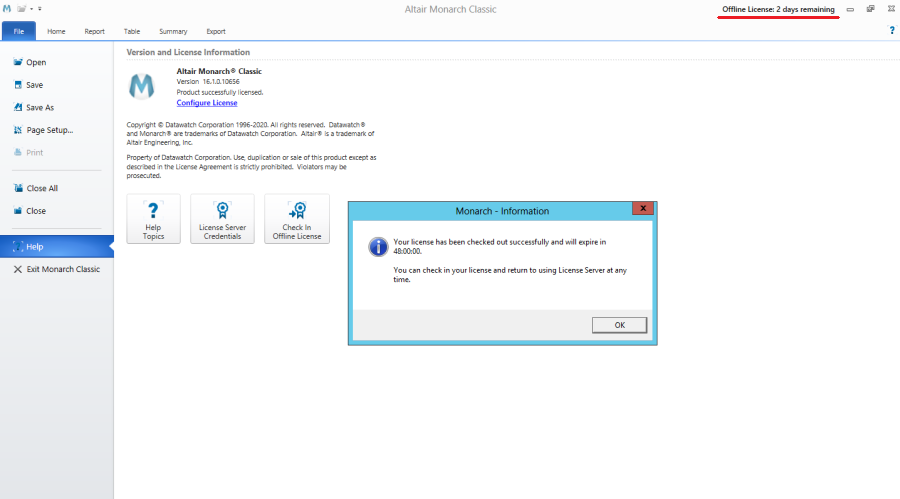
When your license expires, the following dialog displays.
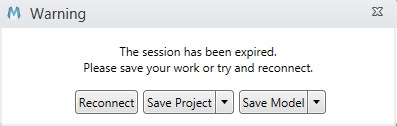
You will need to reconnect to the Altair License Server using to continue working with Monarch Classic.
Checking in a Monarch Complete license
When you check out a Monarch Classic license, you can check it back in any time you wish.
-
Click File > Help > Check In Offline License.
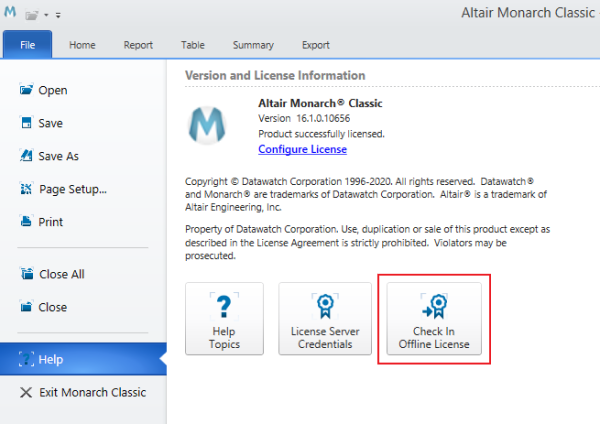
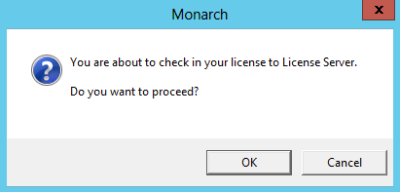
The following dialog displays:
-
Click OK to continue checking in your license.
Note that If your license expires, there is no need to check it back in after checking it out if you reconnect to the Altair License Server.
© 2025 Altair Engineering Inc. All Rights Reserved.