


|
Using Managed Altair Units License via Altair One
Using the Altair Units licensing will support simplifying the license management by removing all manual aspects of emailing license files, extending evaluation periods, among others.
In addition, Altair Units licensing will help small to medium deployment customers who do not want to host on-premise license server.
Before using Altair Units, it is required to configure the following properties in the Panopticon.properties file located in the AppData folder or c:\vizserverdata:
|
|
|
|
Property |
Licensing |
|
Attribute |
license.hwu.hosted |
|
Description |
Boolean stating if you wish to use Managed or Local Altair Units licensing. Set to true if you wish to use managed licensing. |
|
Default Value |
false |
|
Property |
Licensing |
|
Attribute |
license.hwu.hosted.authorization.username |
|
Description |
Username to the Altair One account. |
|
Default Value |
|
|
Property |
Licensing |
|
Attribute |
license.hwu.hosted.authorization.password |
|
Description |
Password to the Altair One account. |
|
Default Value |
|
|
Property |
Licensing |
|
Attribute |
license.hwu.hosted.authorization.token |
|
Description |
An authorization token generated through the Altair One admin portal. Used to authorize a machine to the managed Altair Units system. |
|
Default Value |
|
|
NOTE |
· To use the managed Altair Units licensing, set the following properties: license.hwu.hosted=true license.mode=HWU authentication.required=true license.hwu.version=20.0 · Add the Panopticon application to your Altair One account. |
To authorize the machine against the managed Altair Units system, you have two options.
Option 1
Use an authorization code generated through Altair One:
1. Log on to Altair One (https://admin.altairone.com) then navigate to User Profile and select Authorized Machines.
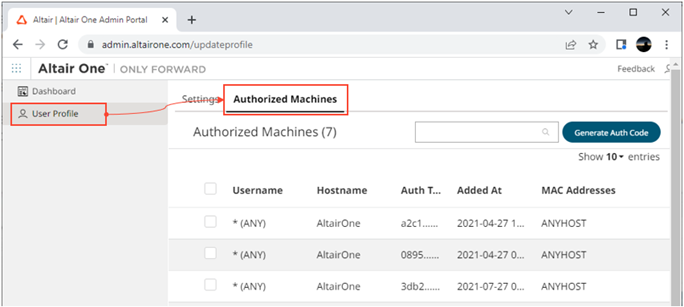
2. Click
 .
.
The page displays the auth code and a timer indicating the code’s expiration.
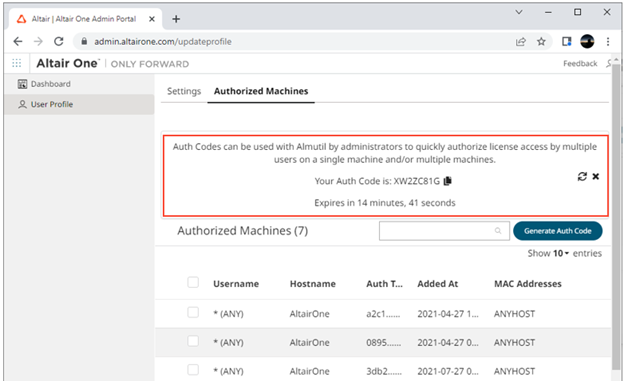
Click
Copy to Clipboard  to copy the generated auth
code.
to copy the generated auth
code.
3. Paste the generated code into the license.hwu.hosted.authorization.token property in the Panopticon.properties file.
4. Start the server.
Option 2
Directly use your Altair One credentials in Panopticon.properties:
1. Enter your Altair One credentials into the license.hwu.hosted.authorization.username and license.hwu.hosted.authorization.password properties in the Panopticon.properties file.
2. Start the server.
|
NOTE |
· If a token is entered, this will be tried first. If the token was invalid or not present, and credentials are present, the credentials will be used to authorize the machine towards the managed Altair Units system. · In Option 1, the generated auth code is only valid for 15 minutes and you should restart your server within that timeframe to properly get access to your licenses. · In Option 2, Altair One credentials are only required at first restart of the server to generate the auth token and should be removed from the Panopticon.properties file going forward to avoid exposing these credentials. · A working Internet connection is required to use Altair Units licensing. · If your company uses proxy, you might need to add exception in your proxy to allow access to the Managed Altair Licenses. Please refer to this link for more information: https://community.altair.com/kb_view.do?sys_kb_id=bb9bf3fc97205590e3b0361e6253af03 Or see Managed Altair Units License SSL Error section below. · If you don’t have an Altair One account, you can sign up for a free trial that will allow you to test the product for 14 days. |