


|
Data Library Toolbar and Context Menu
The Data Library page has a toolbar and context menus that allow you to:
q Data Library Context Menu
|
NOTE |
The Extract Bundle option is not available for data extracts. |
q Data Library Toolbar

q Data Library Folder Context Menu

The Data Table toolbar options include:
|
Toolbar Option |
Description |
|
Display data tables either by List View or Grid View. |
|
|
Copy a data table to permissioned folder. |
|
|
Move a data table to permissioned folder. |
|
|
Import or merge workbooks. |
|
|
Clear the earlier imported data and import again to the data store. |
|
|
Remove |
Remove data tables. |
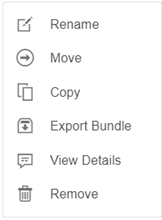
The Data Table Context Menu options include:
|
Toolbar Option |
Description |
|
Rename |
Rename a data table. |
|
Move a data table to permissioned folder. |
|
|
Copy a data table to permissioned folder. |
|
|
Export a bundle of the data table including the data files. |
|
|
View Details |
View the details of the data table which include connector or data tables used, workbook usages, Date/Time last modified, and the user who did the last change. |
|
Remove |
Remove data tables. |
The Data Library Folder Context Menu options include:
|
Toolbar Option |
Description |
|
Rename |
Rename a folder under your workspace. |
|
New Folder |
Create a new data table folder and assign the allowed or denied groups and users. |
|
New Data Table |
Create a new data table. |
|
New Joined Data Table |
Create a new joined data table. |
|
Permissions |
Define the allowed or denied subfolder or personal folder permissions. |
|
Export Bundle |
Export a bundle of a data table including the data files. |
|
Import Bundle |
Import a bundle of a folder including the data tables. |
|
Remove |
Remove folder. NOTE: Folders can be deleted if they do not contain any data. |