|
Aligning or Distributing Dashboard Parts
Selected dashboard parts can be automatically aligned (by row or column) or distributed (horizontally or vertically).
Steps:
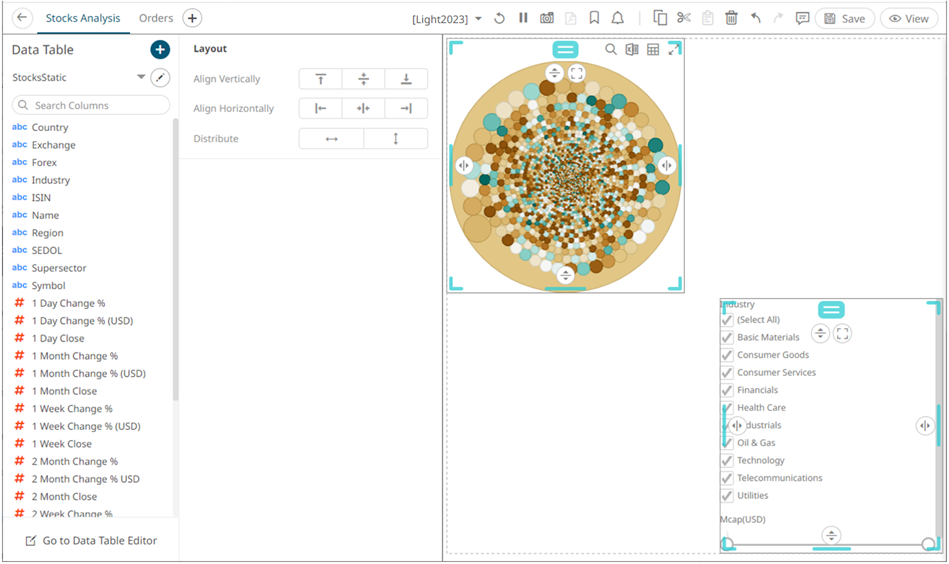
1. Click a dashboard part then use then use the Ctrl key to select more. The selected dashboard parts are highlighted, and the Layout pane is displayed.
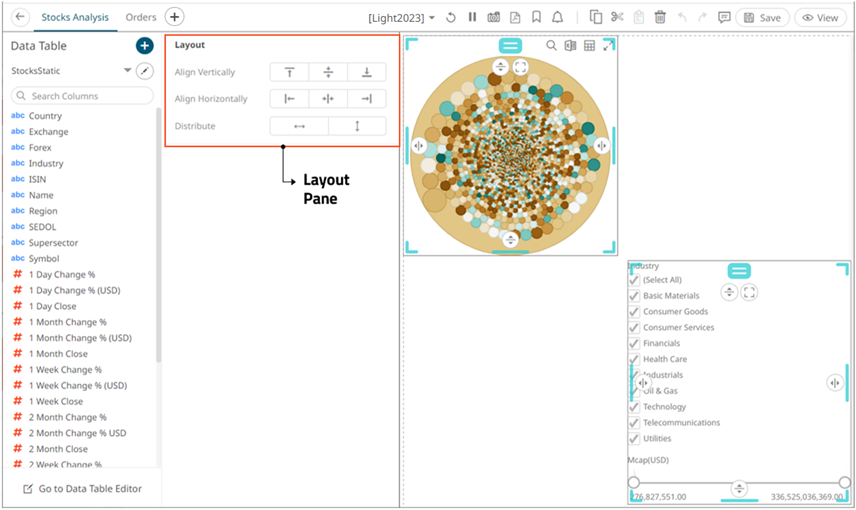
2. On the Layout pane, click any of these options:
· Align Vertically Top 
The selected dashboard parts are aligned at the top of the dashboard canvas.
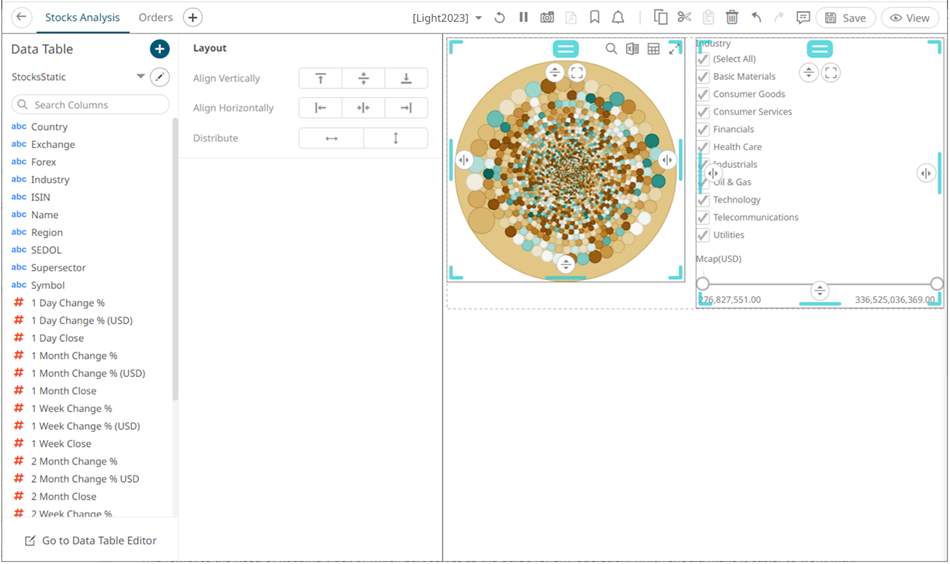
· Align Vertically Center 
The selected dashboard parts are aligned at the vertical center of the dashboard canvas.
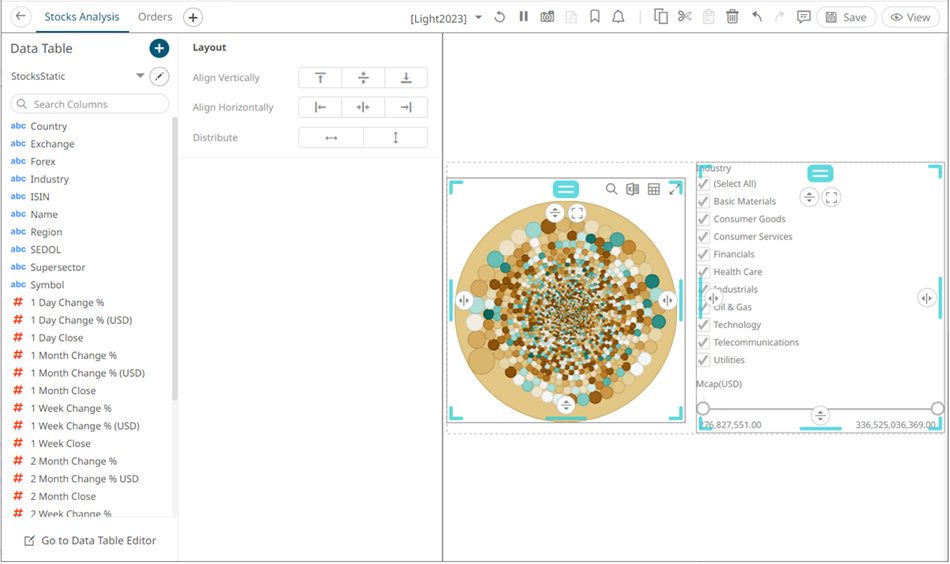
· Align Vertically Bottom 
The selected dashboard parts are aligned at the bottom of the dashboard canvas.

· Align Horizontally Left 
The selected dashboard parts are aligned at the left of the dashboard canvas.
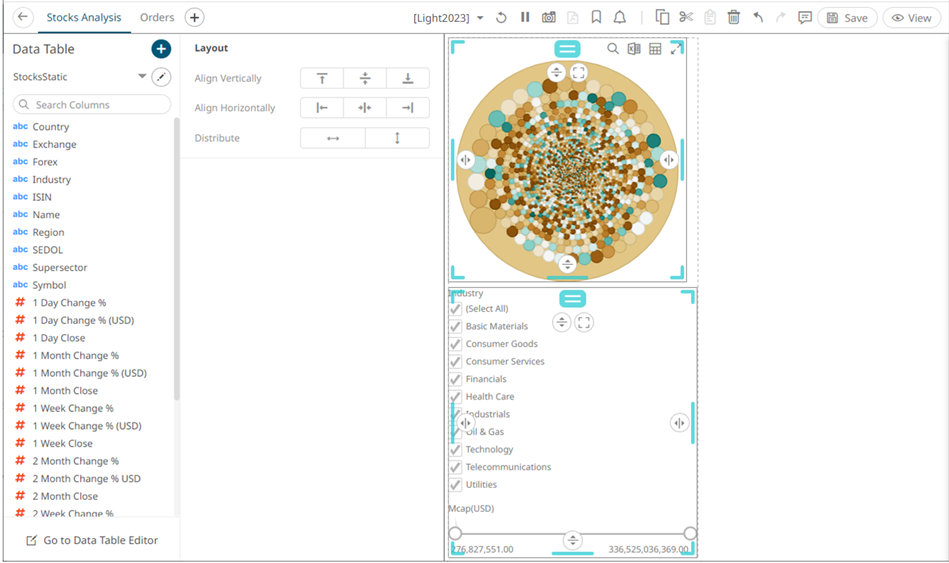
· Align Horizontally Center 
The selected dashboard parts are aligned at the horizontal center of the dashboard canvas.
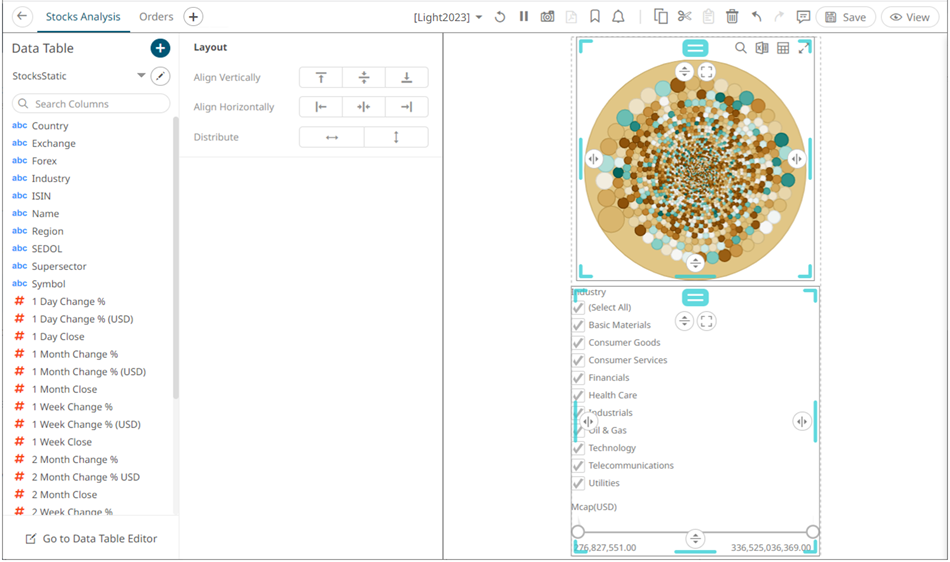
· Align Horizontally Right 
The selected dashboard parts are aligned at the right of the dashboard canvas.
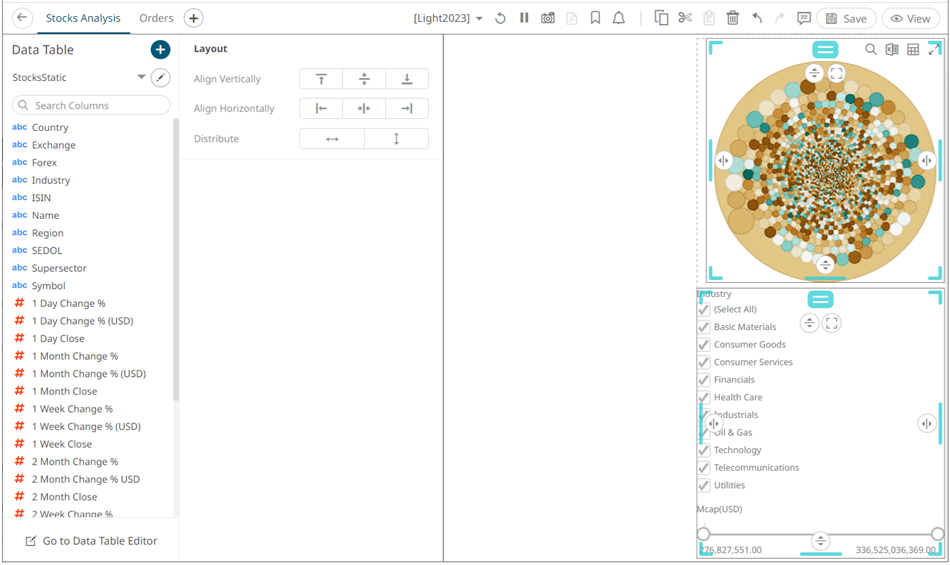
· Distribute Horizontally 
Adjusts the size of dashboard parts to be distributed horizontally in the dashboard. You can then opt to align in row or column.
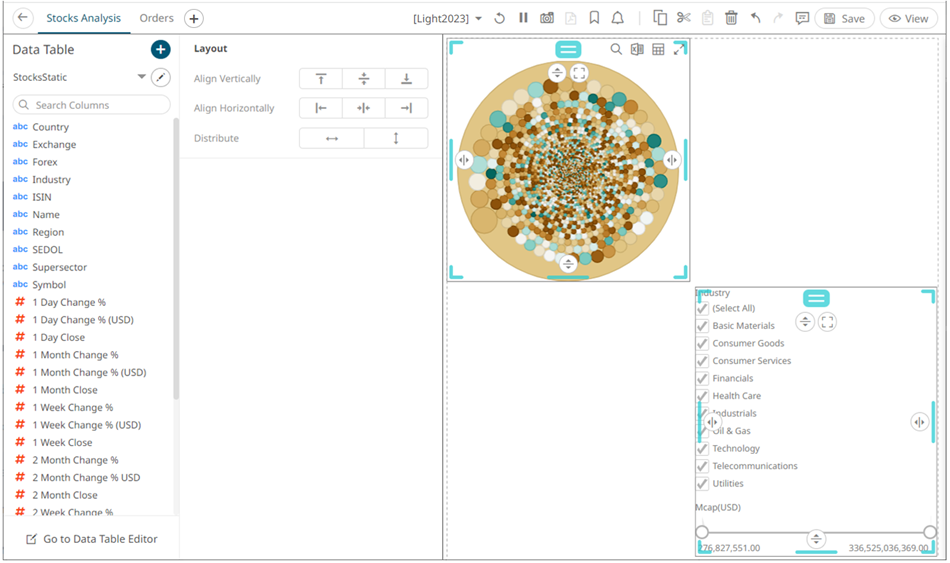
· Distribute Vertically 
Adjusts the size of dashboard parts to be distributed vertically in the dashboard. You can then opt to align in row or column.