


|
Adding a Tabbed Panel
Allows you to add a tabbed panel within a dashboard where visuals can be assigned to each tab.
Steps:
1. After double-clicking or drawing a rectangle
on the dashboard canvas, click  on
the Select Part pane then click the Tab Panel
on
the Select Part pane then click the Tab Panel
 icon.
icon.
The tabbed panel is displayed on the dashboard with the first tab (i.e., New Tab 1).
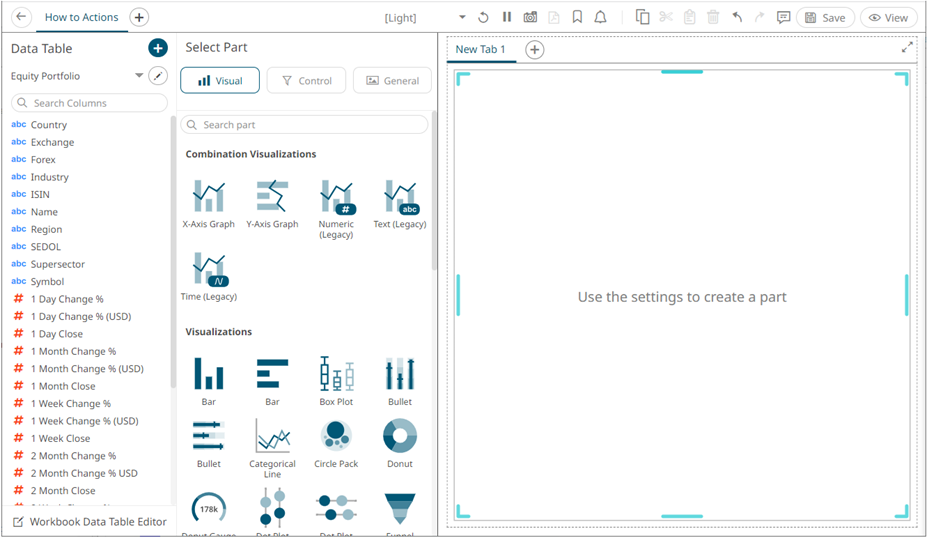
2. You can opt to define the name or title of the tab by doing one of the following:
· Double-click on the tab and enter the name or title, or
· Right-click on the tab and select Rename. Then enter the name or title.
3. Add visualizations on the panel as needed.
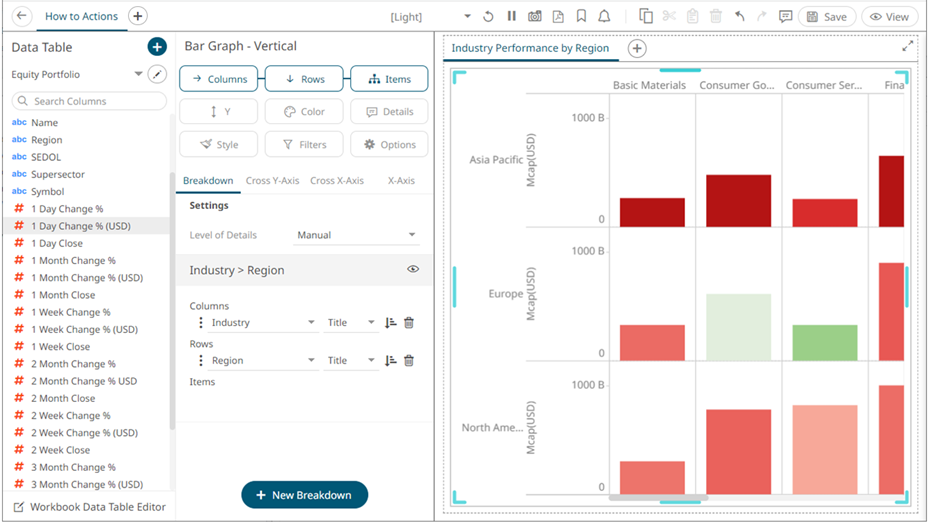
4. Click Add Tab  to add a new tab.
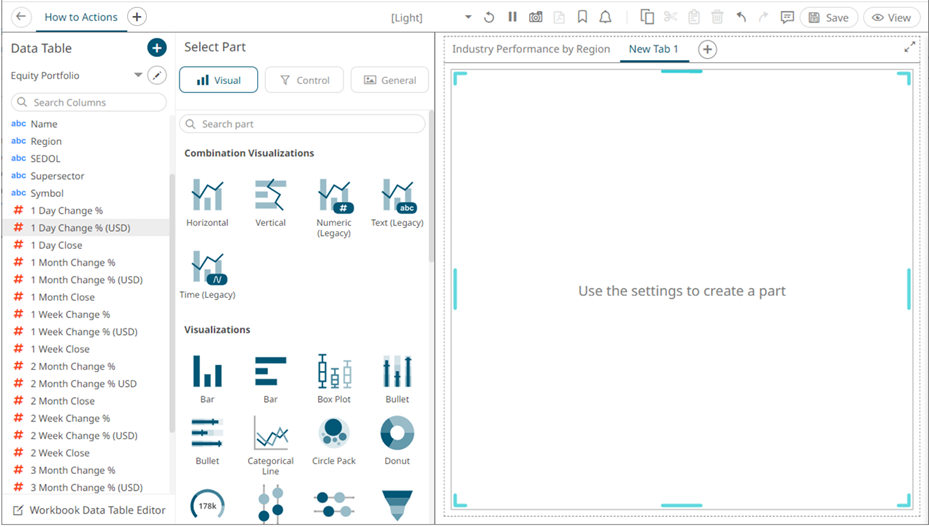
5. Repeat steps 2 to 4 to define and add more tabbed panels.
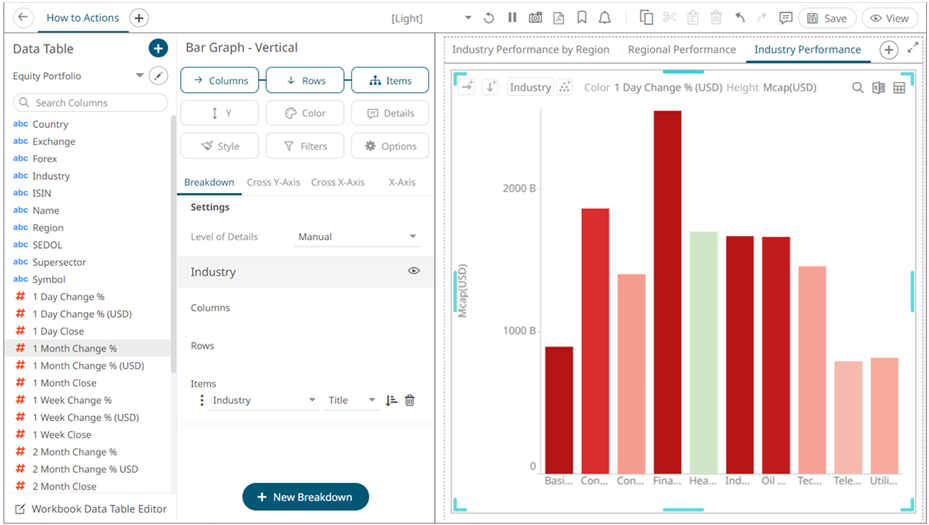
6. You can also opt to do any of the following:
· Rearrange the order of the tabs.
· Delete a tab by right-clicking on it and selecting Remove in the context menu.
7. Click the Save icon
on the toolbar to save the changes.
icon
on the toolbar to save the changes.