Managed Licensing
Altair Units is a cloud-based license management system that enables greater flexibility with your Altair licenses. Integrated with Altair One, Altair Units allow you to seamlessly access your Altair licenses with just an internet connection.
-
Launch Google Chrome and then go to the Altair One Admin Portal at https://admin.altairone.com. Log in with your credentials.
-
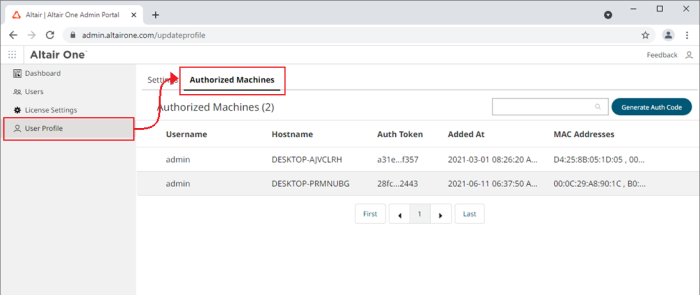
Once logged in to the portal, navigate to User Profile > Authorized Machines.
-
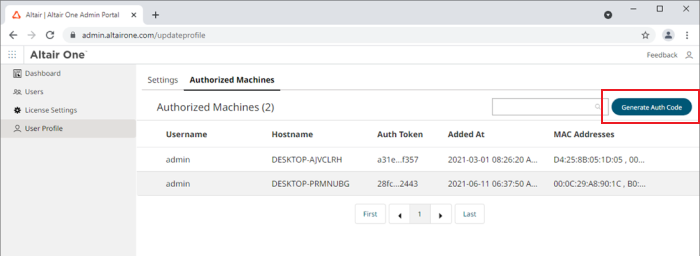
Click Generate Auth Code.
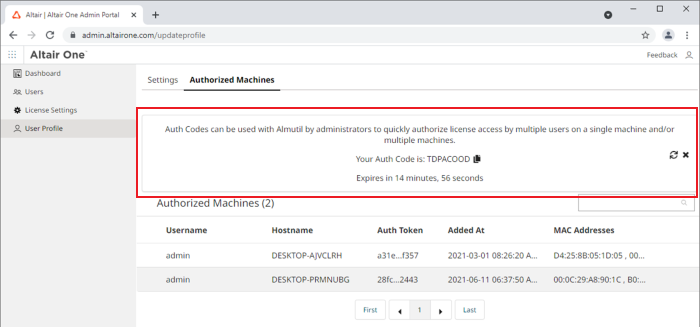
The page refreshes to display the authorization code and a countdown of time left for authorization.
-
In the Altair Monarch License Manager, ensure that the Managed Licensing tab is selected in the Altair Units License Configuration screen and then click the Configure button .
-
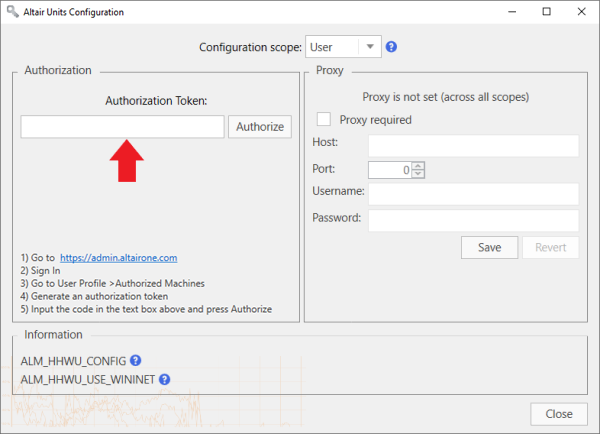
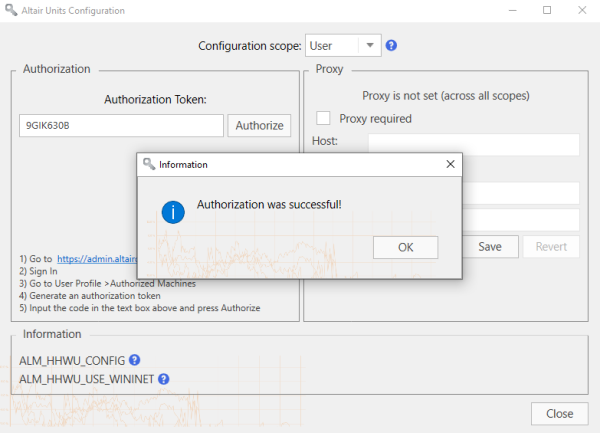
In the Altair Units Configuration screen that displays, enter the Authorization Code you received in Step 3 into the field provided and then click Authorize.
If your machine is properly authorized, the following message displays.
-
Click OK and then close the screen when you are finished.
-
If you wish to enable license checkout (i.e., allow users to “check out” or “borrow” their license so that they can work with the Monarch applications offline), enter a maximum number of hours users can check out their license into the Advanced > Borrowing Duration field.
-
Choose an Optimization type (ideally ML or Auto) from the options available.
The Optimization setting reduces the time required by the licensing process to validate your license by instructing the application which target licensing platform to use as a licensing source. This setting is ignored if the “ALM_HHWU” environment variable is defined on your machine.
-
Click Connect in the Altair License Server Connection screen.
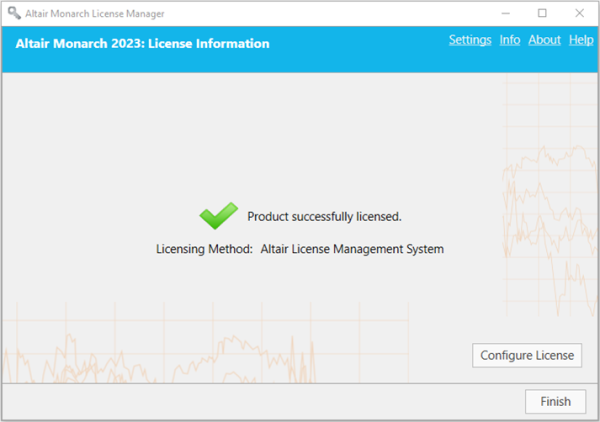
Monarch is successfully activated.
(c) 2023 Altair Engineering Inc. All Rights Reserved.