Parameter Editor
The parameters which can be modified are:
-
The particle-particle interactions
-
The particle-geometry interactions
-
The physics model parameters and options
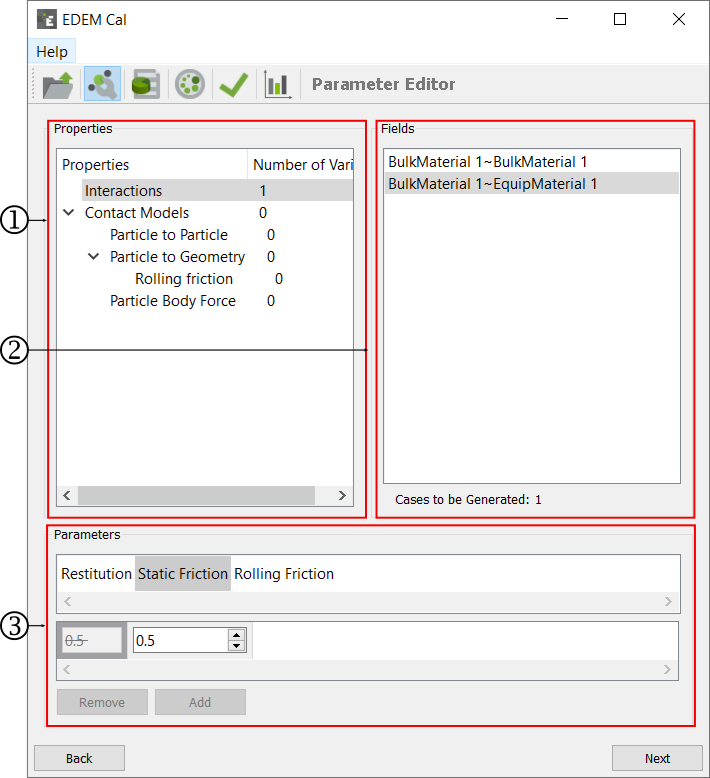
The Parameter Editor comprises the following sections - Properties, Fields, and Parameters.
The Properties section
The Properties section is populated depending on the settings in the prototype Simulation Deck. The interaction option will allow users to modify the parameters defined in the Interactions Properties of the Bulk Material and Equipment Material interface of EDEM. The Contact Models section allows users to modify the parameters defined in the Contact Model specified in the prototype simulation deck. EDEM Cal does not allow you to change the Contact Model specified in the prototype simulation deck.
When a Parameters is selected to be modified the 'Number of Variances' column will be updated to indicate how many values will be changed.
The Fields section
Selecting a property in the properties section will populate the Fields section. The Fields section allows you to select the specific interaction to be modified or a setting in the Contact Model. For interaction based parameters, the specific bulk material-bulk material/equipment material combination is listed.
The 'Cases to be generated' value is updated depending on the number of parameters varied. This is the number of combinations from the parameters that you have selected to modify.
The Parameters section
Once a property and field has been selected the Parameters option will be updated. This will be reflective of the current value in the prototype deck. There may be more than one parameter which can be changed. Selection the appropriate parameter will allow you to vary that specific parameter. Clicking the Add will discard the original value and instead use the newly defined value. It is possible to add multiple values in this interface. Selecting a value and clicking remove will delete a value. By default, adding a new value will overwrite the original value, there is no need to remove that value. To include the original value in the calibration, re-add that value to be used in the calibration.
(c) 2023 Altair Engineering Inc. All Rights Reserved.