API Guide for Users
However, the usage for writing and compiling a plug-in is not included in this Guide.
- Copy the compiled API plug-in .dll file into either the working directory of an EDEM deck, or into the relevant folder specified within Tools > File Locations.
- For a contact model this is within the folder listed under Tools > File Locations > Contact Models.
- For a particle body force this is within the folder listed under Tools > File Locations > Particle Body Force.
- If there is an associated preference file with the plug-in, ensure that the preference file resides with the .dll file too.
- Once the .dll (and any supporting files) has been moved into one of the locations listed above, select the relevant interaction type for the plug-in (Particle to Particle, Particle to Geometry, Particle Body Force).
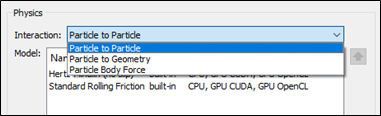
- Select Edit Contact Chain.
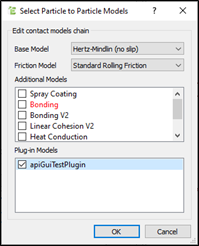
- Select the checkbox next to the plug-in name in Plug-in Models and click OK.
- Select the plug-in in the Model window and then click the
 icon at the bottom-right hand corner.
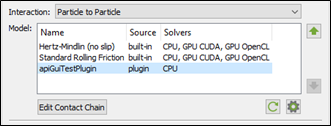
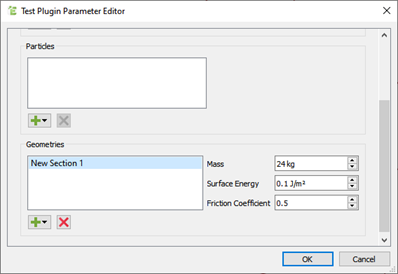
- The Test Plugin Parameter Editor dialog box corresponds with the parameters available for editing within the plug-in.
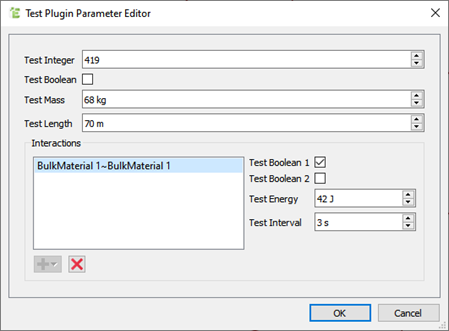
- Certain parameters may be specified independently for each particle/geometry, or for each particle/geometry material pair interaction.
These parameters will be displayed after adding the desired element by clicking the icon.
icon.
- For certain parameters that may be defined in tabulated format, click the
 icon to add a row, or the
  icon to remove a row.
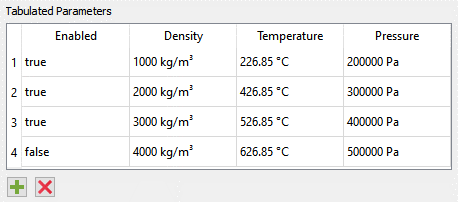
- Double-click on a parameter value to edit it.
Values can also be copy/pasted to and from an Excel Spreadsheet.
Plug-ins may enforce a minimum number of rows.
(c) 2023 Altair Engineering Inc. All Rights Reserved.