Creating a New Shape Palette
- Click Add Palette
 .
.
A new shape palette displays (i.e., ShapePalette.0).
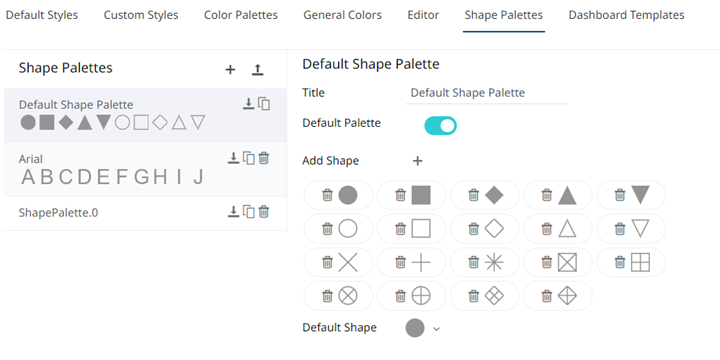
- Click ShapePalette.<Number>.
The page changes to allow the definition of the new shape palette.
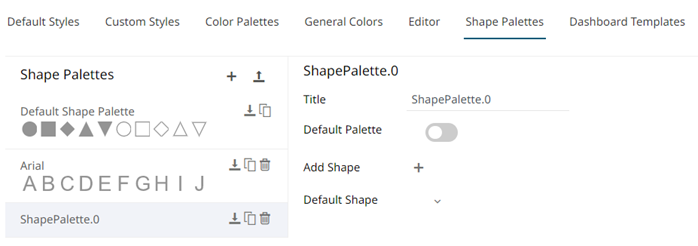
- Enter the shape palette's Title and click
 .
. - To make this shape palette the default for the workbook theme, tap the Default Palette slider to turn it on.
The default shape palette can not be deleted. - To add the shapes, click .
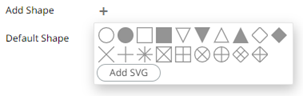
You can either:
- Click on a shape
- Click
 . Select one or more SVG files in the Open dialog box that displays.
The added shapes are displayed.
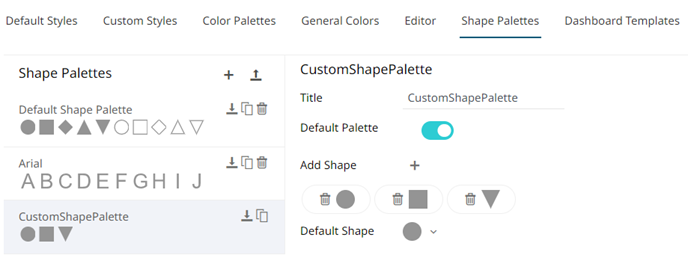
To delete a shape, click its corresponding Delete
 icon.
icon. - Select the Default Shape in the drop-down list.
- Click Save
 .
.
(c) 2023 Altair Engineering Inc. All Rights Reserved.