


|
Creating a MQTT Output Connector
Allows publishing of data to external MQTT topic.
Steps:
1. On the Data Source tab, select Output > MQTT in the Connector drop-down list.
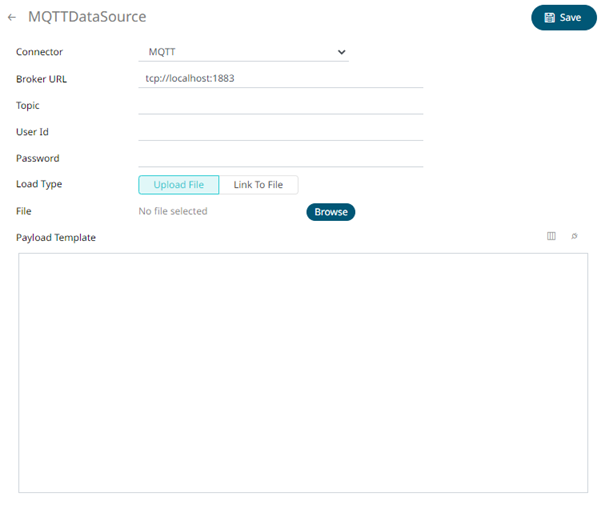
2. Define the following properties:
|
Property |
Description |
|
Broker URL |
The location of the message broker. Default is tcp://localhost:1883 |
|
Topic |
The topic or the queue physical name. Can be parameterized. |
|
User Id |
The user Id that will be used to connect to MQTT. |
|
Password |
The password that will be used to connect to MQTT. |
|
Payload Template |
The template that will be rendered to generate the payload. Can be parameterized with output schema columns. |
3. To allow the encrypted connections, upload or link to the CA Certificate file.
You can either:
· Upload a data source snapshot by clicking Upload File
 then
Browse
then
Browse  to browse to the CA Certificate.
After selecting the file, it is displayed with the timestamp of the snapshot.
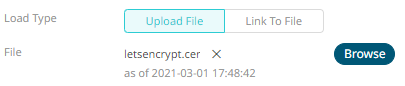
To change the CA Certificate,
click  then
Browse to browse to a new version
of the file.
then
Browse to browse to a new version
of the file.
· Link to a CA Certificate file by clicking Link to
File  and
entering the path.
and
entering the path.

Ensure that in a cluster, you need to use a a shared path, or put it on every node and use a path that resolves on every node. You can update its contents whenever you want.
4. You can also click any of the following buttons:
|
Button |
Description |
|
|
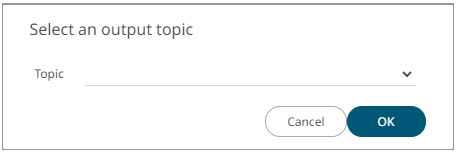
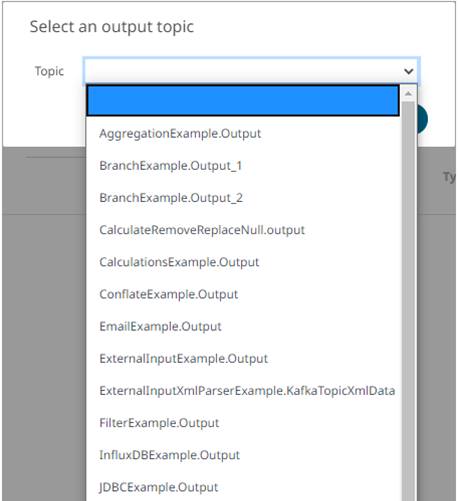
Allows you to select an output topic in the drop-down list.
Click |
|
|
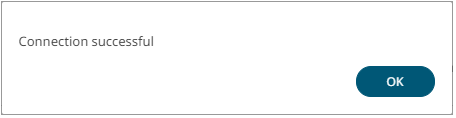
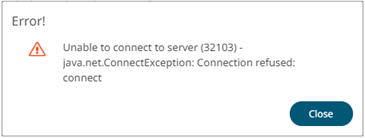
Tests if the connection to the output connector is successful. If successful, a confirmation message displays.
Click Otherwise, an error prompt displays.
Click |




5. Click  .
The new data source is added in the Data Sources list.
.
The new data source is added in the Data Sources list.