


|
Creating Amazon Kinesis – Data Streams Data Source
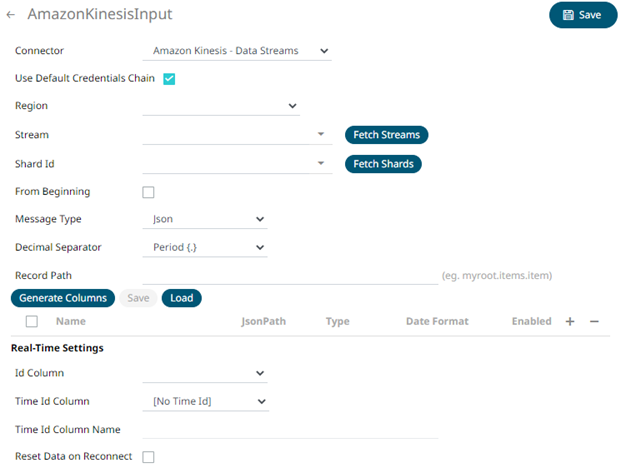
The Amazon Kinesis – Data Streams connector reads records from the given data stream and Shard ID.
Steps:
1. In the New Data Source page, select Input > Amazon Kinesis – Data Streams in the Connector drop-down list.
2. You can either:
· check the Use Default Credentials Chain box to use the default Access Key ID and Secret Key Access, or
· uncheck the Use Default Credentials Chain box and enter the Access Key ID and Secret Key Access

|
NOTE |
The Access Key ID and Secret Key Access from the AWS account can be configured in three places: · Two properties at the Streams.properties file which is available in the AppData folder of the Panopticon Streams Server o connector.kinesis.datastreams.accesskeyid o connector.kinesis.datastreams.secretaccesskey If this is the used configuration, the Use Default Credentials Chain box is not displayed in the connector UI.
This is the recommended way to provide the credentials.
· AWS credentials provider chain o Environment Variables - AWS_ACCESS_KEY_ID and AWS_SECRET_ACCESS_KEY o Credential profiles file at the default location - ~/.aws/credentials on Linux, macOS, or Unix, and C:\Users\USERNAME\.aws\credentials on Windows.
· Dedicated fields in the connector Not the recommended configuration.
|
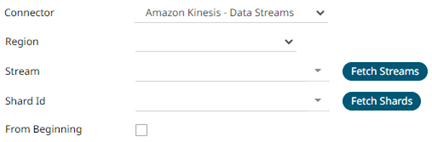
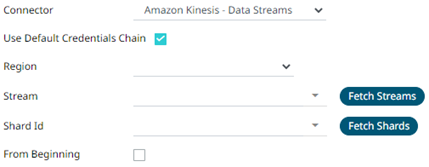
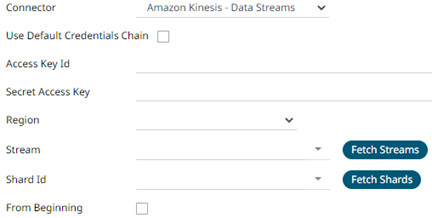
3. Select or define the following properties:
|
Property |
Description |
|
Region |
Physical location of the data center. The list is picked up from the Amazon Kinesis Data Streams Endpoints and Quotas page. |
|
Stream |
Name of the stream from where you want to
pull the data. Click Fetch Streams |
|
Shard Id |
Each connector instance or data source is
connected to only one shard. Click Fetch Shards
|
|
From Beginning |
The starting position in the data stream from which to start streaming. Default value is unchecked, which means LATEST. When checked, the starting position is set to TRIM_HORIZON. |
 to
load all of the available streams from the AWS account.
to
load all of the available streams from the AWS account.
|
NOTE |
All of the connection settings can be parameterized.
|
4. Select the Message Type.
5. Select either the dot (.) or comma (,) as the Decimal Separator.
|
NOTE |
Prepend 'default:' for the elements falling under default namespace.
|
6. Click  to the fetch the schema based
on the connection details. Consequently, the list of columns with
the data type found from inspecting the first ‘n’ rows of the input
data source is populated and the Save button is enabled.
to the fetch the schema based
on the connection details. Consequently, the list of columns with
the data type found from inspecting the first ‘n’ rows of the input
data source is populated and the Save button is enabled.
7. You can also opt to load or save a copy of the column definition.
8. Click  to add columns to the Amazon Kinesis
– Data Streams connection that represent sections of the message.
Then enter or select:
to add columns to the Amazon Kinesis
– Data Streams connection that represent sections of the message.
Then enter or select:
|
Property |
Description |
|
Name |
The column name of the source schema. |
|
Fix Tag/JsonPath/Text Column Index/XPath |
The Fix Tag/JsonPath/Text Column Index/XPath of the source schema. |
|
Type |
The data type of the column. Can be a Text, Numeric, or Time |
|
Date Format |
The format when the data type is Time. |
|
Enabled |
Determines whether the message field should be processed. |
|
NOTE |
To parse and format times with higher than millisecond precision, the format string needs to end with a period followed by sequence of lower case Fs. There can be no additional characters following them. For example: yyyy-MM-dd HH:mm:ss.ffffff
|
To
delete a column, check its  or
all the column entries, check the topmost , then
click
or
all the column entries, check the topmost , then
click  .
.
9. If the Type is set to Text, it will be listed in the ID column drop-down list box and can be used to select a key column to manage data updates and inserts.
Every message definition needs a Text column to be defined as the ID column.
Furthermore, streaming time series window can be generated by creating a compound key with the ID column, plus a separately specified Time ID Column. The Time ID Column can be from the source data set, or alternatively automatically generated.
If the Time ID Column is selected, a scrolling time window can be specified.

For Automatic Time Id, define the Time Id Column Name.
As new data arrives from the subscription, new time slices will automatically be added and the old ones will be deleted.
If a new ID is received, a new row is added to the in-memory data set representing the AMPS topic subscription. However, if an existing ID is received, an existing row is updated.
10. Check the Reset Data on Reconnect box to flush out the stale data and reload data after reconnection.
11. Click  . The
new data source is added in the Data Sources list.
. The
new data source is added in the Data Sources list.