


|
Creating Stream Simulator Input Data Source
The Stream Simulator connector is very similar to the Text connector with the addition of the time windowing of message queue connectors.
Creating the Stream Simulator input data source includes setting for how fast and how many messages are pushed through in each batch.
Steps:
1. In the New Data Source page, select Input > Stream Simulator in the Connector drop-down list.
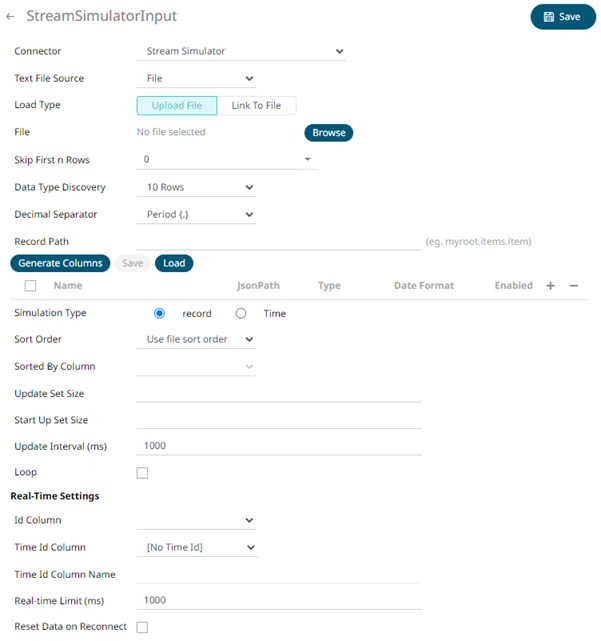
2. Select the Text File Source:
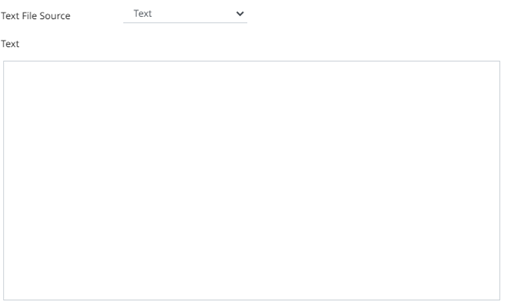
· Text
Enter the text block to be parsed.
· File
You can either:
¨ Upload a data source snapshot by clicking Upload File
 then
Browse
then
Browse  to browse to the file source.
After selecting the file, it is displayed with the timestamp of the snapshot.
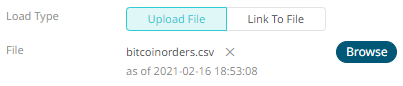
To change the data source,
click  then
Browse to browse to a new version
of the file.
then
Browse to browse to a new version
of the file.
¨ Link to a data source file by clicking Link to File
 and
entering a Text File Path.
and
entering a Text File Path.
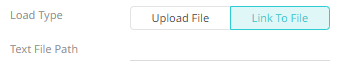
Ensure that in a cluster, you need to use a a shared path, or put it on every node and use a path that resolves on every node. You can update its contents whenever you want.
· WebURL
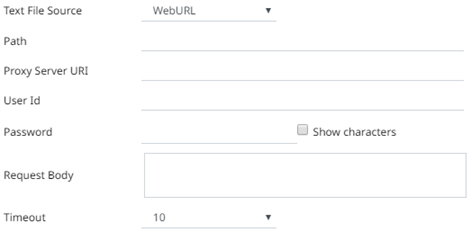
The dialog changes slightly to allow specification of the following:
|
Property |
Description |
|
Path |
The location of the message broker. |
|
Proxy Server URI |
The HTTP Proxy setting that will allow the Stream Simulator connector to reach the endpoint |
|
User Id |
The user Id that will be used to connect to Stream Simulator. |
|
Password |
The password that will be used to connect to Stream Simulator. Check the Show Characters box to display the entered characters. |
|
Request Body |
The Request Body for the HTTP POST. |
|
Timeout |
The length of time to wait for the server response (10 to 300). Default is 10. |
The standard settings controlling how the text file is parsed, is listed.
These include:
|
Property |
Description |
|
Skip First N Rows |
Specifies the number of rows that will be skipped. |
|
Data Type Discovery |
Specifies how many rows from the text file should be used when automatically determining the data types of the resulting columns. |
|
Decimal Separator |
Select either the period (.) or comma (,) as the decimal separator. |
|
Text Qualifier |
Specifies if fields are enclosed by text qualifiers, and if present to ignore any column delimiters within these text qualifiers. |
|
Column Delimiter |
Specifies the column delimiter to be used when parsing the text file. |
|
First Row Headings |
Determines if the first row should specify the retrieved column headings, and not be used in data discovery. |
3. Click  to the fetch the schema based on the connection
details. Consequently, the list of columns with the data type found
from inspecting the first ‘n’ rows of the input data source is populated
and the Save button is enabled.
to the fetch the schema based on the connection
details. Consequently, the list of columns with the data type found
from inspecting the first ‘n’ rows of the input data source is populated
and the Save button is enabled.
4. You can also opt to load or save a copy of the column definition.
5. You can opt to click  . A
new column entry displays. Enter or select the following properties:
. A
new column entry displays. Enter or select the following properties:
|
Property |
Description |
|
Name |
The column name of the source schema. |
|
Column Index |
The column index controls the position of a column. Must be >= 0. |
|
Type |
The data type of the column. Can be a Text, Numeric, or Time |
|
Date Format |
The format when the data type is Time. |
|
Filter |
Defined parameters that can be used as filter. |
|
Enabled |
Determines whether the message should be processed. |
To delete a column,
check its  or
all the column entries, check the topmost , then click
or
all the column entries, check the topmost , then click  .
.
6. Select the Simulation Type:
· Record
Sends the number of records for each interval of time. By default, records are sent in the same order of the source.
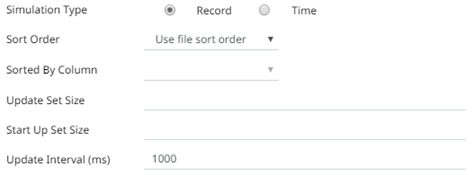
This simulation type allows the specification of the following:
¨ Sort Order
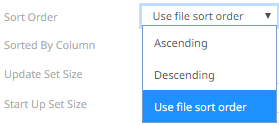
When you select the Use file sort order, it will use the default sorting order of the file.
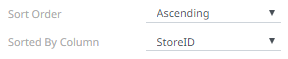
When you either select Ascending or Descending as the Sort Order, this enables the Sorted by Column drop down list.
Select the column that will be used for the sorting.
¨ Update Set Size
The number of records set to be updated during simulate/playback.
¨ Start Up Set Size
The number of records set to be published initially (on start-up).
¨ Update Interval (ms)
The update interval period for the record-based playback. Default is 1000 (ms).
· Time
Simulates records as they occur in real-time.

This simulation type allows the specification of the following:
¨ Playback Column
The playback column which is a Date/Time type.
¨ Playback Speed
A multiplier which to either speed up or slow down the playback. Default is 1.
o If 0 < value < 1 slow down
o If value = 1 records will be published as they occur
o if value > 1 speed up
|
NOTE |
For time-based simulation, if the Date/Time column have improper dates, it will fail and stop.
|
7. Select the ID Column.
This defines the column that uniquely identifies a row in the returned stream, and is used for processing inserts, updates and deletes.
By default, only the latest data will be loaded into memory. A streaming time series window can be generated by creating a compound key with the Id Column, plus a separately specified Time ID column. This Time ID column can be from the source dataset, or alternatively automatically generated.
If the Time Id column is selected, then a scrolling time window can be specified. As new data arrives from the subscription new time slices will automatically be added, and old ones will be deleted.

For Automatic Time Id, define the Time Id Column Name.
8. Modify the Real-time Limit to vary the data throttling. This defaults to 1000 milliseconds.
9. Check the Loop box to enable looping through the file.
10. Check the Reset Data on Reconnect box to flush out the stale data and reload data after reconnection.
11. Click  .
The new data source is added in the Data Sources list.
.
The new data source is added in the Data Sources list.