


|
Creating Solace Input Data Source
The Solace connector allows connection to Solace’s message bus on a real time streaming basis. Specifically, the connector allows Panopticon Streams to subscribe to messages that are published in particular topics in Solace and consequently, perform operational analytics.
Steps:
1. In the New Data Source page, select Input > Solace in the Connector drop-down list.
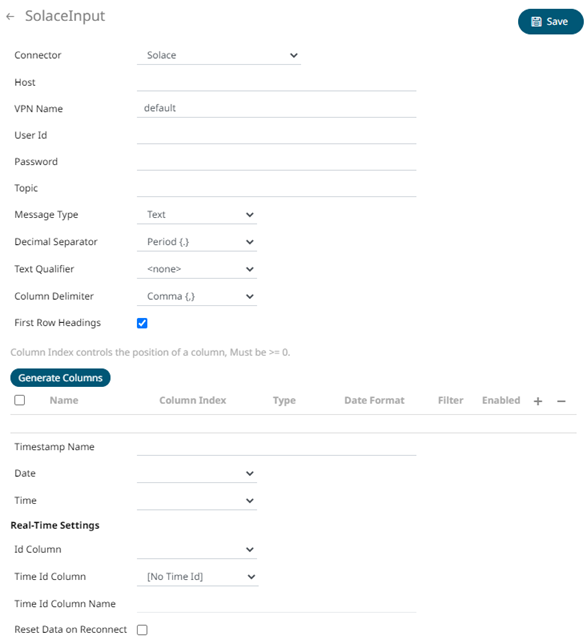
2. Enter the connection details including:
|
Property |
Description |
|
Host |
Solace host address. |
|
VPN Name |
Message VPN name. Default is default. |
|
User Id |
The user Id that will be used to connect to Solace. |
|
Password |
The password that will be used to connect to Solace. |
3. Enter the Topic or the queue physical name.
4. Select the Message Type. This will specify the format of the data within the message.
5. Select either the period (.) or comma (,) as the Decimal Separator.
|
NOTE |
Prepend 'default:' for the elements falling under default namespace.
|
6. Click  to
the fetch the schema based on the connection details. This populates
the list of columns with the data type found from inspecting the first
‘n’ rows of the input data source.
to
the fetch the schema based on the connection details. This populates
the list of columns with the data type found from inspecting the first
‘n’ rows of the input data source.
7. You can opt
to click  to
add columns to the Solace connection that represent sections of the
message. Then enter or select:
to
add columns to the Solace connection that represent sections of the
message. Then enter or select:
|
Property |
Description |
|
Name |
The column name of the source schema. |
|
Type/JsonPath/Column Index/XPath |
The SDTMap Type/JsonPath/Text Column Index/XPath of the source schema. |
|
Type |
The data type of the column. Can be a Text, Numeric, or Time |
|
Date Format |
The format when the data type is Time. NOTE: To parse and format times with higher than millisecond precision, the format string needs to end with a period followed by sequence of lower case Fs. There can be no additional characters following them. For example: yyyy-MM-dd HH:mm:ss.ffffff |
|
Filter |
Defined parameters that can be used as filter. Only available for JSON, Text, and XML message types. |
|
Enabled |
Determines whether the message field should be processed. |
To
delete a column, check its  or
all the column entries, check the topmost ,
then click
or
all the column entries, check the topmost ,
then click  .
.
8. To create a new Timestamp field, enter a new Timestamp Name and then select the valid Date/Time from either a single Date or Time field, or a compound column created from Date and Time fields.
9. If the Type is selected as Text, it will be listed in the Id Column drop-down list box and can be used to select a key column to manage data updates and inserts.
Note: Every message definition needs a text column to be defined as the ID column. By default, only the latest data will be loaded into memory.
Furthermore, a streaming time series window can be generated by creating a compound key with the Id Column, plus a separately specified Time ID column. This Time ID column can be from the source dataset, or alternatively automatically generated.
If the Time Id column is selected, then a scrolling time window can be specified.

For Automatic Time Id, define the Time Id Column Name.
As new data arrives from the subscription new time slices will automatically be added, and old ones will be deleted.
If a new ID is received, a new row is added to the in-memory data set representing the ActiveMQ topic subscription. While if an existing ID is received, an existing row is updated.
10. Check the Reset Data on Reconnect box to flush out the stale data and reload data after reconnection.
11. Click  . The
new data source is added in the Data Sources list.
. The
new data source is added in the Data Sources list.