


|
Creating ksqlDB - Streaming Input Data Source
The ksqlDB - Streaming connector allows executing ksqlDB push queries.
Steps:
1. In the New Data Source page, select Input > ksqlDB - Streaming in the Connector drop-down list.
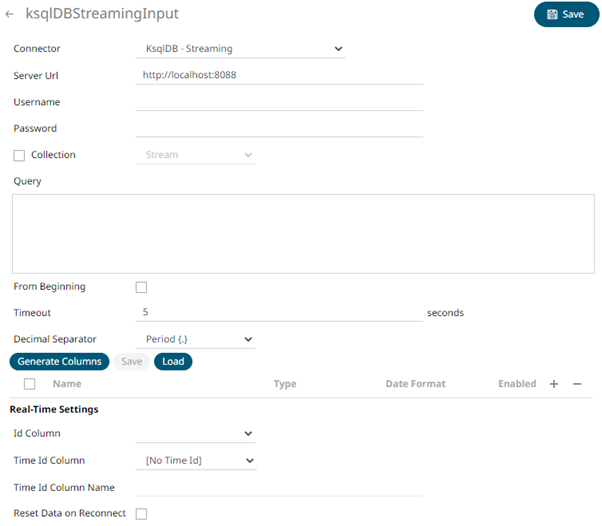
2. Enter the following properties:
|
Property |
Description |
|
Server URL |
ksqlDB - Streaming host address. |
|
Username |
User Id that will be used to connect to ksqlDB - Streaming. |
|
Password |
Password that will be used to connect to ksqlDB - Streaming. |
3. Check the Collection box to enable and select either:
· Stream
Immutable and append-only collections which are useful for representing a series of historical facts. Adding multiple events with the same key allows these events to be appended to the end of the stream.
· Table
Mutable collections. Adding multiple events with the same key allows the table to only keep the value for the last key. This collection is helpful in modeling change over time and often used to represent aggregations.
4. Click
 to
populate the drop-down list. Select the collection.
to
populate the drop-down list. Select the collection.
5. Enter an SQL-like query language into the Query box.
6. Check the From Beginning box to subscribe from the beginning to the latest messages.

If un-checked, you will only be subscribed to the latest messages.
7. Enter the Timeout. Default is 5 (in seconds).
8. Select either the dot (.) or comma (,) as the Decimal Separator.
9. Click  to
the fetch the schema based on the connection details. Consequently,
the list of columns with the data type found from inspecting the first
‘n’ rows of the input data source is populated and the Save
button is enabled.
to
the fetch the schema based on the connection details. Consequently,
the list of columns with the data type found from inspecting the first
‘n’ rows of the input data source is populated and the Save
button is enabled.
10. You can also opt to load or save a copy of the column definition.
11. Click  .
A new column entry displays. Enter or select the following properties:
.
A new column entry displays. Enter or select the following properties:
|
Property |
Description |
|
Name |
The column name of the source schema. |
|
Type |
The data type of the column. Can be a Text, Numeric, or Time |
|
Date Format |
The format when the data type is Time. |
|
Enabled |
Determines whether the message should be processed. |
To
delete a column, check its  or
all the column entries, check the topmost ,
then click
or
all the column entries, check the topmost ,
then click  .
.
12. If the Type is selected as Text, it will be listed in the Id Column drop-down list box and can be used to select a key column to manage data updates and inserts.
Note: Every message definition needs a text column to be defined as the ID column. By default, only the latest data will be loaded into memory.
Furthermore, a streaming time series window can be generated by creating a compound key with the Id Column, plus a separately specified Time ID column. This Time ID column can be from the source dataset, or alternatively automatically generated.
If the Time Id column is selected, then a scrolling time window can be specified.

For Automatic Time Id, define the Time Id Column Name.
As new data arrives from the subscription new time slices will automatically be added, and old ones will be deleted.
If a new ID is received, a new row is added to the in-memory data set representing the ActiveMQ topic subscription. While if an existing ID is received, an existing row is updated.
13. Check the Reset Data on Reconnect box to flush out the stale data and reload data after reconnection.
14. Click  . The
new data source is added in the Data Sources list.
. The
new data source is added in the Data Sources list.