


|
Creating Apache Kafka Output Connector
Allows publishing of events to an external Kafka JSON or Avro topic. For Avro, ensure to point towards the schema registry used by the external Kafka cluster.
Steps:
1. On the Data Source tab, select Output > Kafka in the Connector drop-down list.
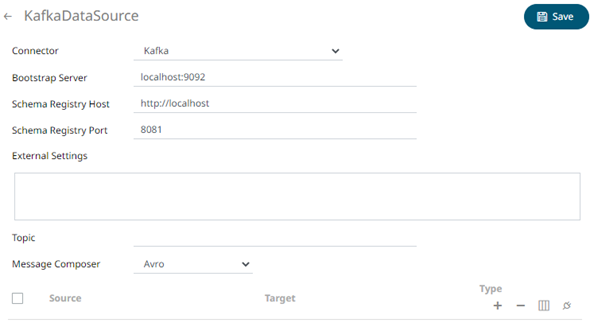
2. Enter or select the following properties:
|
Property |
Description |
|
Bootstrap Server |
List of host/port pairs of Kafka servers used to bootstrap connections to a Kafka cluster. By default, the value is localhost:9092. However, this can be overridden by specifying another bootstrap server in the External Settings text box (as specified in step 3). |
|
Schema Registry Host |
Where the Schema Registry is located. This can be in a different location from the Kafka cluster. |
|
Schema Registry Port |
The port number of the schema registry which provides the serving layer for the metadata. Default is 8081. |
3. Enter the External Settings to support authentication (i.e., username and password). Note that if the bootstrap server is not secure, then there is no need to authenticate and you may leave this text box blank.
Below is an example of system settings for an SASL authentication:

4. Enter the Topic name.
5. Select the Message Composer: Avro or JSON
6. In the Sources section, click
 .
A new source entry is added in the list.
.
A new source entry is added in the list.
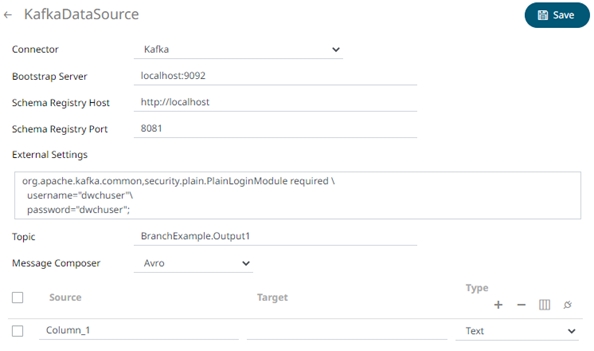
7. Enter or select the following properties:
|
Property |
Description |
|
Source |
The column name of the source schema. |
|
Target |
The column name of the target schema. |
|
Type |
The data type of the column. Can be a Text, Numeric, or Time |
8. Repeat steps 6 and 7 to add more sources.
9. You can also click any of the following buttons:
|
Button |
Description |
|
|
Check the topmost |
|
|
Check the |
|
|
Allows you to select an output topic in the drop-down list.
Click
|
|
|
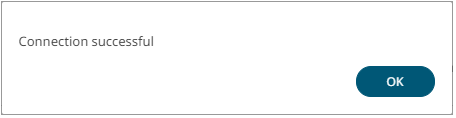
Tests if the connection to the output connector is successful. If successful, a confirmation message displays.
Click
Otherwise, an error prompt displays. Click
|


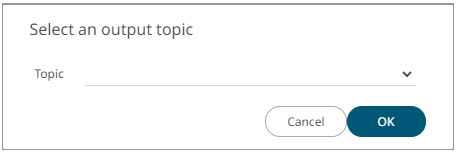
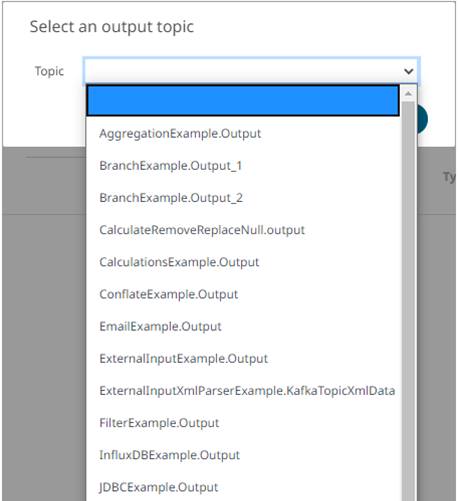
 .
The schema of the selected output topic is displayed.
.
The schema of the selected output topic is displayed.
 and
fix the connection error.
and
fix the connection error.
10. Click  . The new data source is added in the
Data Sources list.
. The new data source is added in the
Data Sources list.