


|
Setting Dashboard Properties
You can set the General settings of a dashboard and the Layout properties of the visualizations.
Set Dashboard Properties
-
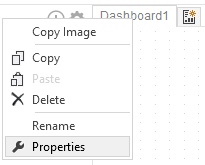
Right-click on the Dashboard tab and select Properties.
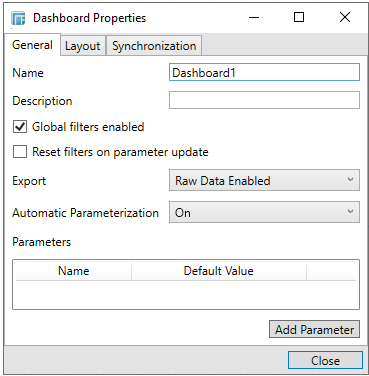
The Dashboard Properties dialog displays.
-
In the General tab, define the Name and Description of the dashboard.
-
Click the Add Parameter button to add parameters.
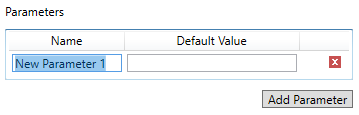
Enter the Name of the parameter and the Default Value. You can also click to delete a parameter in the list.
NOTE: Parameters defined in the data table will be overridden by those in the dashboard properties.
-
Set the Export option:
-
-
Disabled
-
Disables the ability to copy data in a visualization or export raw data.
-
-
Data Enabled
-
Enables the ability to copy the highlighted data in a visualization and paste into another application such as MS Excel.
-
-
Raw Data Enabled (default)
-
Exports the raw data from the data source.
-
You can either set the Automatic Parameterization: On or Off.
-
You can opt to enable the following:
-
-
Global filters enabled
-
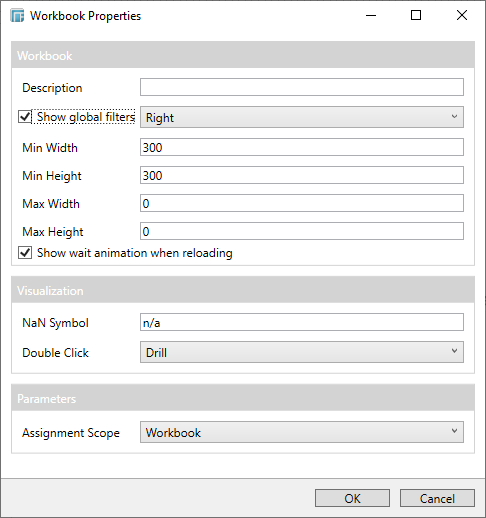
Global filters are displayed in the dashboard when it is set in the Workbook Properties dialog.
-
-
Reset filters on parameter update
-
For example, the following parameters are set:
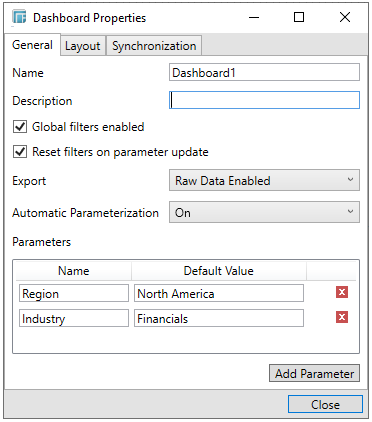
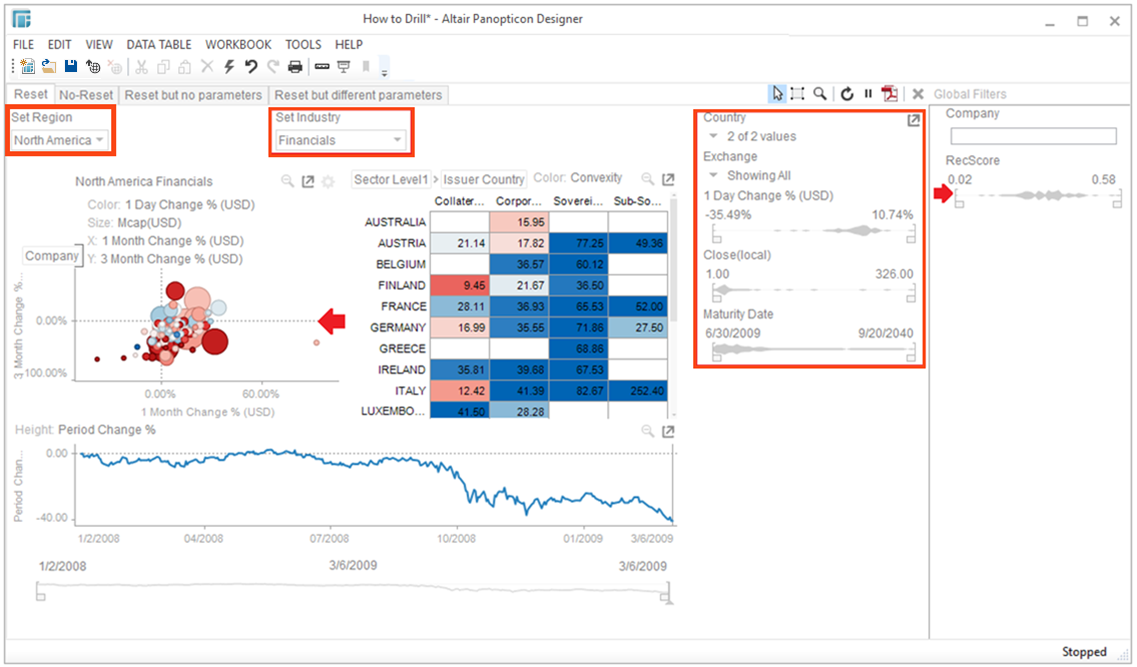
In the dashboard, the filters are automatically applied:
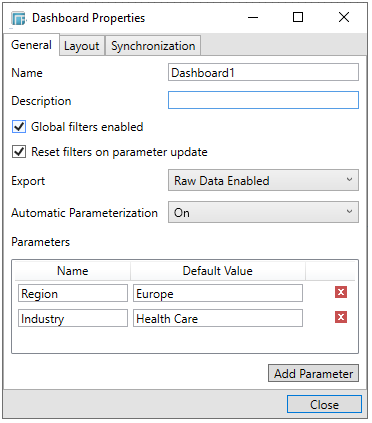
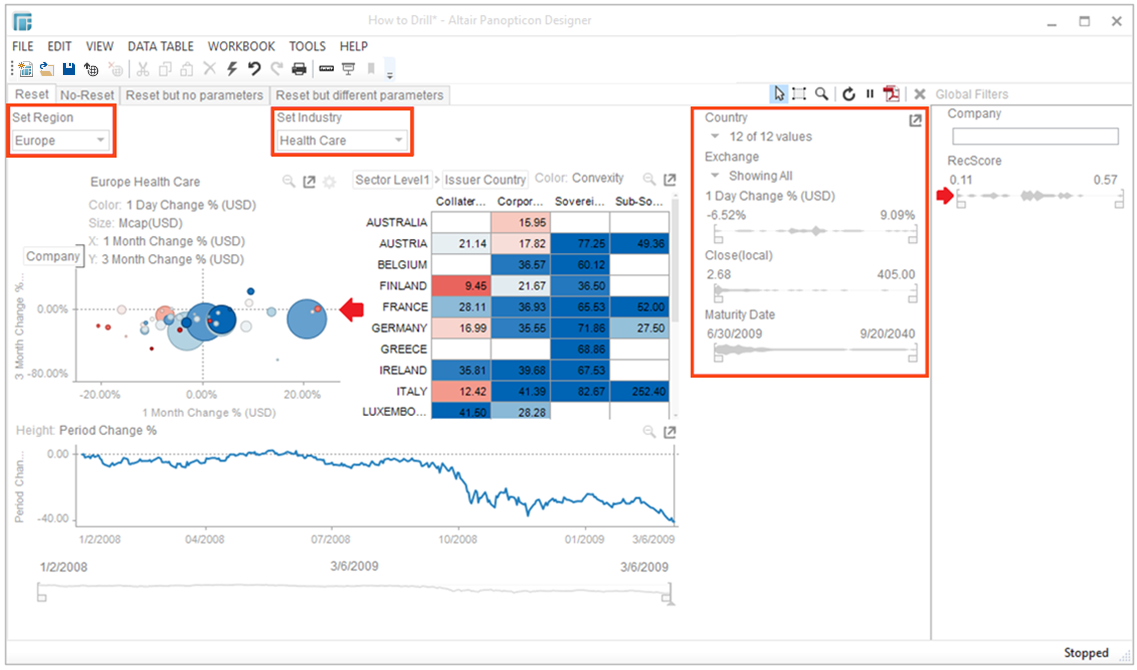
When the parameter default values are updated, the filters are reset accordingly:
-
Configure the layout properties of the visualizations in the whole dashboard using the Relative Layout. You can do so by clicking the Layout tab.
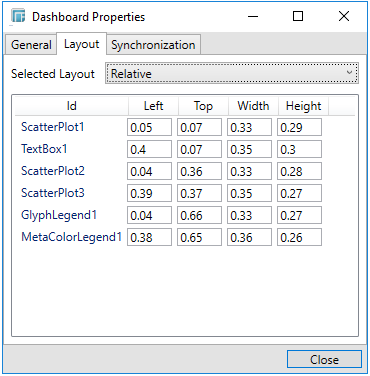
Note that this sample is displayed after adding visualizations in a dashboard. Refer to Adding Visualizations to a Dashboard for more information.
Any item added to a relative dashboard or panel is assigned a relative position compared to the available area.
-
Configure the synchronization properties of the visualizations in the whole dashboard using the Synchronization tab. Refer to Synchronization of the Shared and Visible Variables in the Visualizations of a Dashboard for more information.
-
Click Close.