


|
Creating a New Application
A user with a Designer role can create new applications to folders or subfolders to which they have permission.
Steps:
1. On the Applications tab:
· click  on
the toolbar
on
the toolbar
· right-click on a folder or subfolder and select New Application.
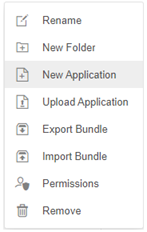
The New Application dialog displays.
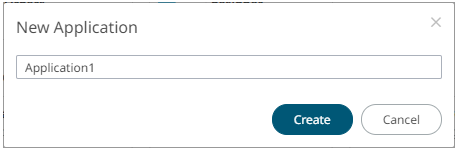
2. Enter the Name of the application
and click  .
.
The Application page displays with the following sections. Initially, the Operator Settings pane is displayed.
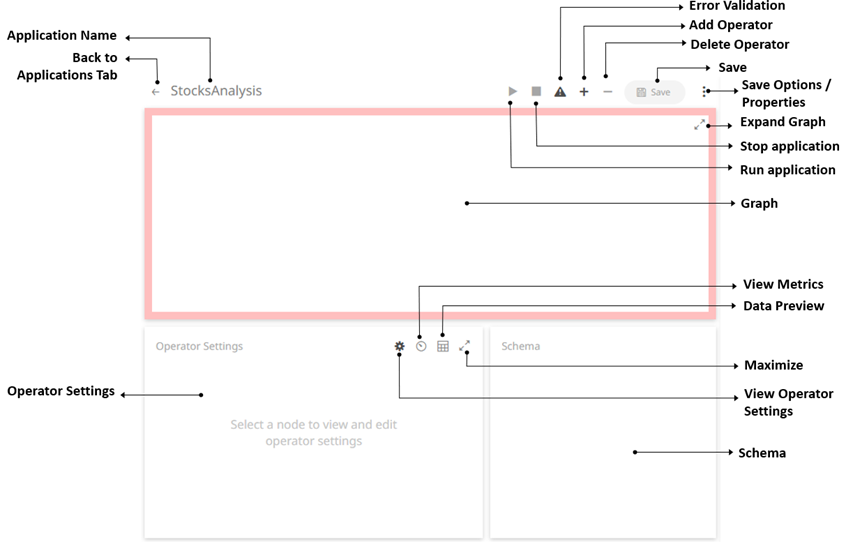
Clicking
 displays
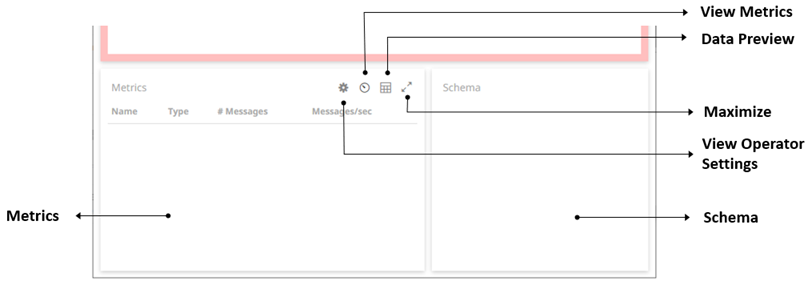
the Metrics pane:
displays
the Metrics pane:
Clicking
 displays
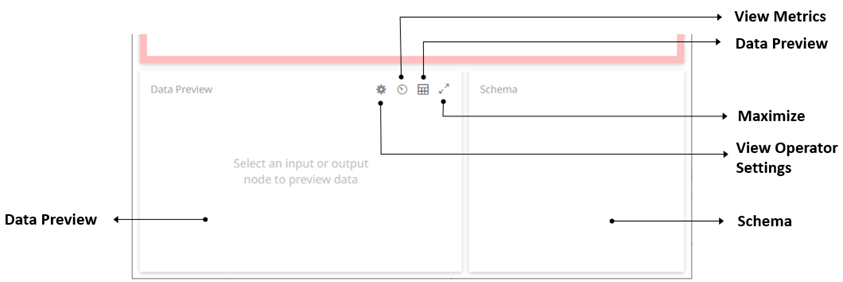
the Data Preview pane. Note that you need to save and run the application to preview the data.
displays
the Data Preview pane. Note that you need to save and run the application to preview the data.
|
Section/Panel |
Description |
|
Application Name |
Name of the application. Click the |
|
Error Validation |
After saving the changes in the application, this allows
error validation. If there are definition issues
(red node) or if there is no traffic on the topic (yellow
node), you can click If
there are no issues, |
|
Add Operator |
The available operators that can be added in the application. |
|
Delete Operator |
Delete the selected operator. |
|
Save |
Save the changes made in the Application page. |
|
Save Options and Properties |
Allow saving of changes made in the application or saving another copy. It also displays the application properties as well as adding new ones. |
|
Expand Graph |
Expand the Graph panel. |
|
Stop Application |
Stop the execution of the application. |
|
Run Application |
Run or execute an application. |
|
Graph |
Display the nodes and edges of the application model. It allows single node selection. |
|
View Metrics |
Display the throughput of the selected nodes (total and current message rates) in the Metrics panel. When the application is running, the metrics data are refreshed. |
|
Data Preview |
Display the retrieved query or table in the Data Preview panel. |
|
Maximize |
Expand the Operator Settings, Metrics, or Data Preview panel. |
|
View Operator Settings |
When an operator has been added or a node is selected in the application graph, the corresponding operator settings are displayed in the Operator Settings panel to allow editing. When the application is running, the operator settings are displayed but are not editable. |
|
Schema |
Display the preview of the data. |
 button to go back
to the Applications listing page.
button to go back
to the Applications listing page. to
help fix the errors.
to
help fix the errors.